Sharing and exporting
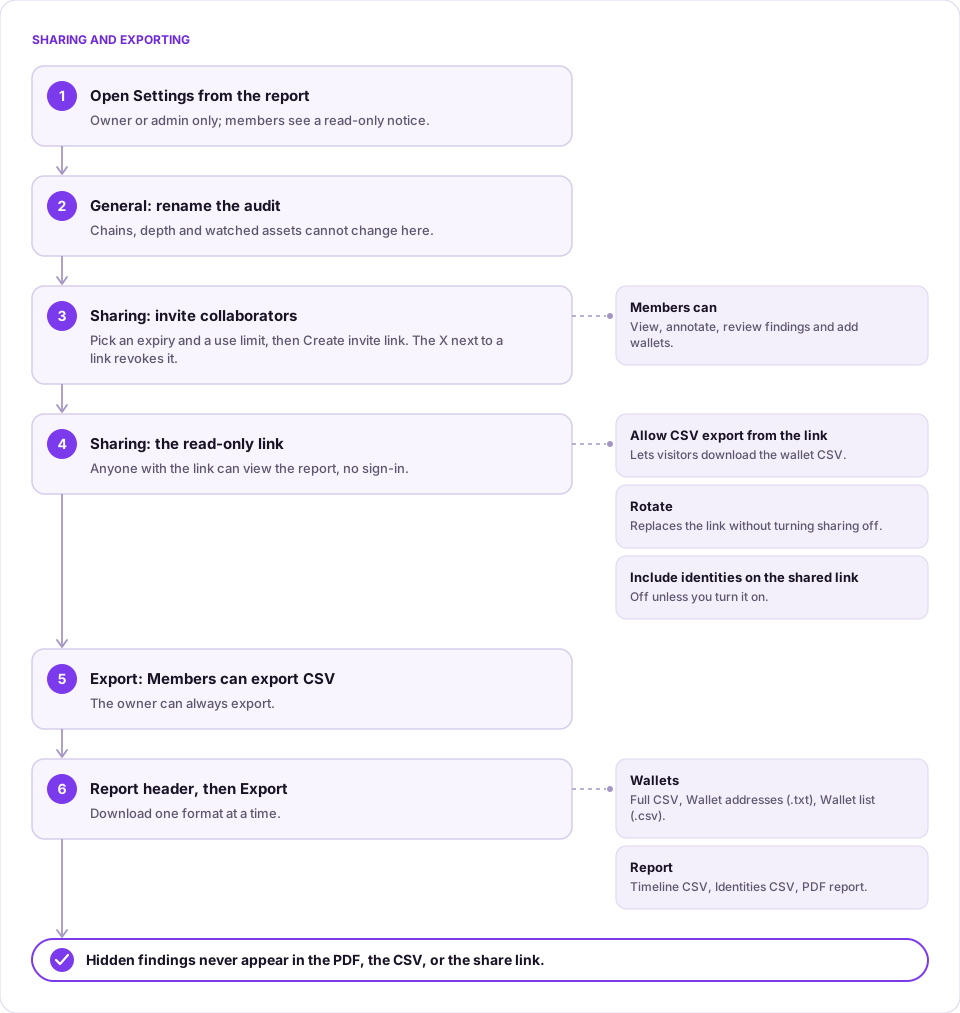
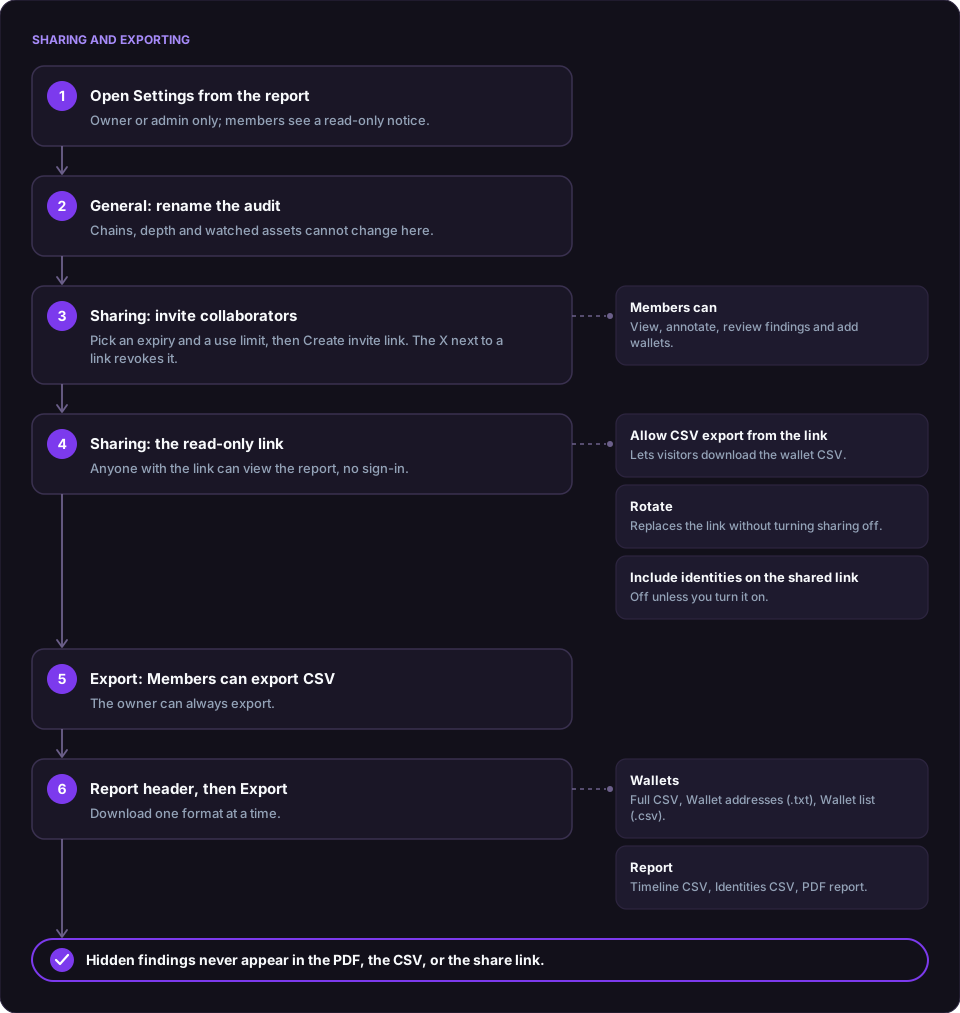
An audit's settings cover its name, who else can work on it, and a public read-only link. Its report can be downloaded in several formats, one at a time, from the header's Export menu.
Steps
-
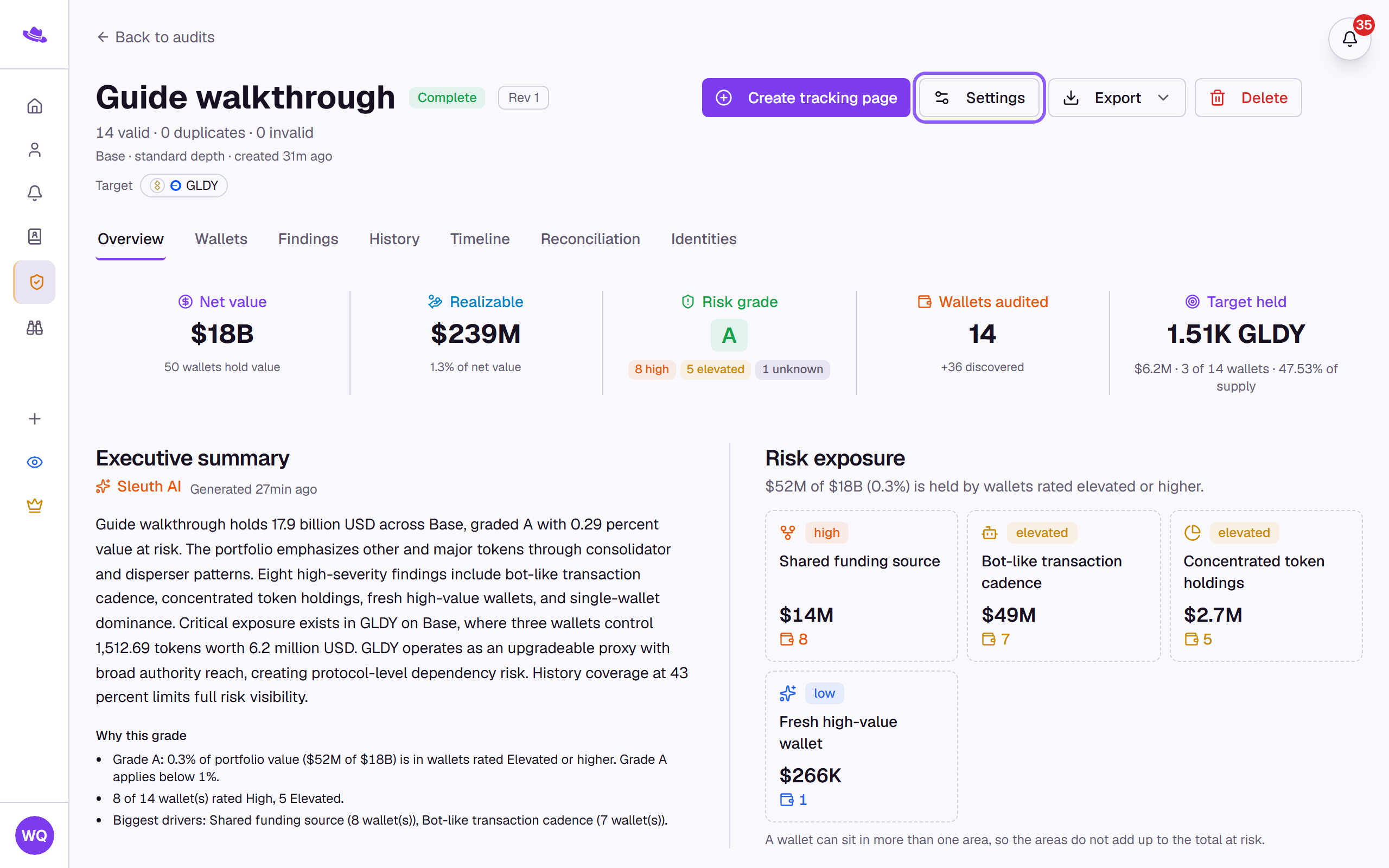
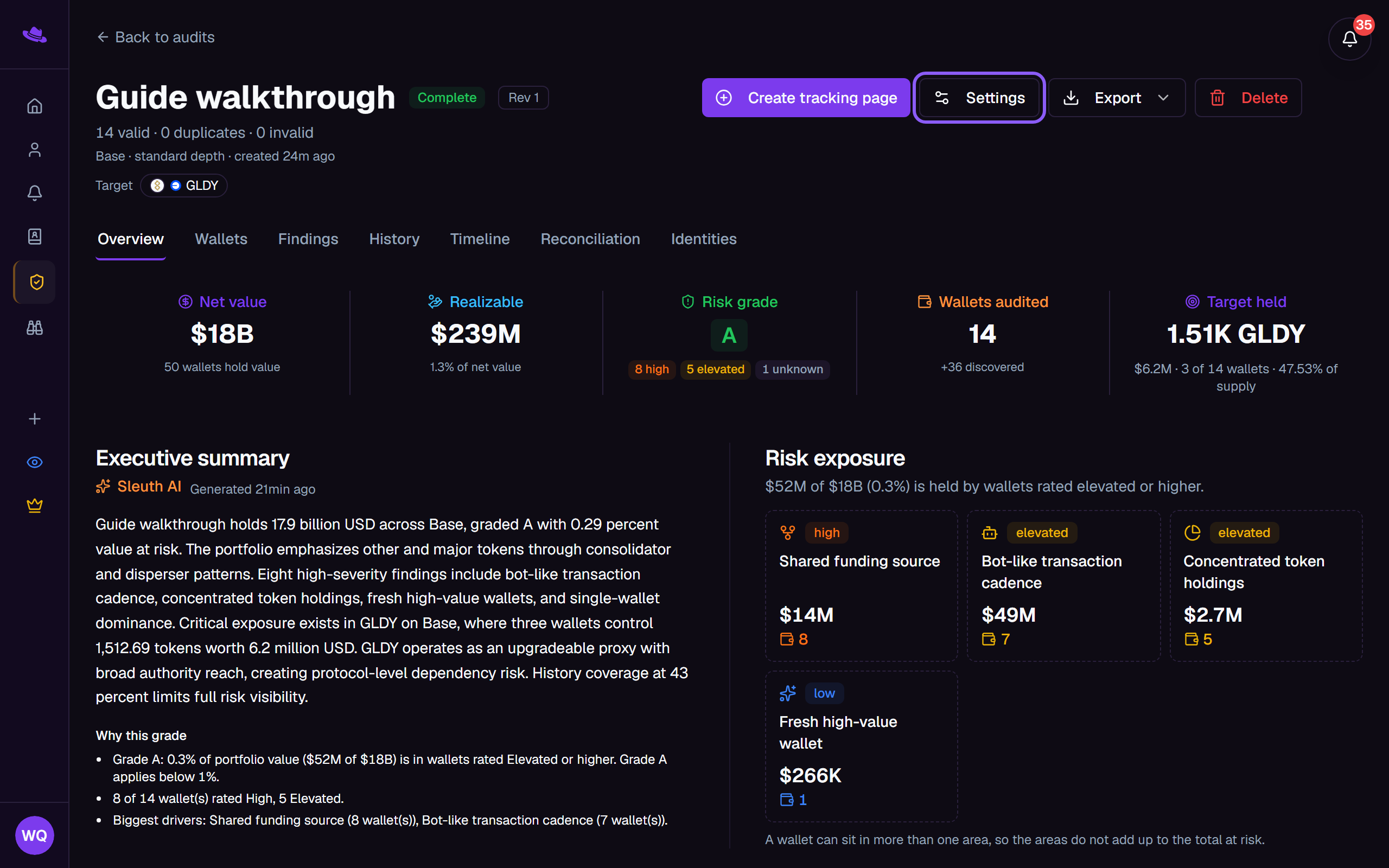
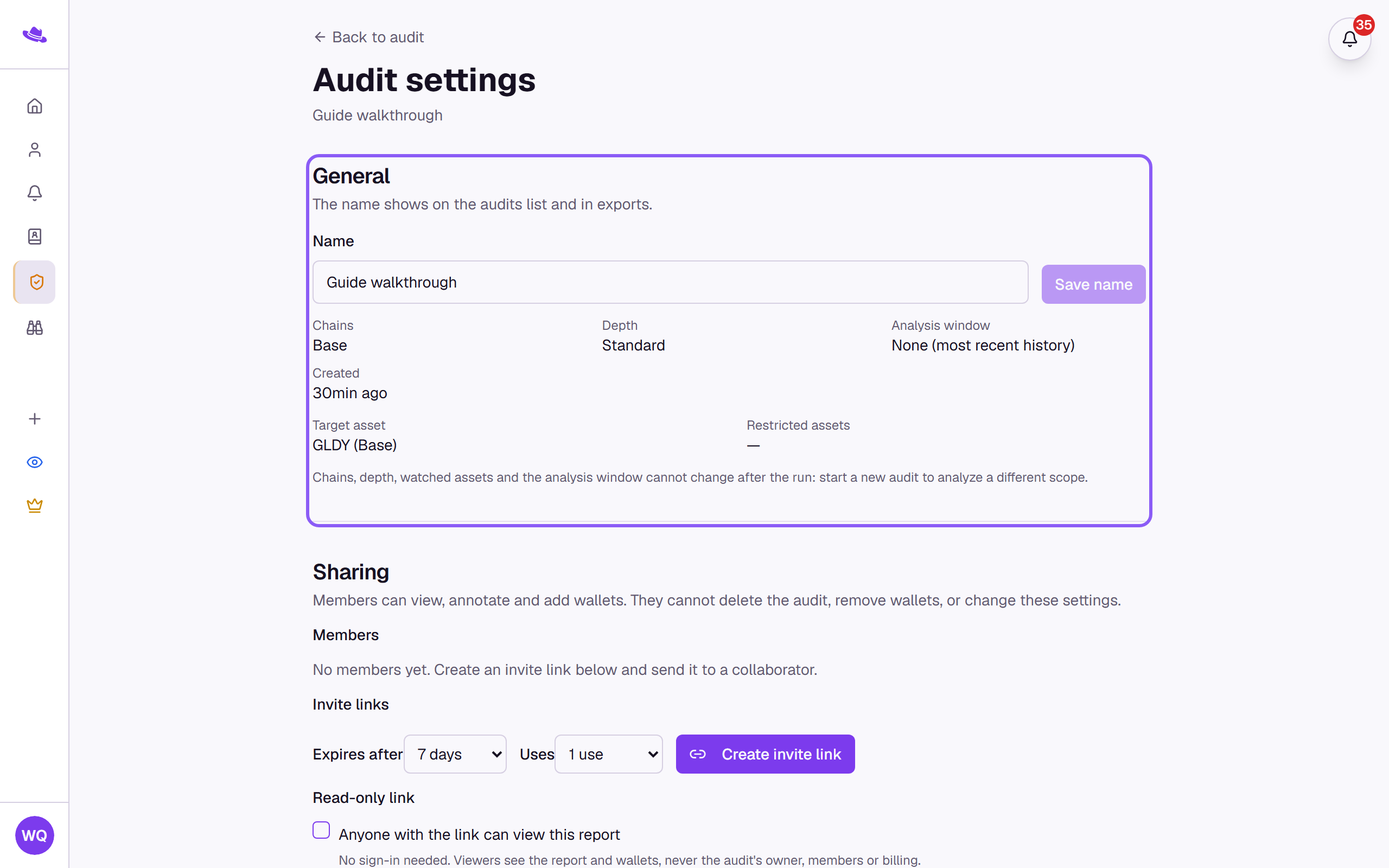
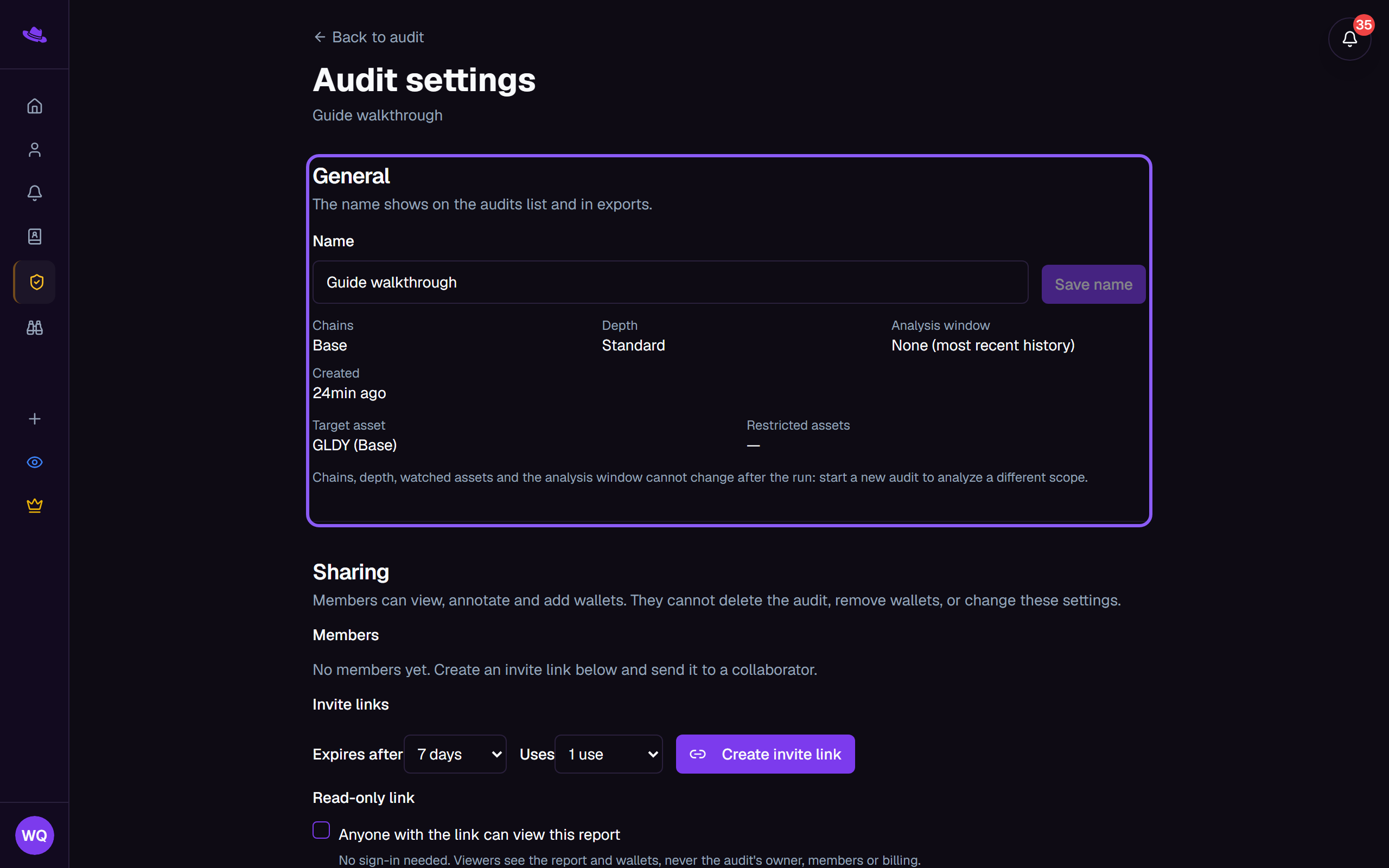
From the report, select Settings.
-
Under General, rename the audit; chains, depth, window, and watched assets can't change here.
-
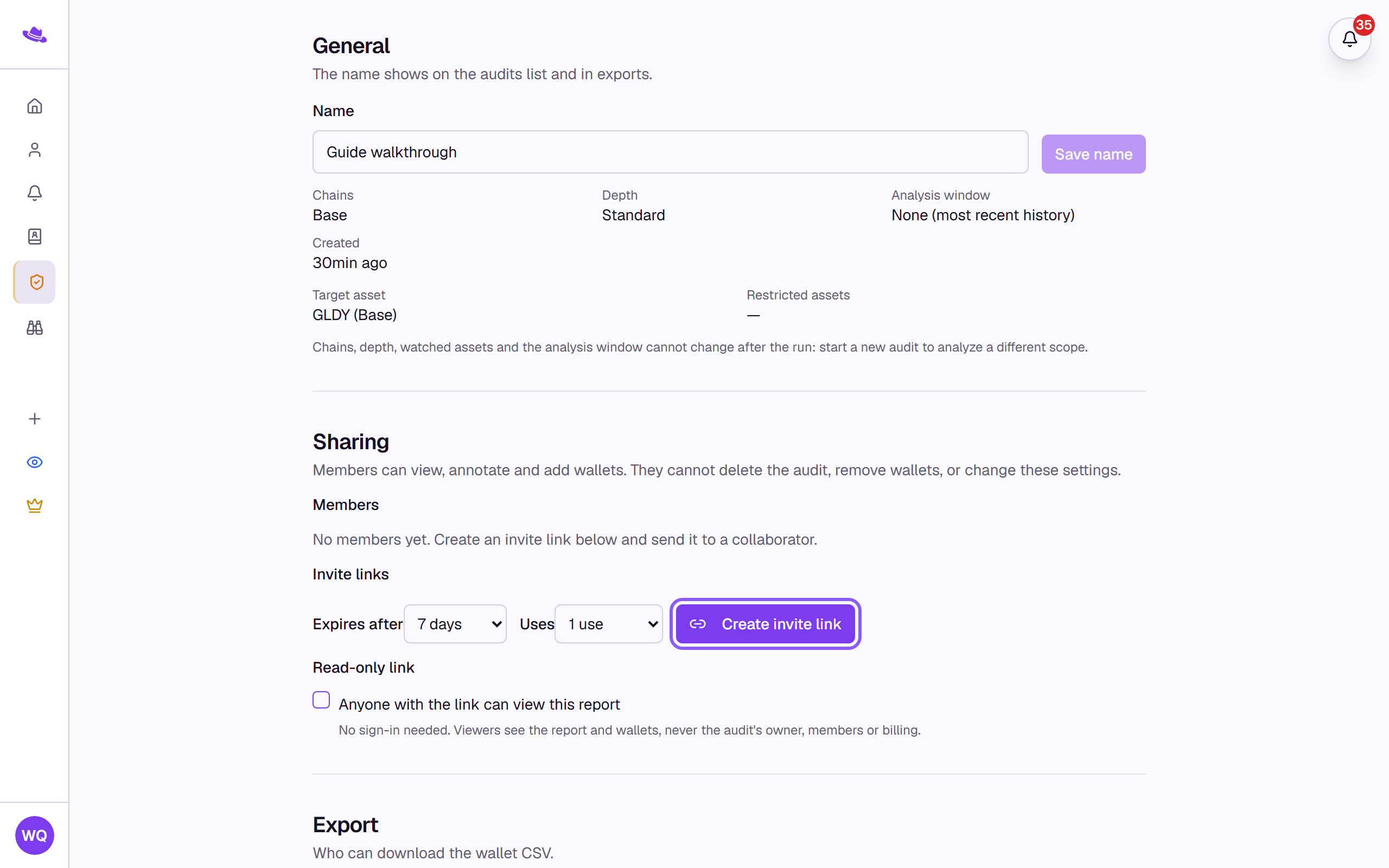
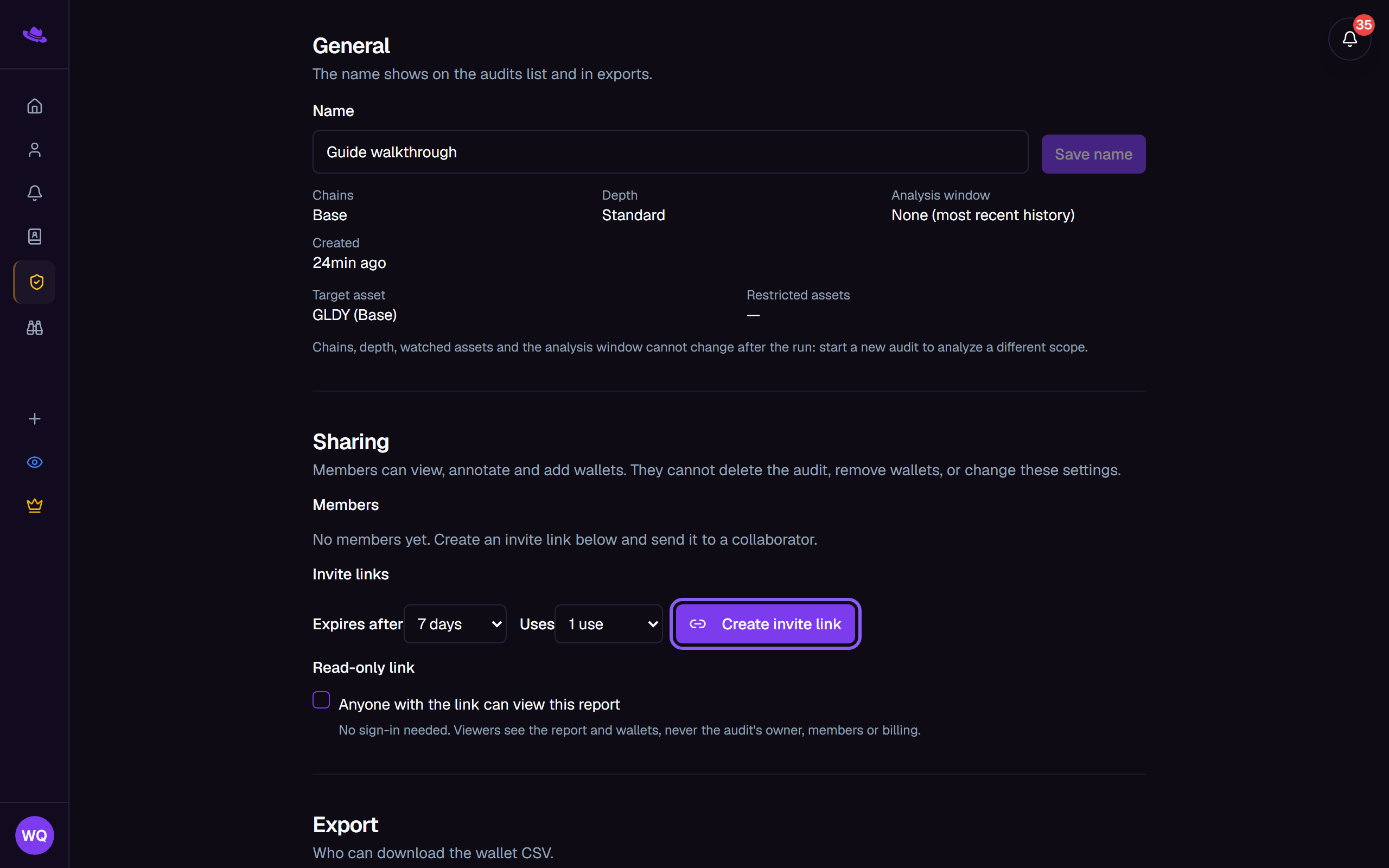
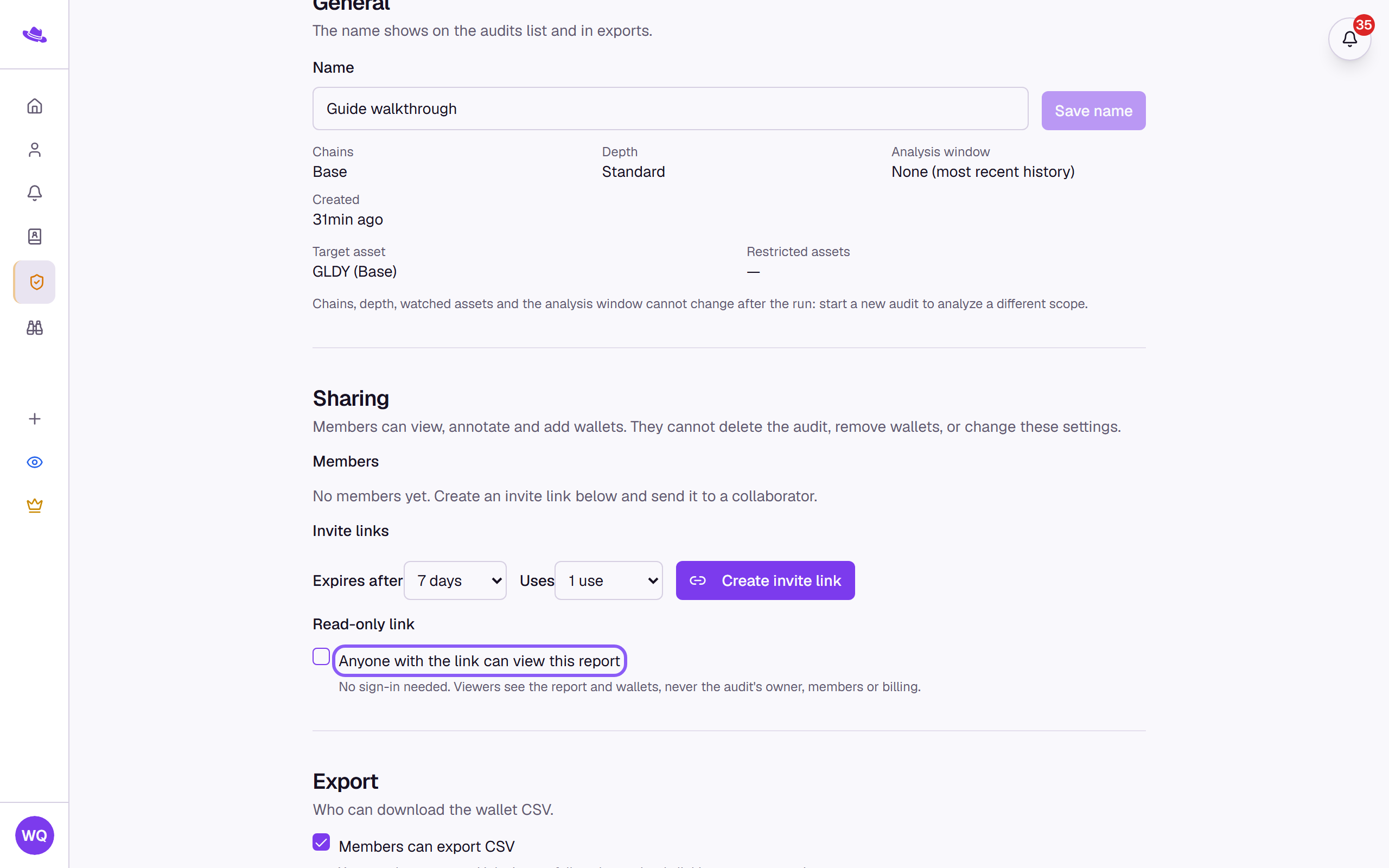
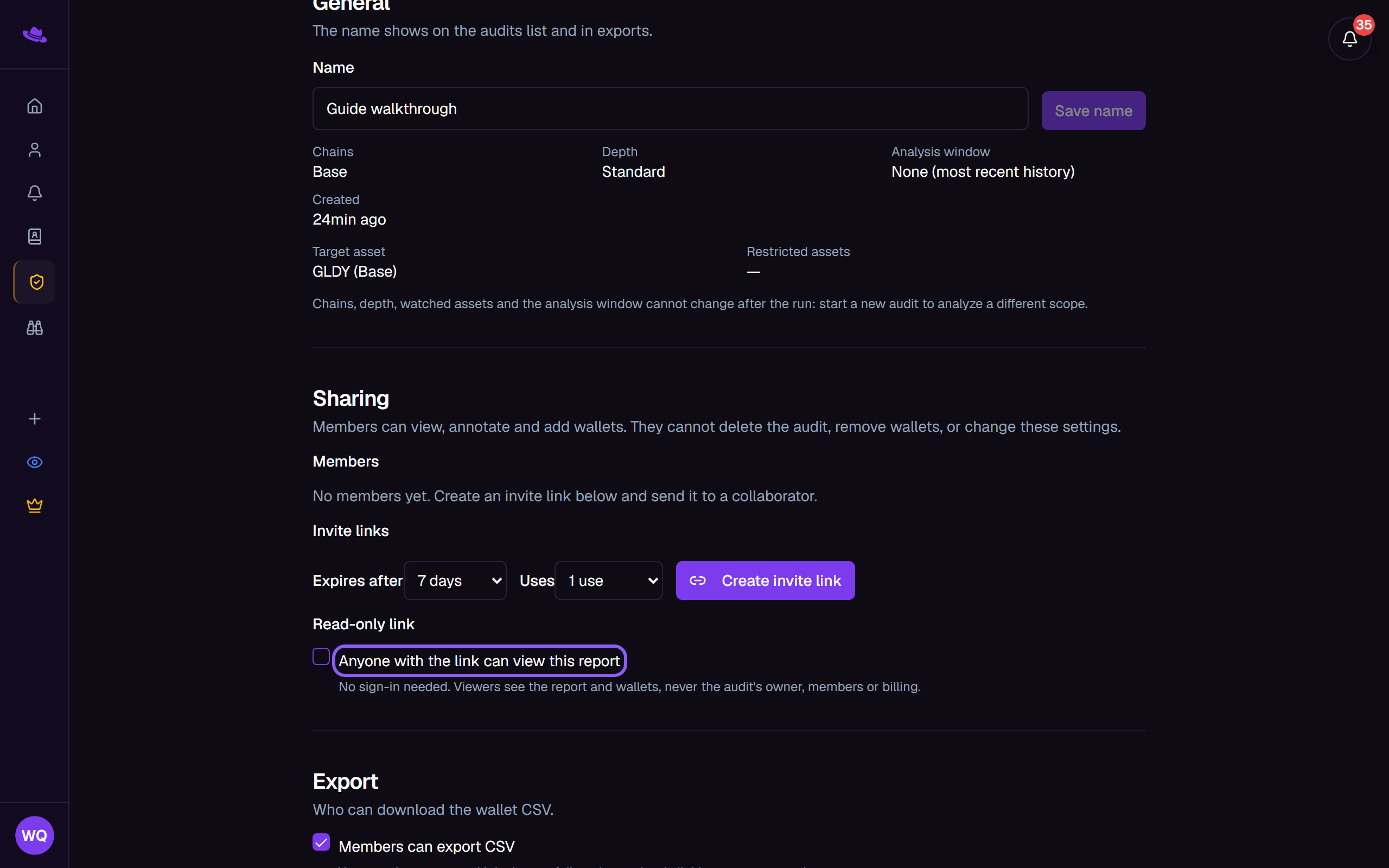
Under Sharing, choose an expiry and a use limit, then select Create invite link to generate and copy a link a collaborator can join with. Members can view, annotate, and add wallets; only the owner or an admin can remove wallets, delete the audit, or change these settings. Select the X next to an active link to revoke it.
-
In the same section, turn on Anyone with the link can view this report to publish a read-only public link, and Allow CSV export from the link to let visitors download the wallet CSV from it. Once the link is on, Rotate replaces it without turning sharing off, and Include identities on the shared link adds the audit's declared identities to it.
-
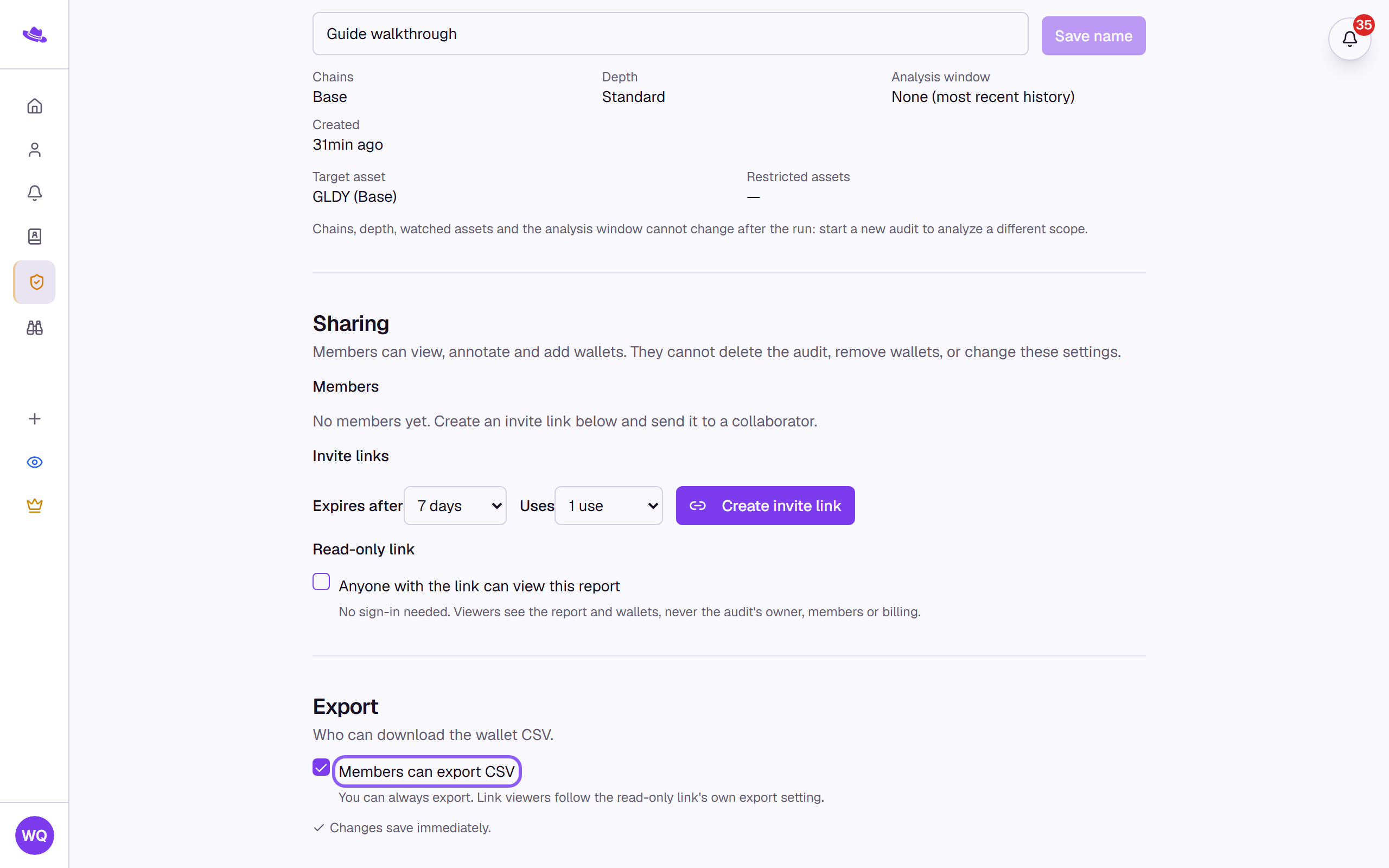
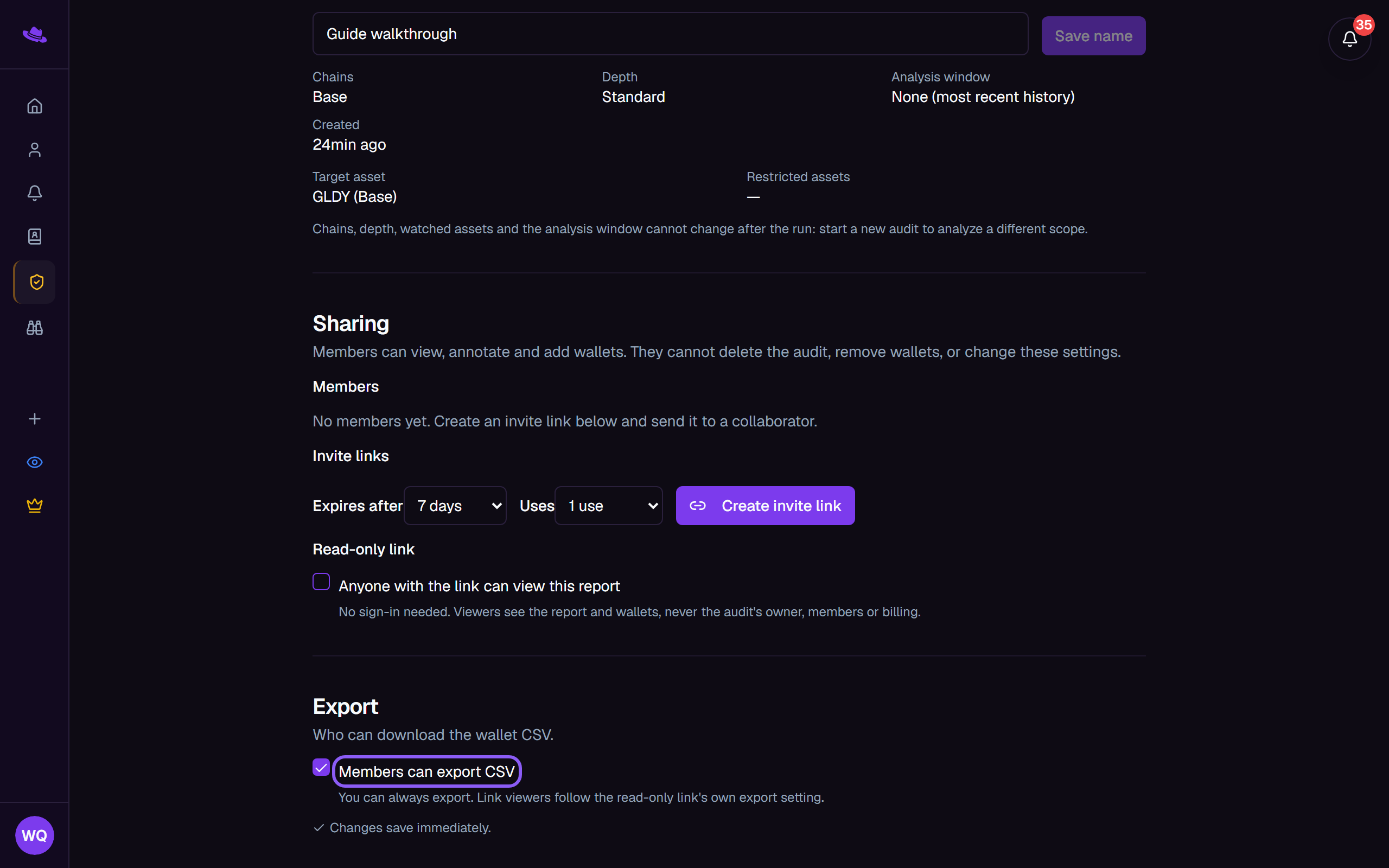
Under Export, check or clear Members can export CSV; the owner can always export.
-
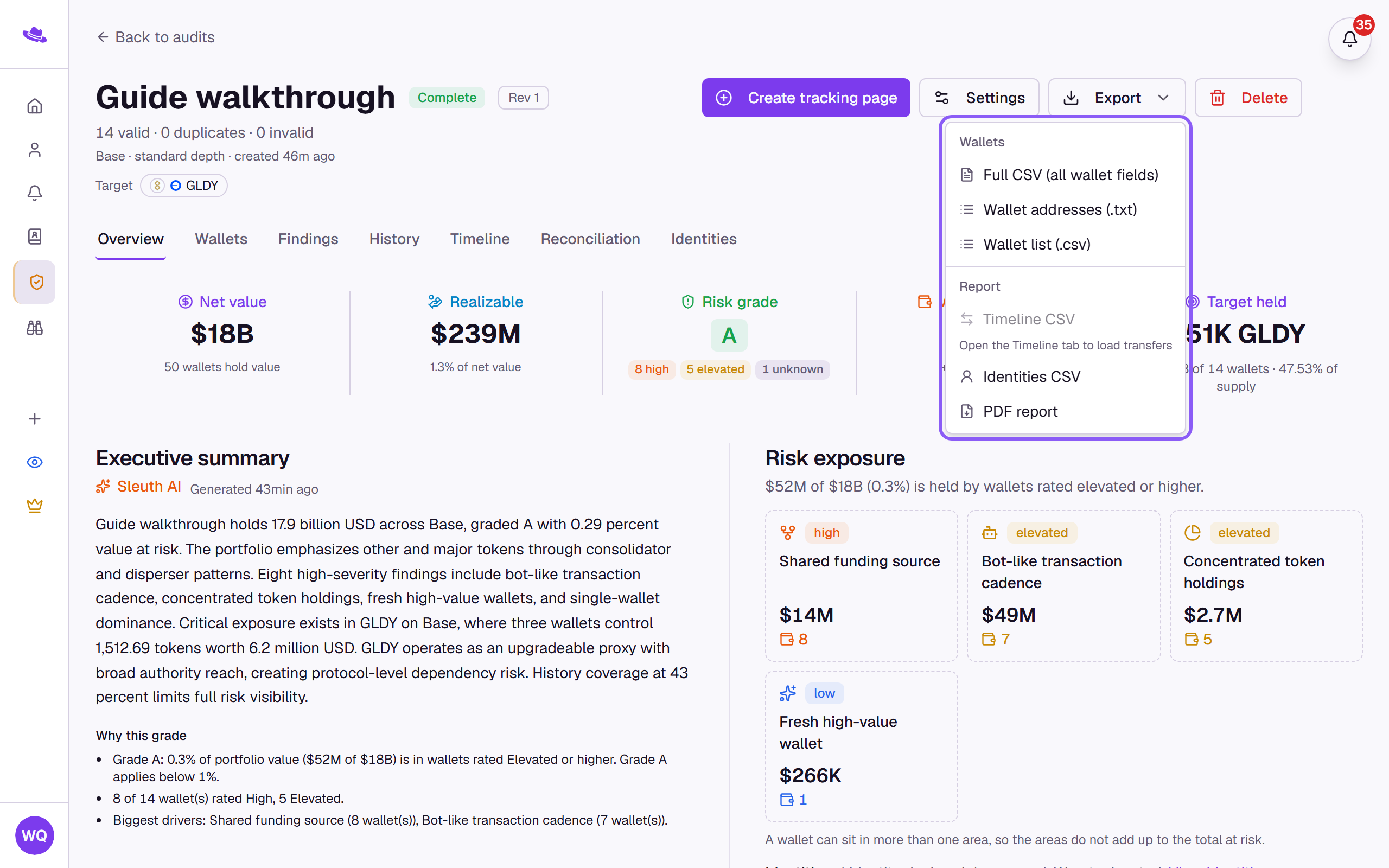
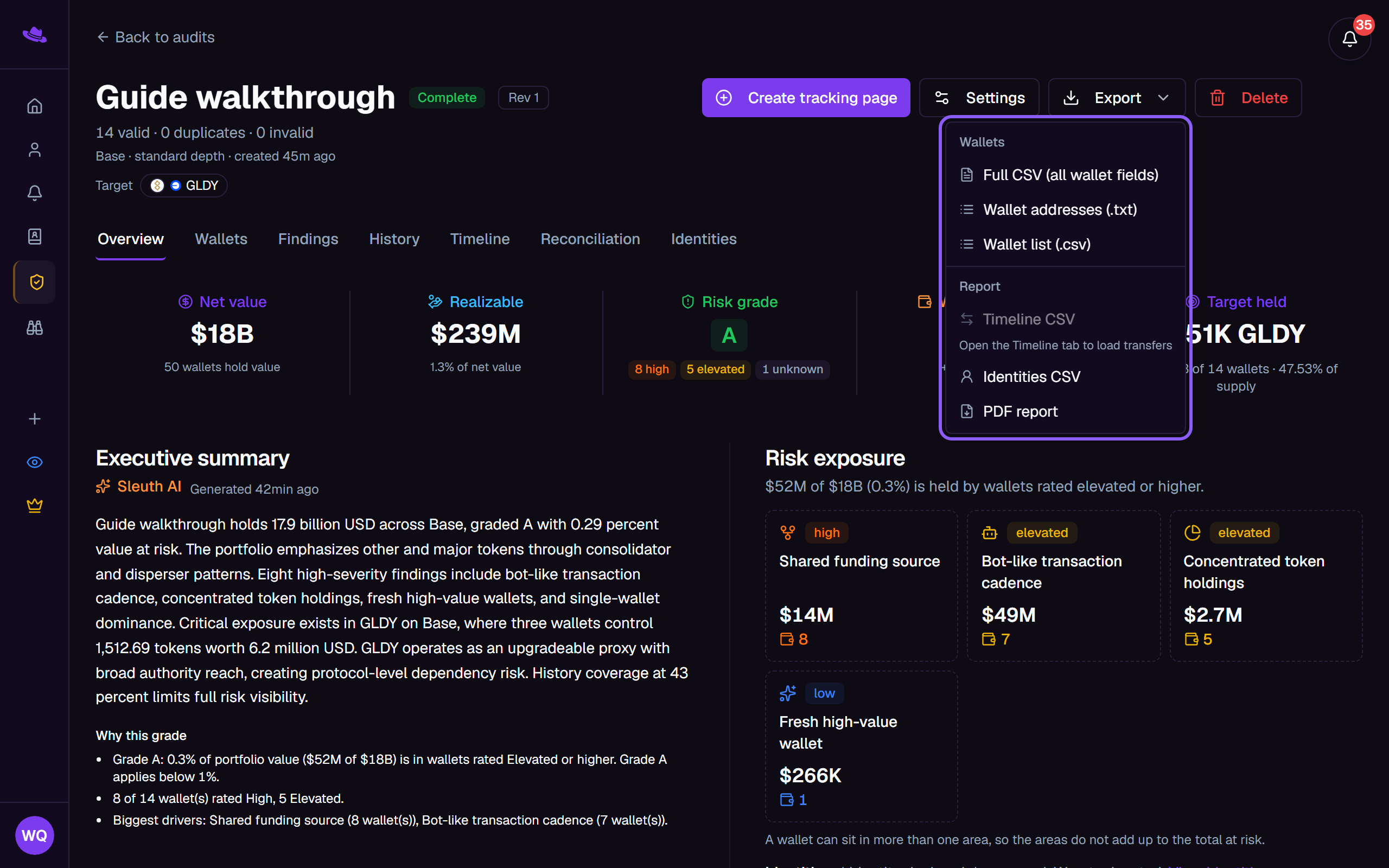
From the report header, select Export to download Full CSV (all wallet fields), Wallet addresses (.txt), Wallet list (.csv), Timeline CSV, Identities CSV, the PDF report, or the Markdown report (.md).
What you'll see
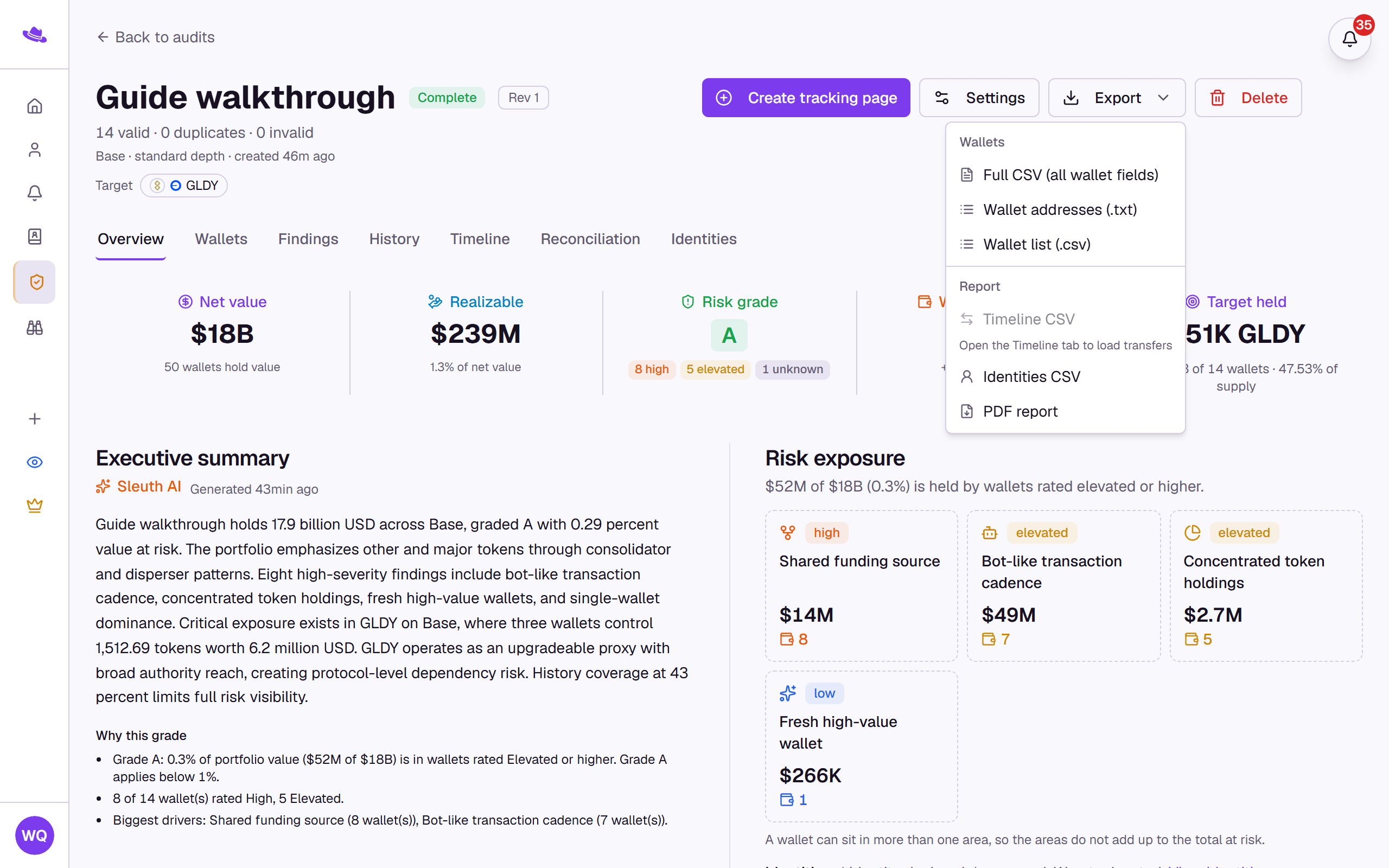
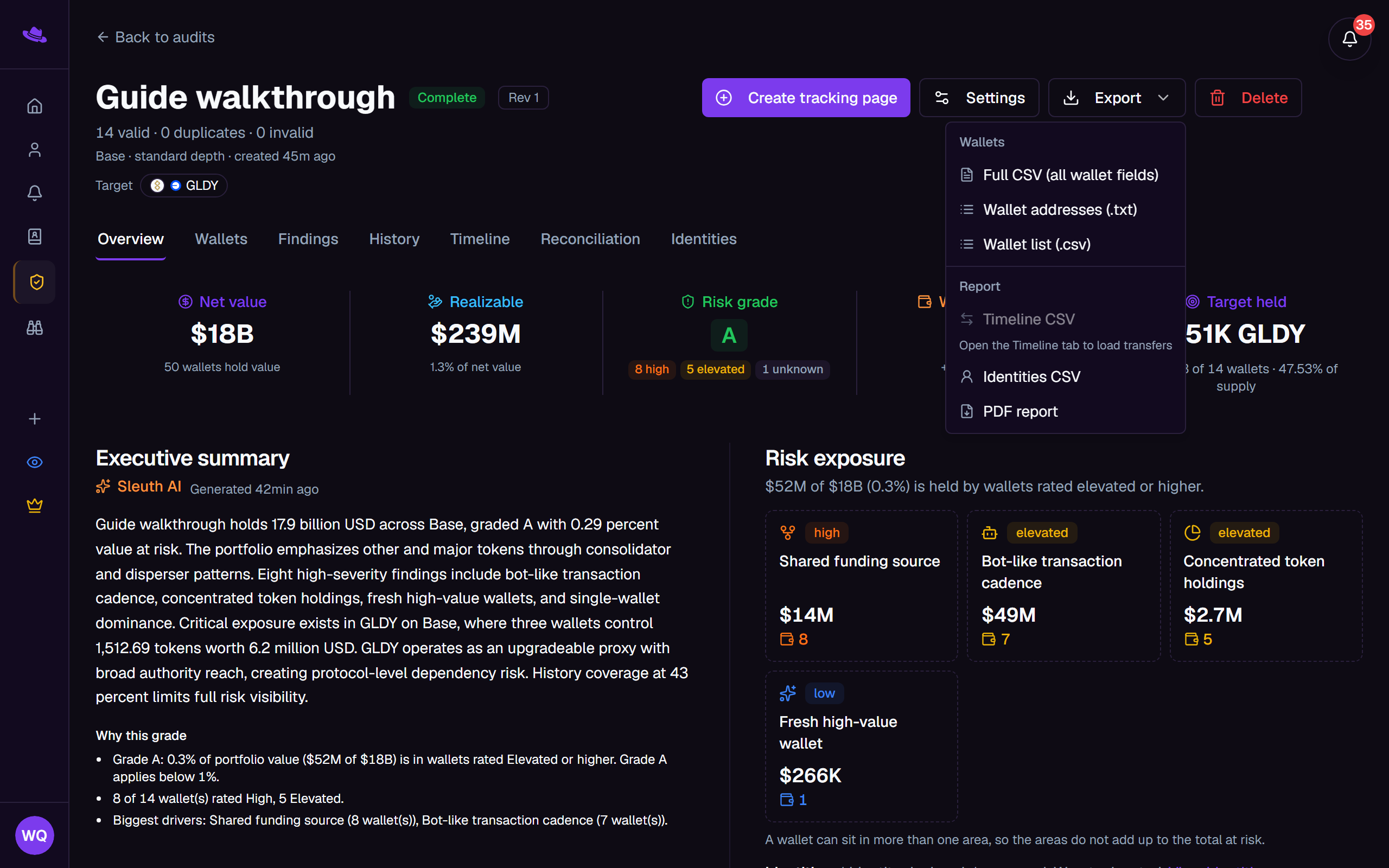
The menu groups Wallet addresses (.txt) and Wallet list (.csv) under Wallets alongside the server-built Full CSV, and Timeline CSV, Identities CSV, PDF report, and Markdown report (.md) under Report. Timeline CSV waits until you've opened the Timeline tab at least once, Identities CSV appears once the audit has a declared identity, and the PDF report and Markdown report wait for the wallet list and revision history to finish loading; an item that isn't ready yet stays disabled with a short note.
The PDF and Markdown reports carry the same content: a cover page, then every tab of the report in full (Overview, Risk Management, History, Reconciliation, Timeline, Identities, and the full wallet table), with per-wallet detail for every flagged wallet and the highest-value wallets. While a report is being built, the Export button shows its progress, for example while it loads wallet details. The Markdown file suits pasting into another tool or an AI assistant.
Tips
- A hidden finding never appears in the PDF, the Markdown report, the CSV, or the public share link, regardless of what the export settings allow.
- The public share link never shows the audit's owner, members, or billing, whether or not it allows export. Who declared an identity, and why, is never shared either.
Common questions
Who can see a read-only share link? Anyone with the link, no sign-in required.
Can a member open Settings? No; only the owner or an admin can. The settings page still opens for a member, but in place of the sections above it shows "Only the audit owner can change settings. You can still view and annotate the report." with nothing to change and a link back to the audit.