Identities
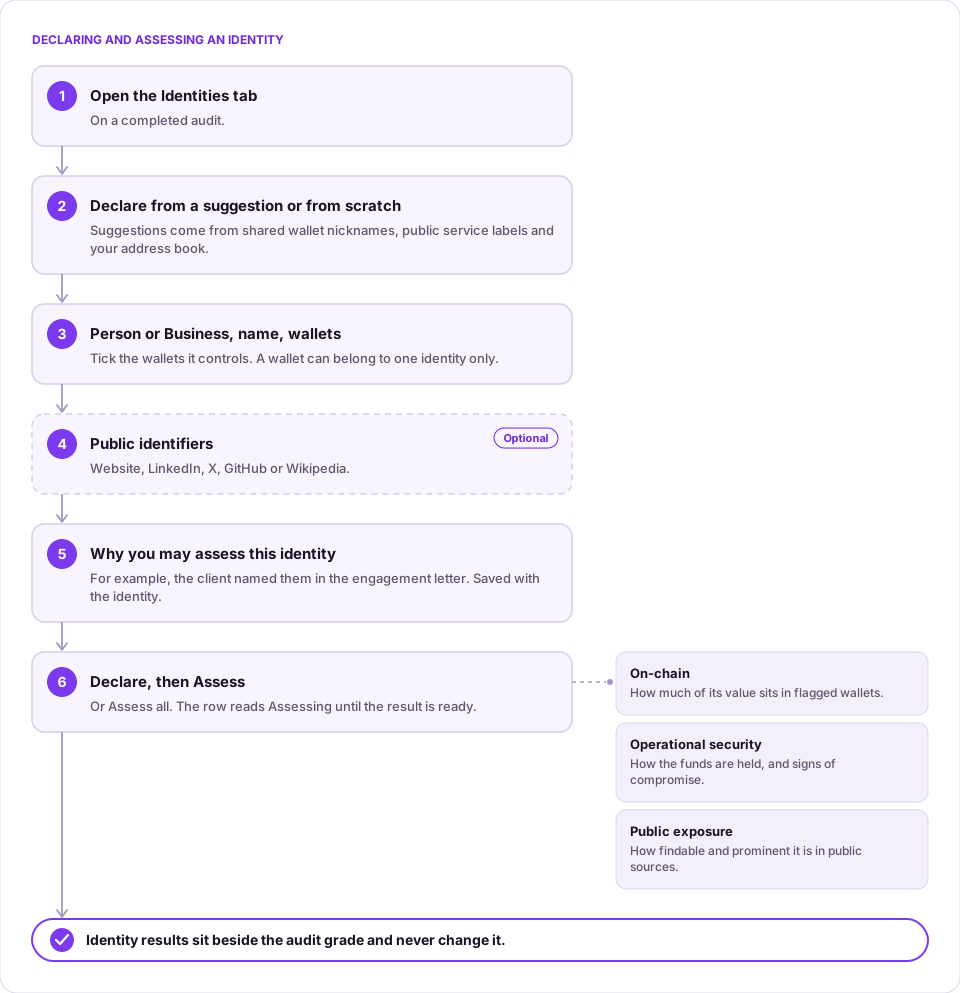
Wallet risk describes an address, but a person or a business usually controls several. The Identities tab on a completed audit lets you name who controls which wallets and then assess that identity as a whole: how exposed its money is on chain, how safely it is held, and how prominent the identity is in public sources. Identity results sit beside the audit grade and never change it.
Steps
-
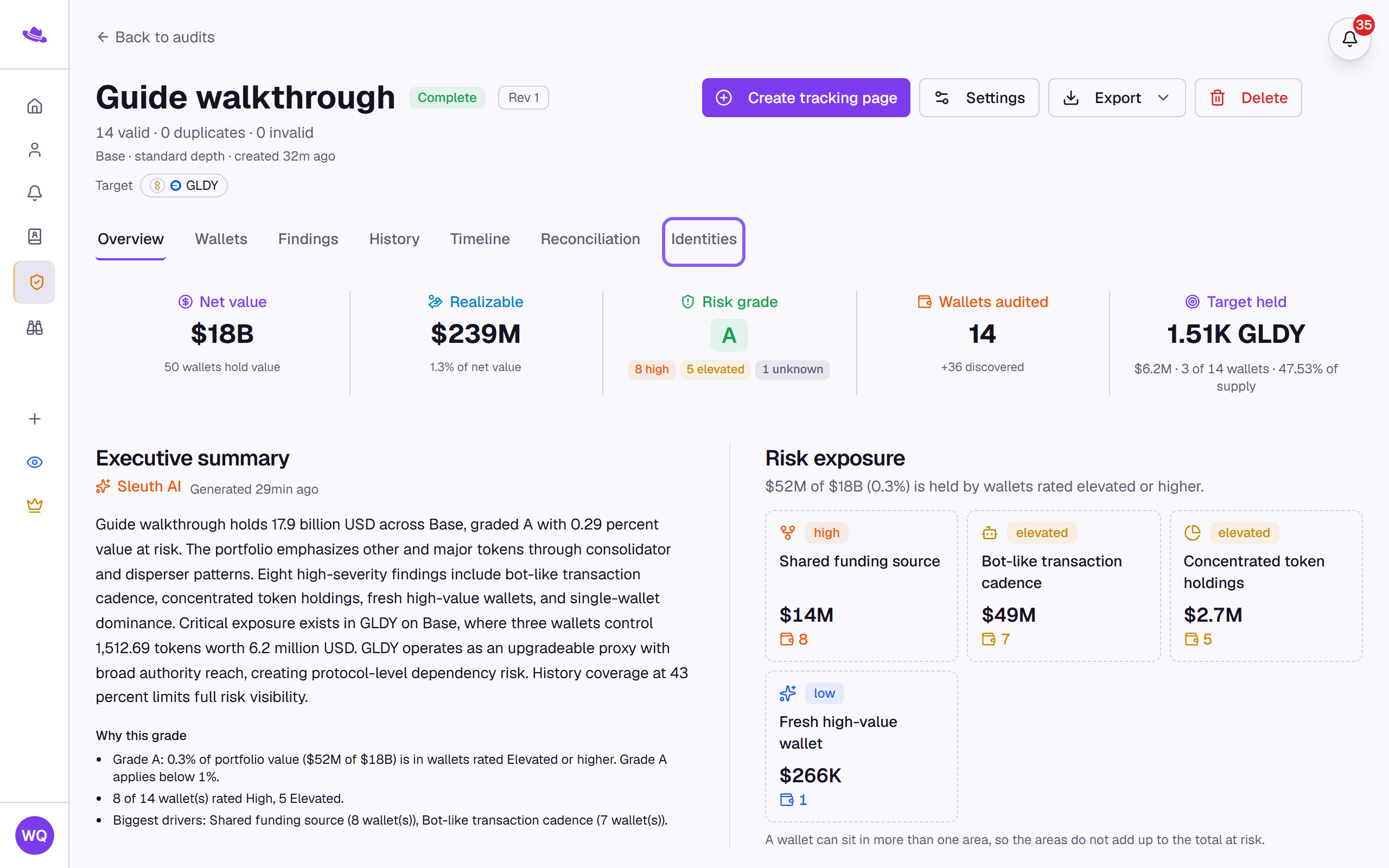
Open a completed audit and select the Identities tab.
-
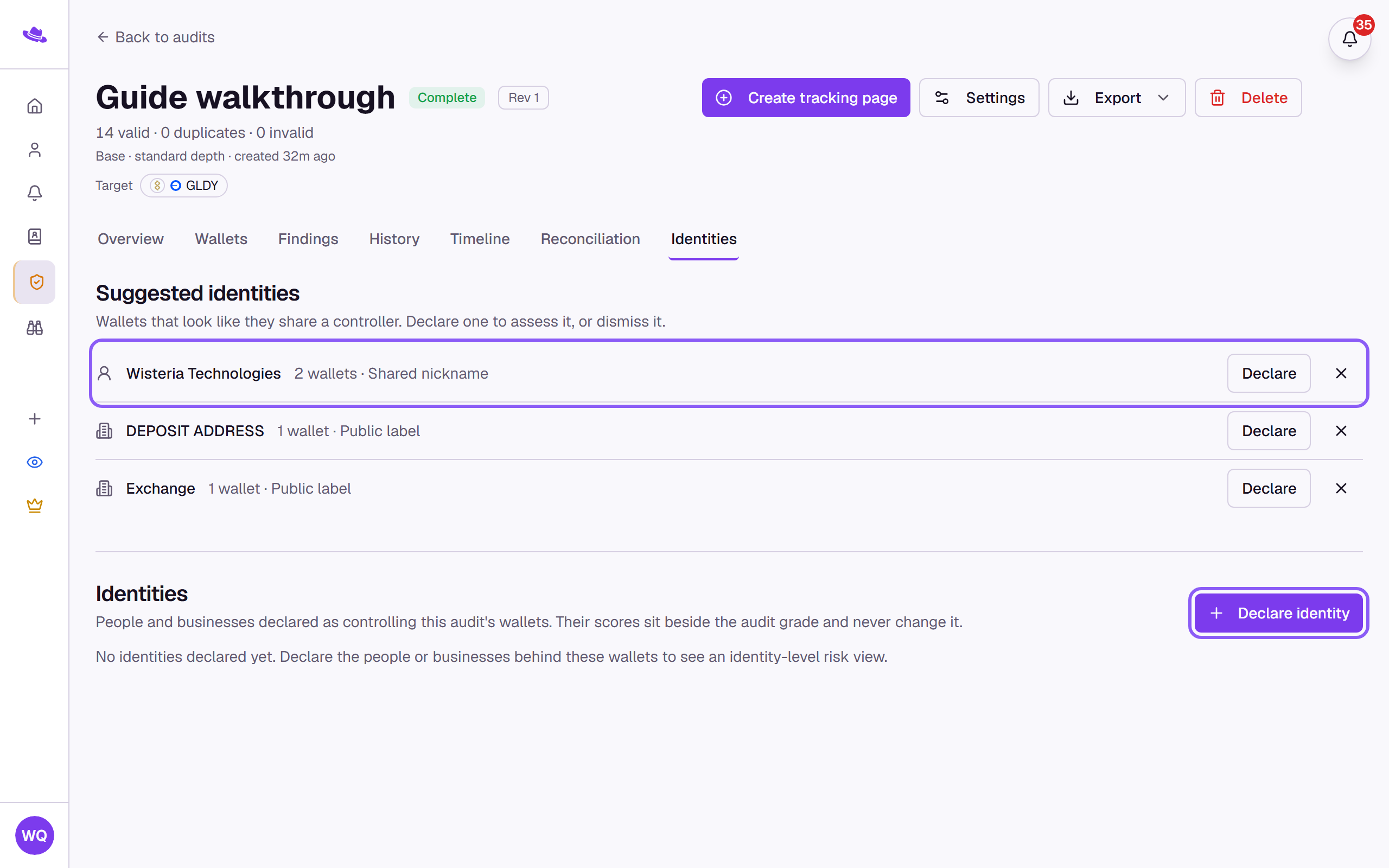
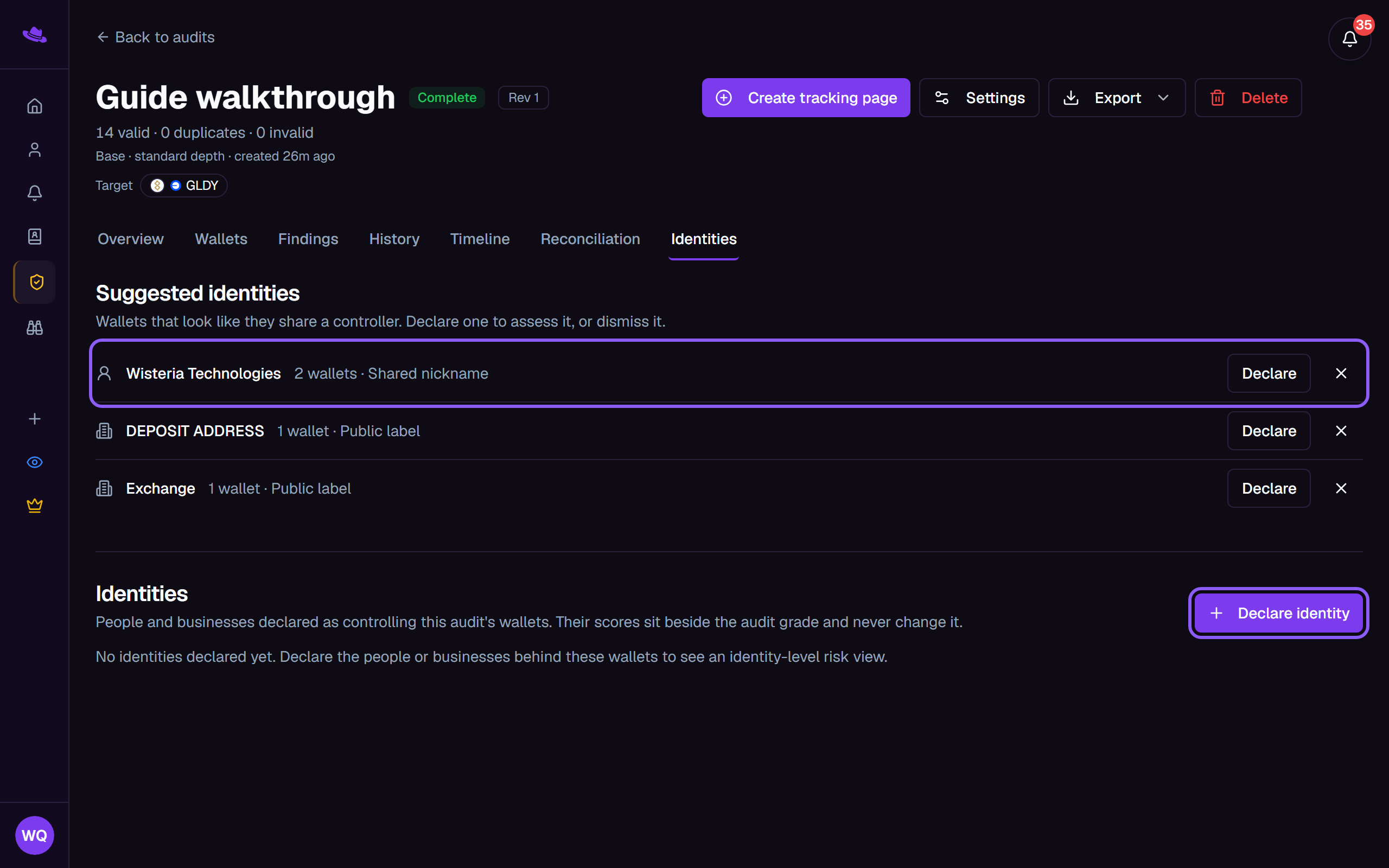
Under Suggested identities, select Declare on a suggestion, or select Declare identity to start from scratch. Suggestions come from shared wallet nicknames, public service labels and your address book.
-
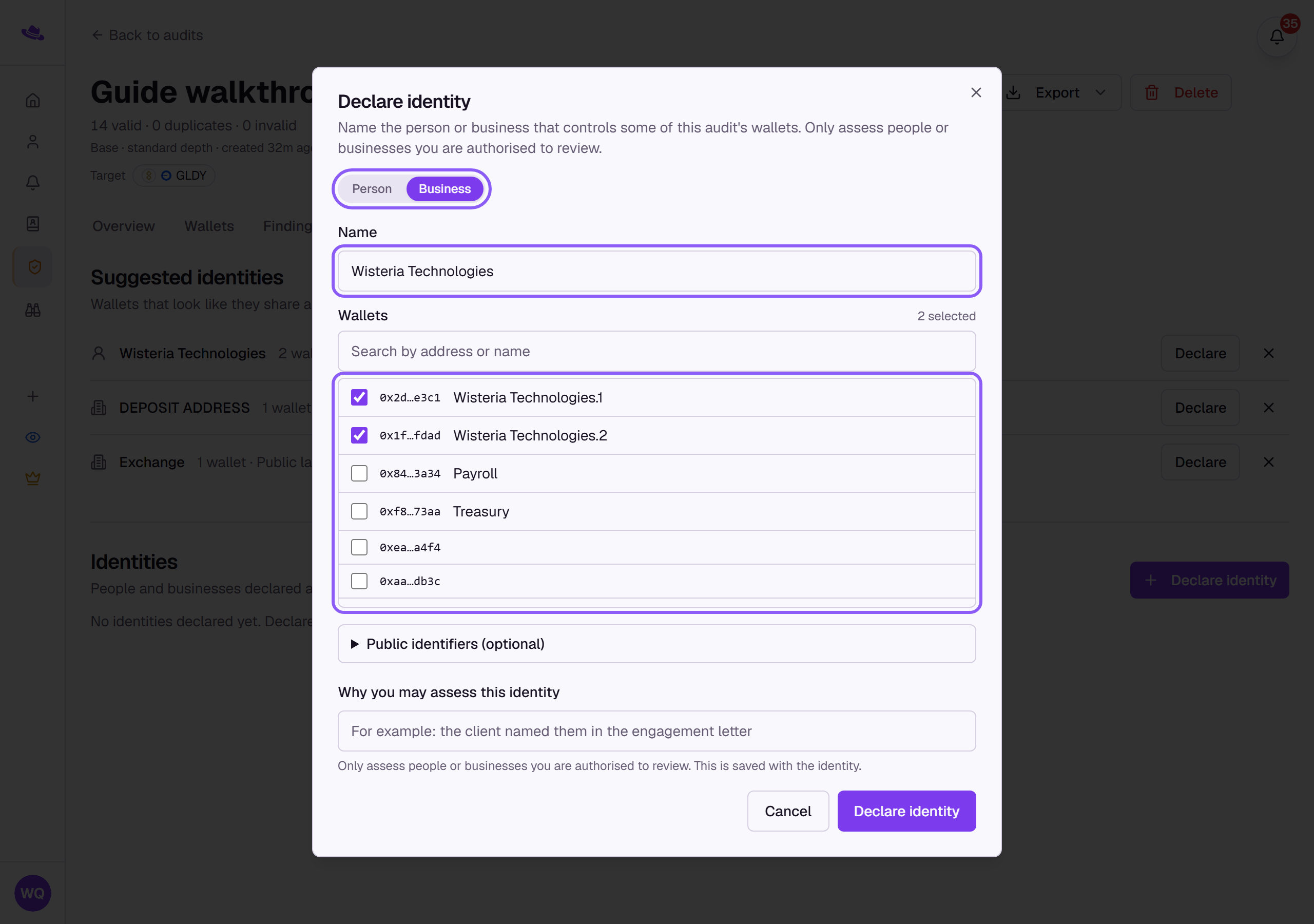
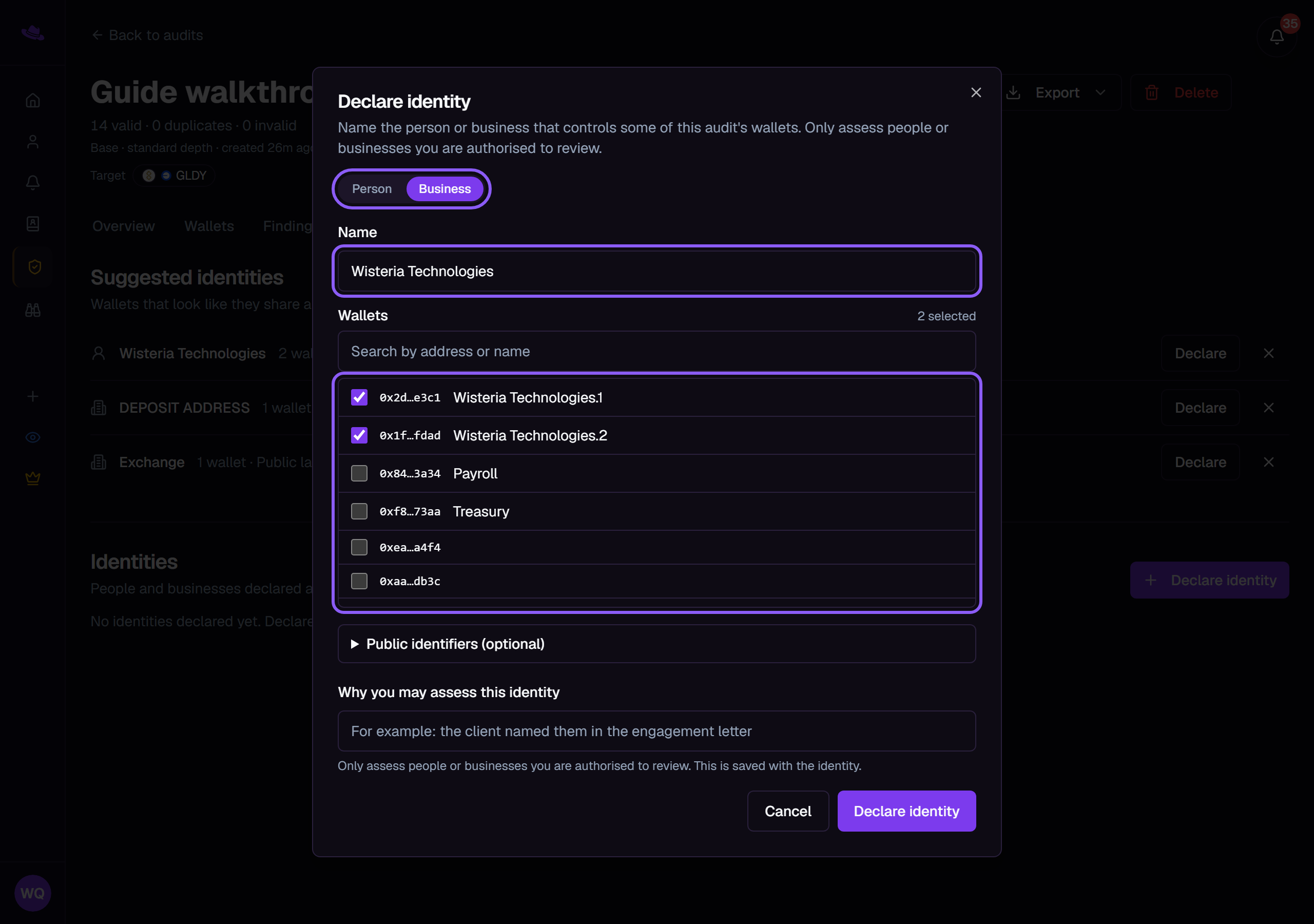
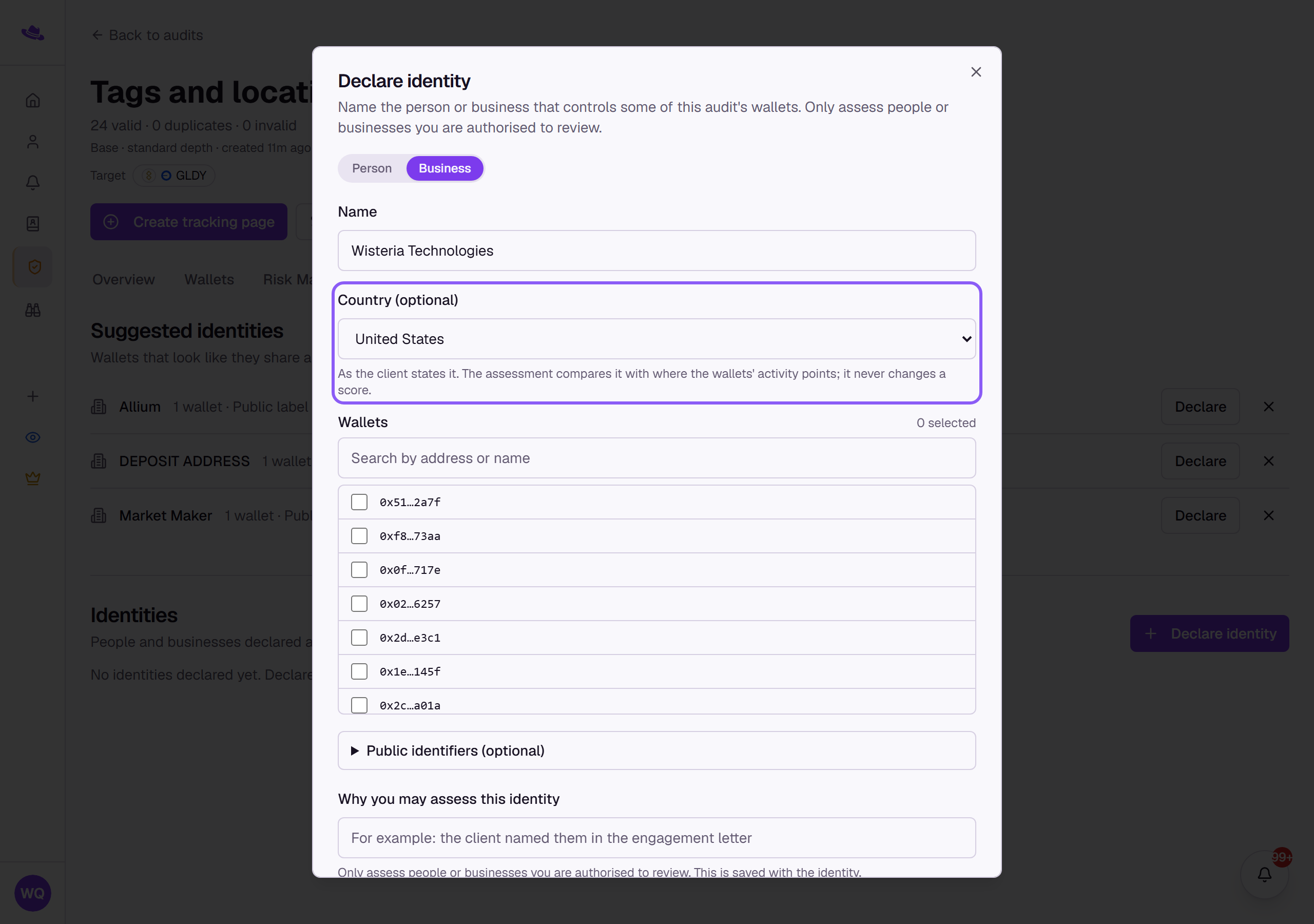
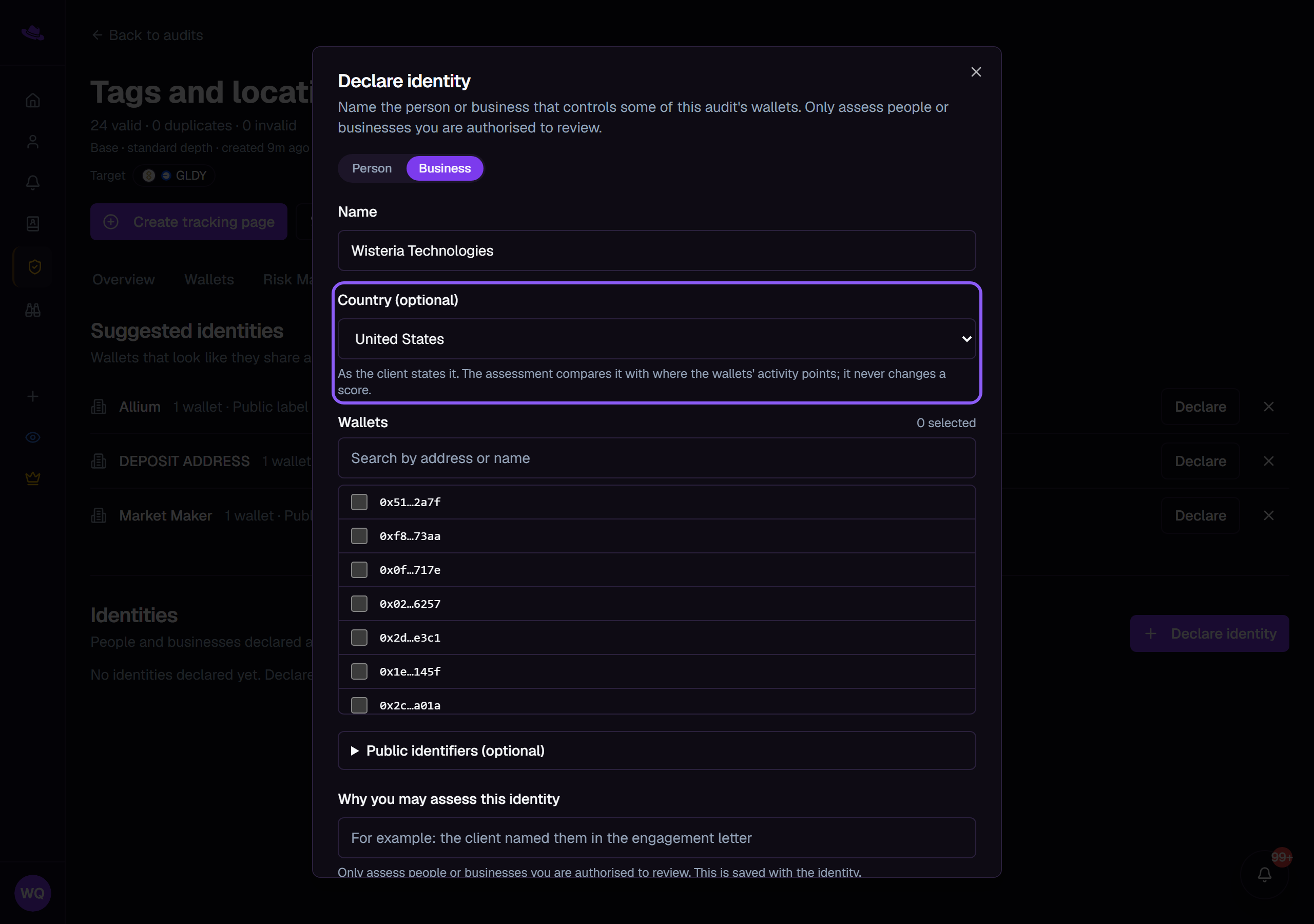
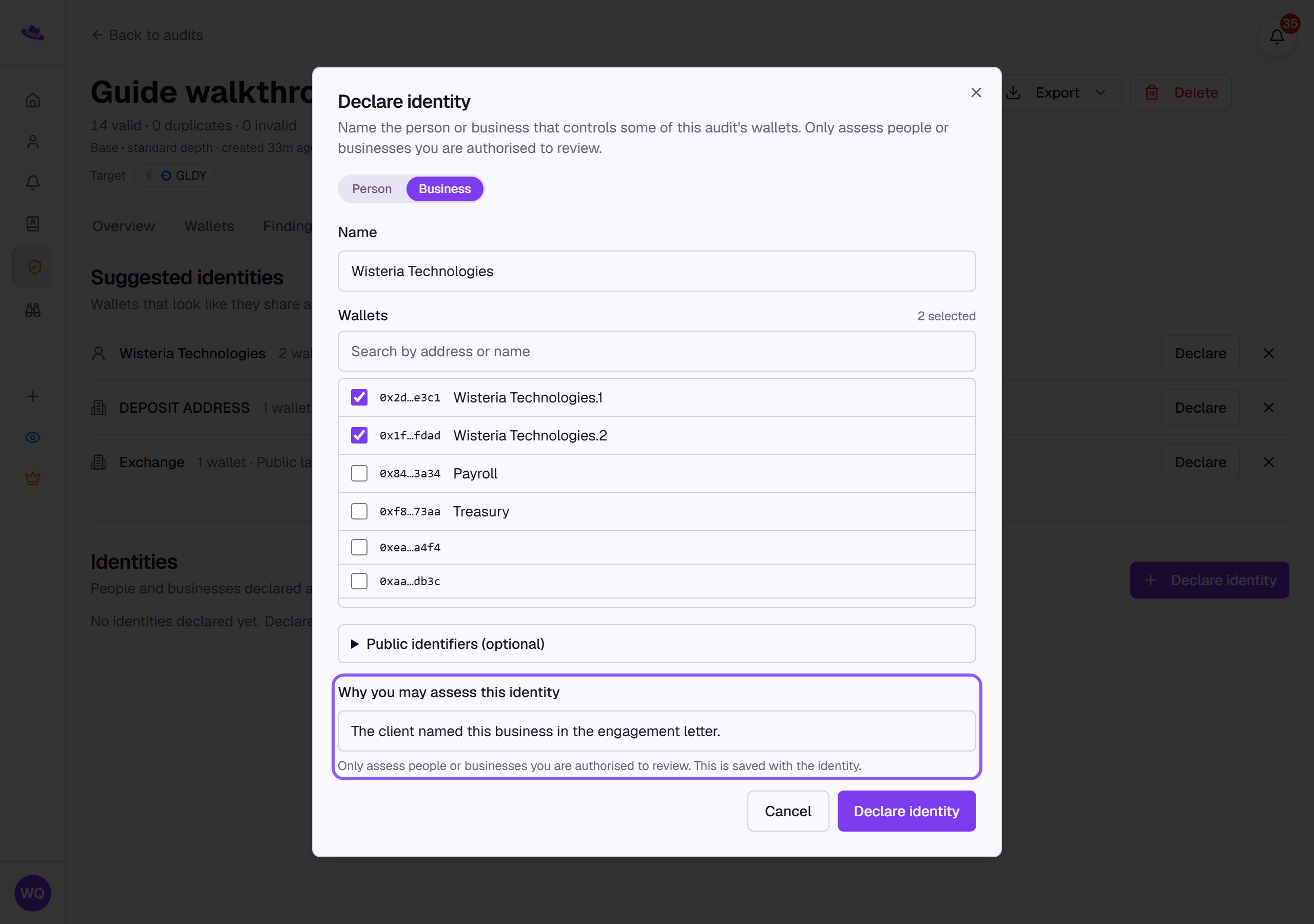
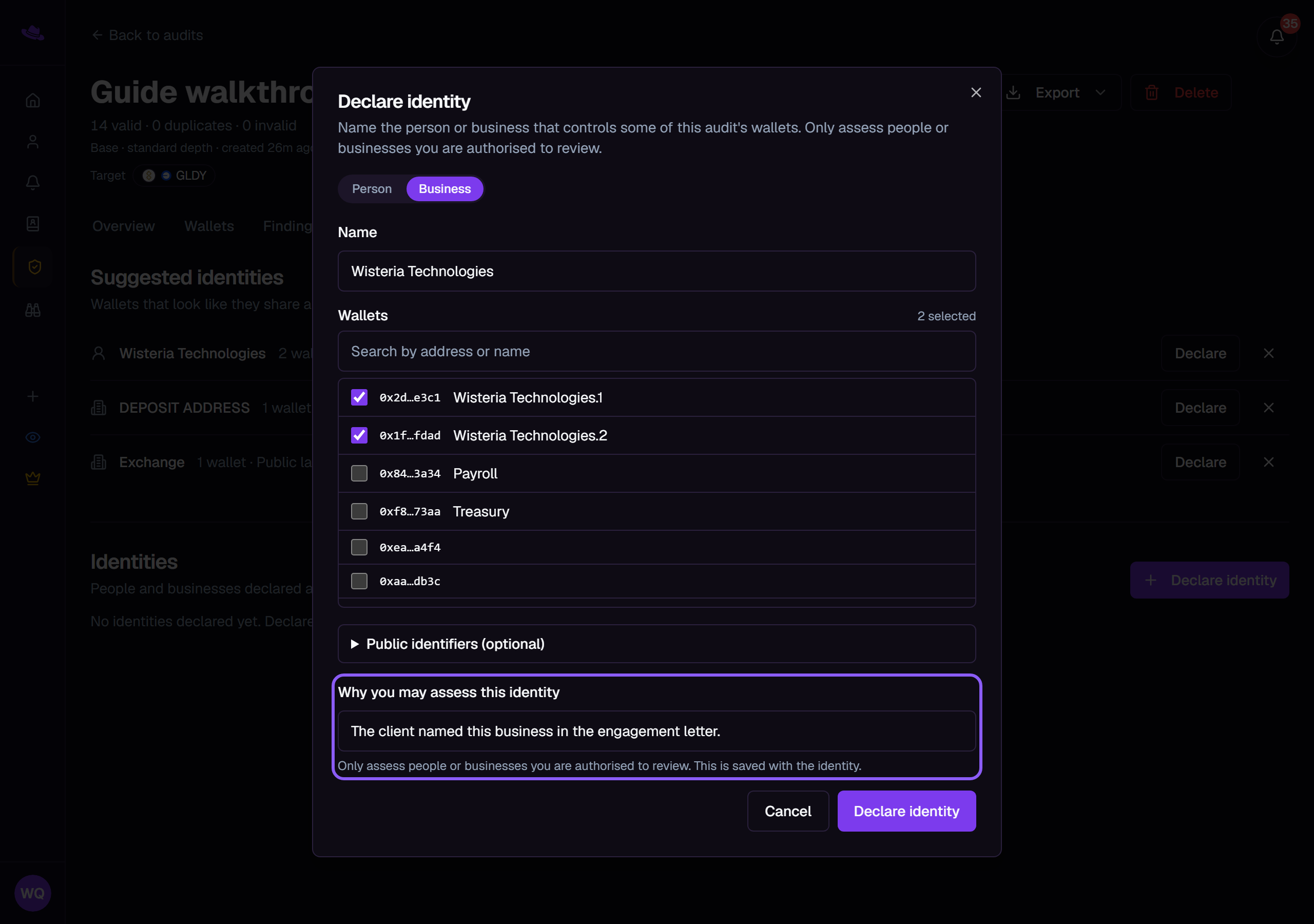
Choose Person or Business, enter the name, and tick the wallets it controls. A wallet can belong to only one identity. Where the dialog offers Country (optional), you can pick the country as the client states it; the assessment compares it with where the wallets' activity points.
-
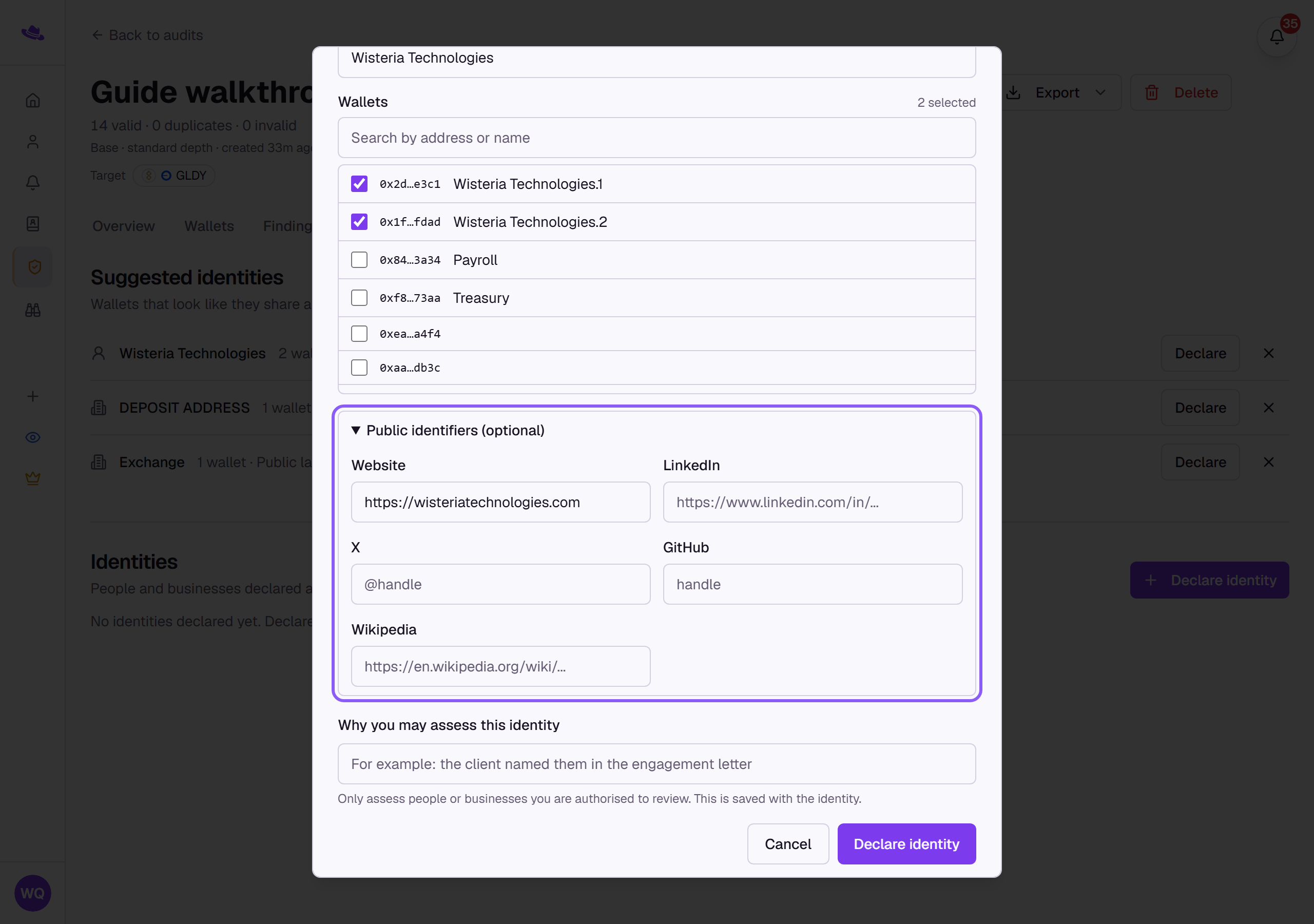
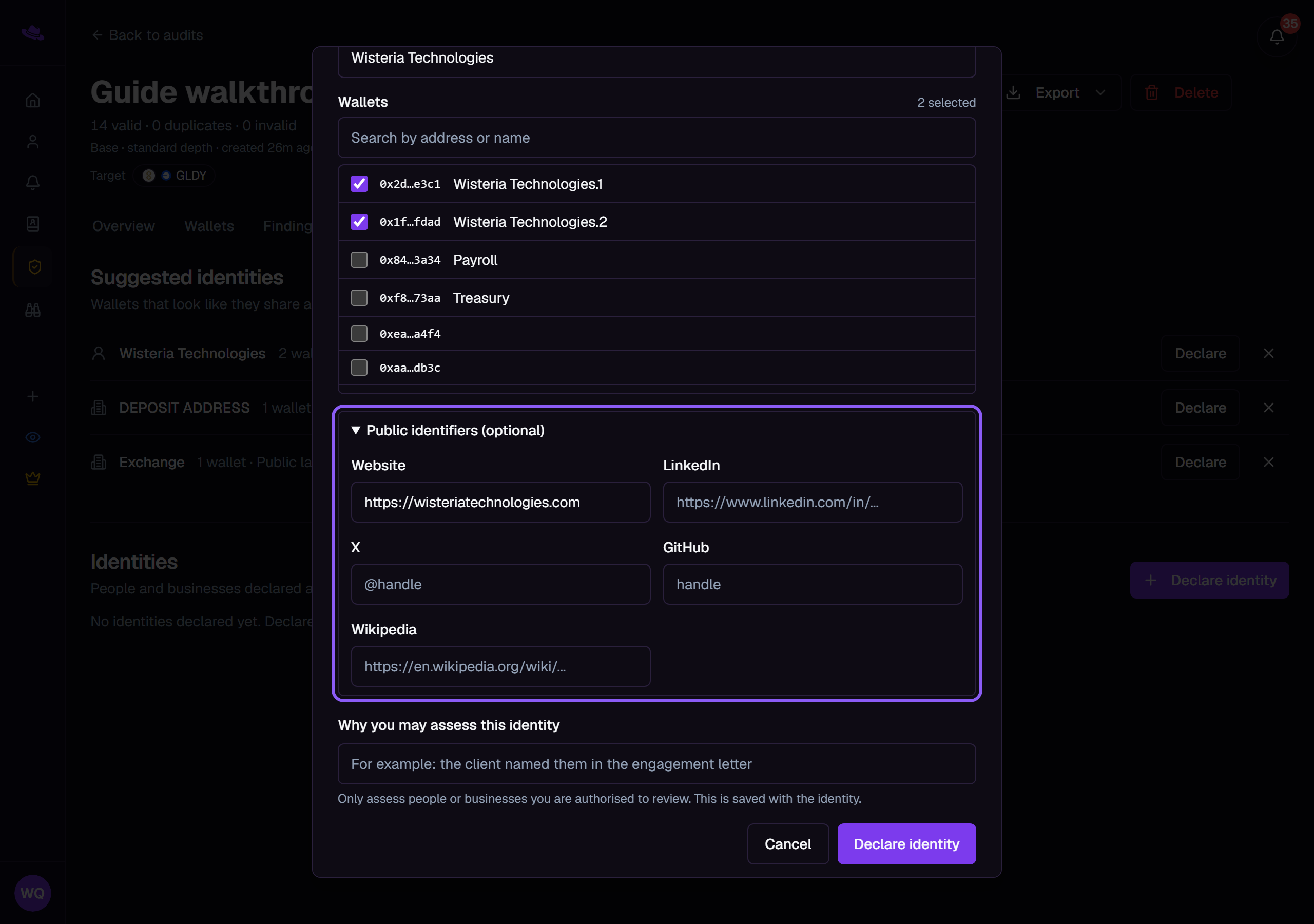
Optionally open Public identifiers and add a website, LinkedIn, X, GitHub or Wikipedia link.
-
Under Why you may assess this identity, say why you are authorised to review them, for example that the client named them in the engagement letter. This is saved with the identity.
-
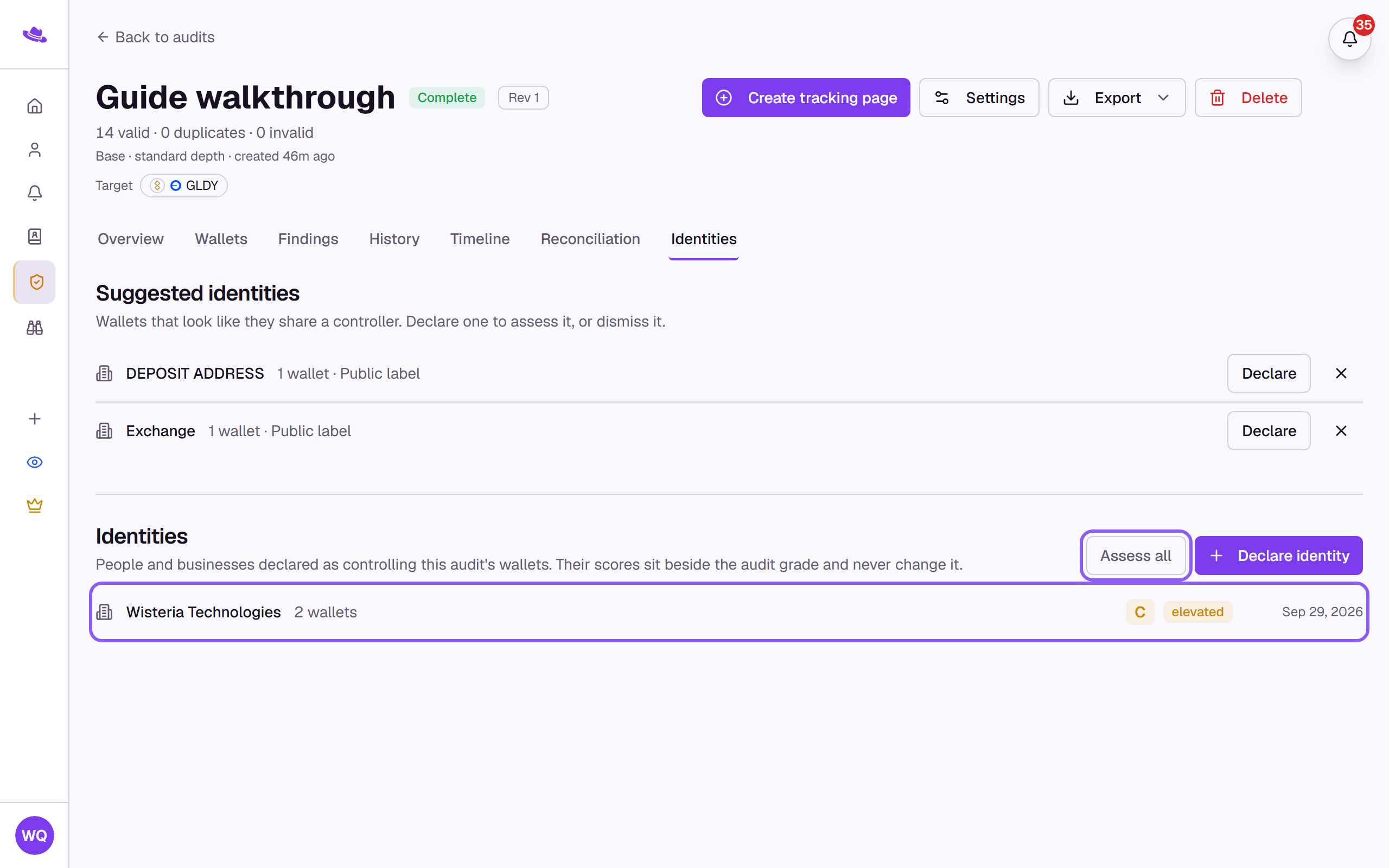
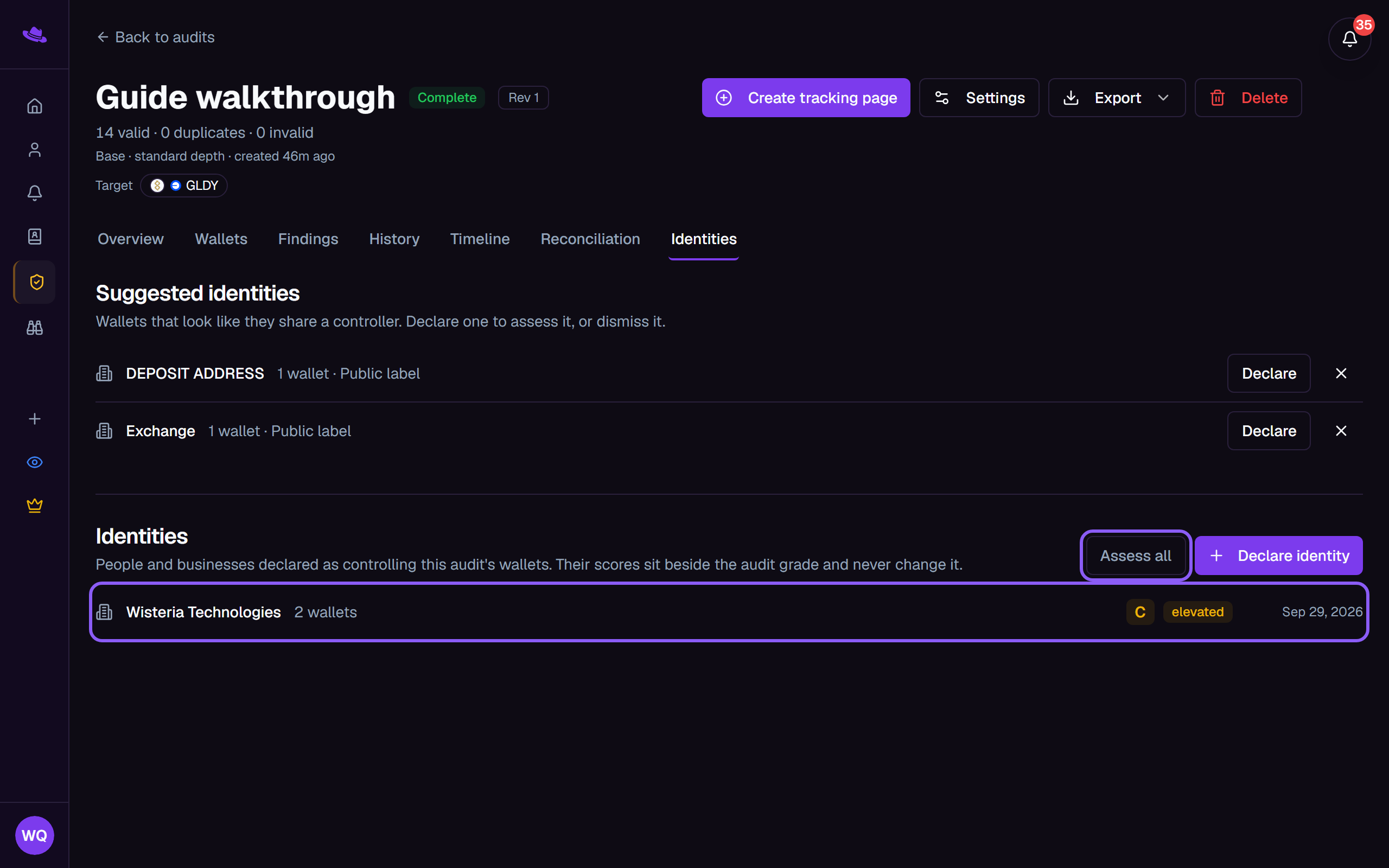
Select Declare identity, then open the identity and select Assess, or select Assess all to assess every declared identity. The row shows Assessing… until the result is ready.
What you'll see
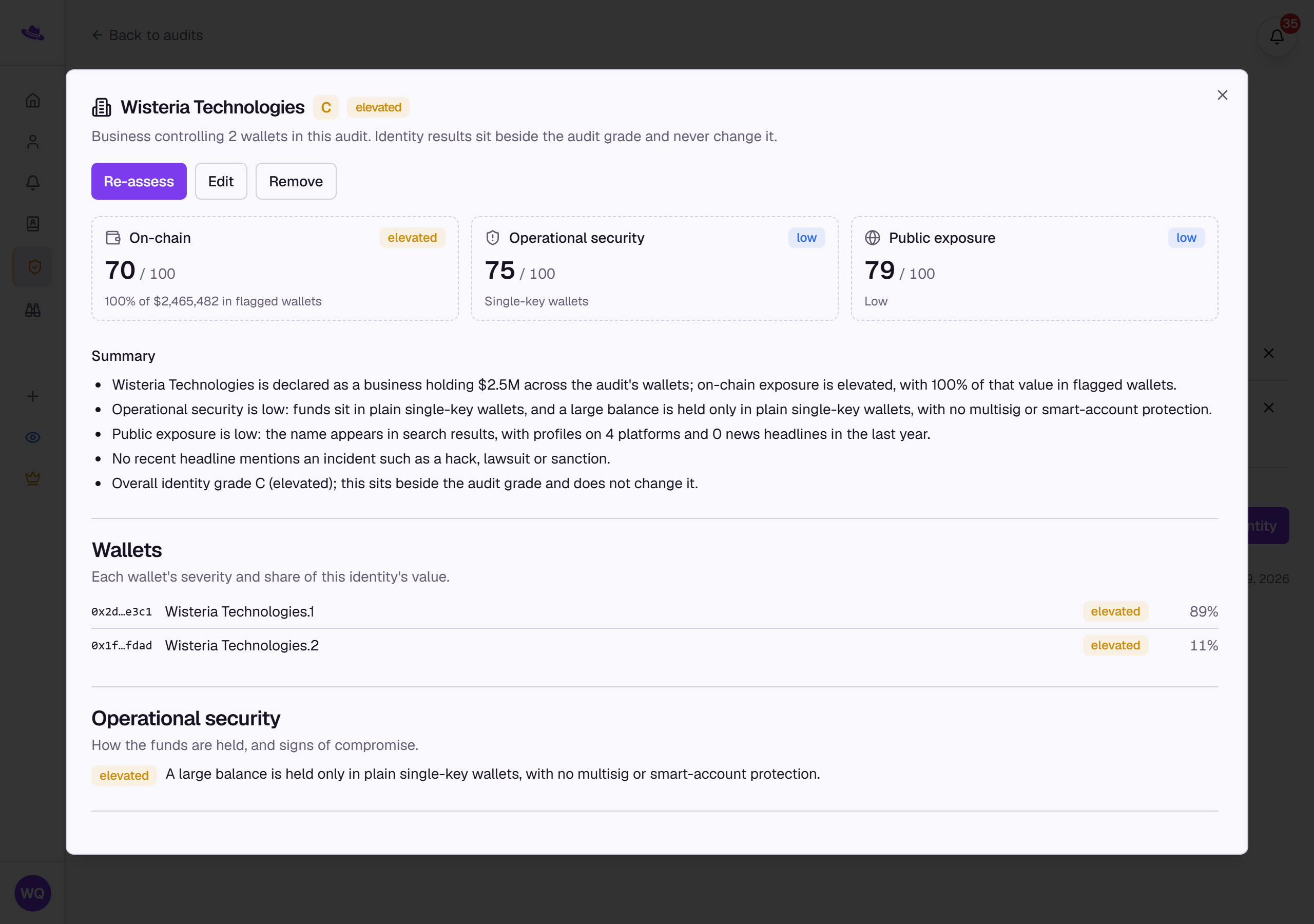
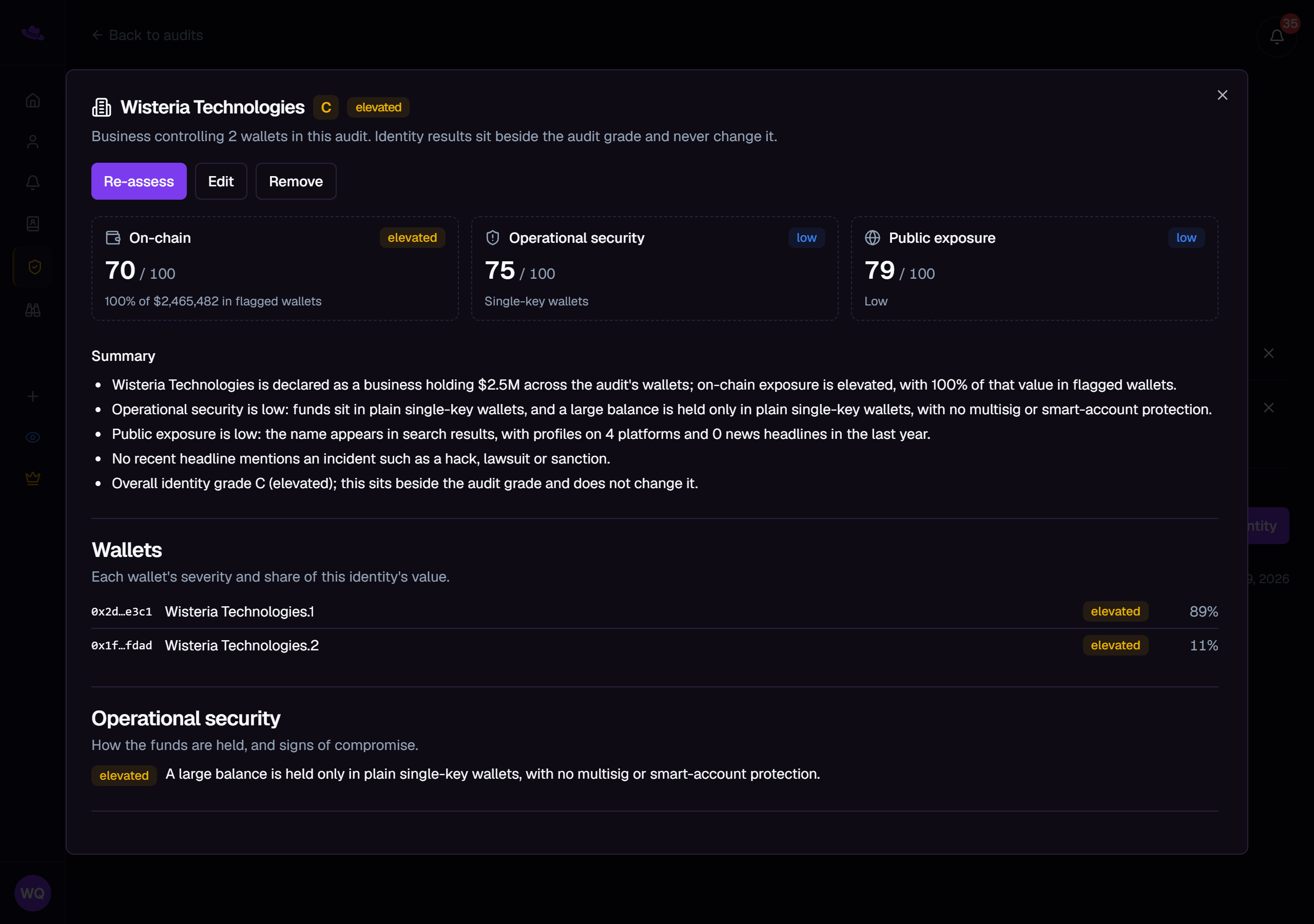
Each identity opens a detail view with three scores:
- On-chain: how much of the identity's value sits in wallets the audit flagged. A couple of flagged wallets holding most of the money weigh far more than a couple holding almost nothing.
- Operational security: how the funds are held, such as single-key wallets or a multisig, and signs of compromise like funds traced from flagged sources. It also notes when the identity's wallets sent funds to known phishing addresses; that note does not change the score.
- Public exposure: how findable and prominent the identity is, from web search, news coverage, its own website, a public GitHub account and public company registers.
Below the scores are the wallets behind the identity with each one's severity and share of value, the signals behind each score, links to the public sources that were read, and a short summary. A Sources line shows which public sources were read, which were unavailable, and which a site does not allow automated reads of. A wallet that belongs to an identity shows a person icon in the Wallets tab.
When you declared a country and the identity's wallets point confidently somewhere else, the detail view adds a neutral line such as "Declared: X. Wallet activity suggests Y (High conviction): worth asking the client." It appears only when one country holds most of the value of the wallets located at High conviction or above, and it never changes a score. When the audit's sanctioned-jurisdiction screen is on and matches one of the identity's wallets, the detail view says so too. A location describes the wallets' activity, not where a person is; see Tags and inferred location.
Tips
- Only assess people or businesses you are authorised to review. Wallet Sleuth never logs in to any site and keeps only links, titles and short excerpts, which are deleted after a set period unless you assess again.
- Changing an identity's name, type or wallets clears its assessment, so assess it again afterwards.
- To show identities on the read-only link, turn on Include identities on the shared link in the audit's settings. Who declared an identity, and why, is never shared, and neither is a declared country or the comparison with the wallets' location.
- Identities are included in the PDF report, and Identities CSV in the Export menu lists every identity with its scores.
Common questions
Does an identity change the audit grade? No. Identity results are shown beside the grade and never move it.
Why does a profile show as not read? Many social and professional networks do not allow automated reads. Wallet Sleuth respects that, so the profile is recognised from search results instead of being opened.
Someone asked to be removed. What happens? They can write to the address in the privacy policy. Their identity is removed from every audit and cannot be assessed again.