Reading the report
Once an audit completes, its page becomes a report with a row of tabs across the top. The header above the tabs shows the audit's name and status, its wallet counts, chains and depth, any analysis window, any target or restricted assets, and links to tracking pages already converted from it, plus Create tracking page, Settings, Export, and, depending on status, Cancel audit, Retry audit, or Delete.
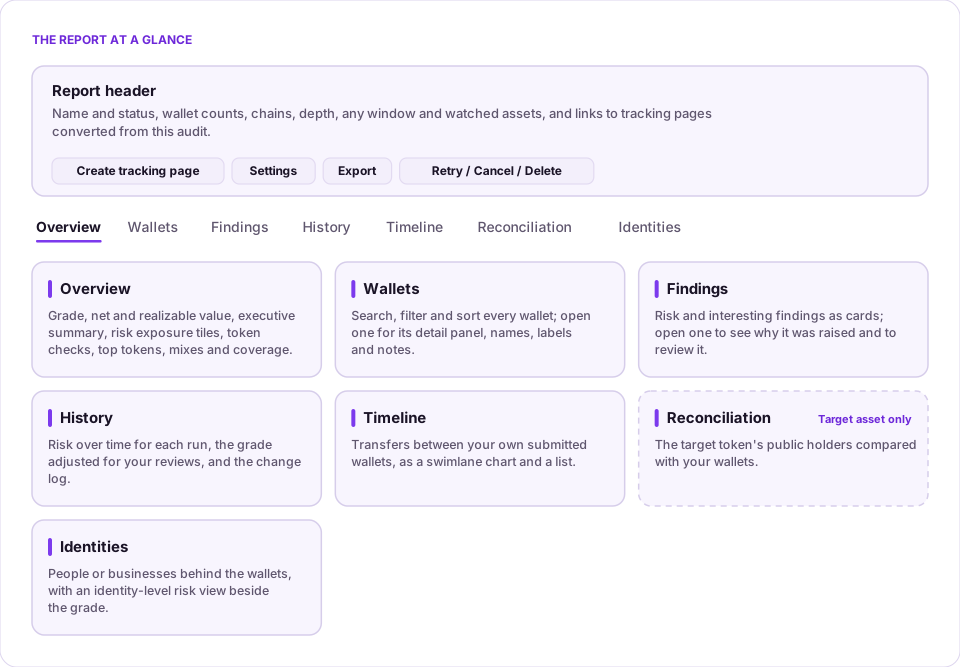
What you'll see
Overview
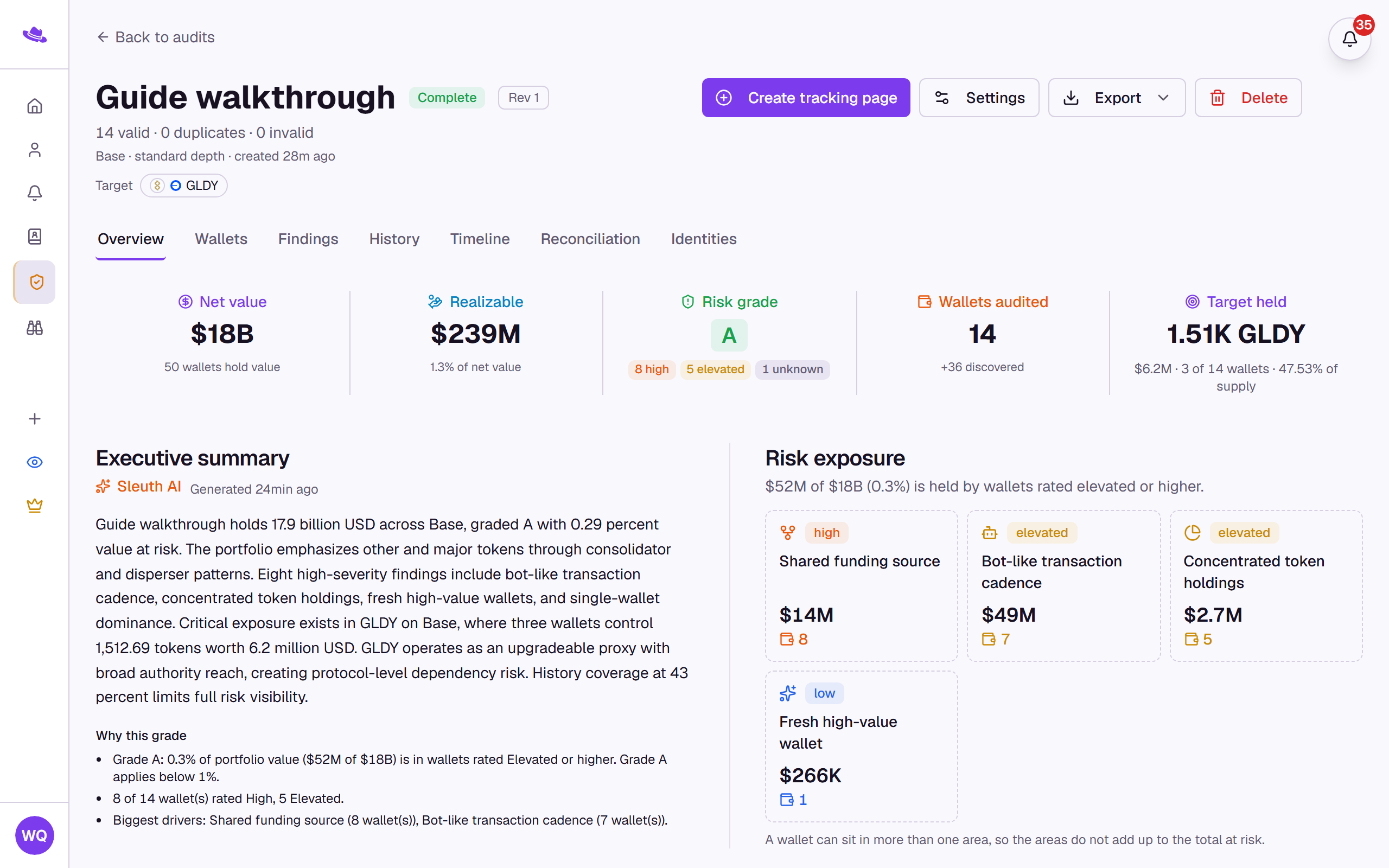
A stats strip across net value, realizable value, risk grade, and wallets audited (plus target-held and error counts when relevant), with the grade's severity bands shown beneath it.
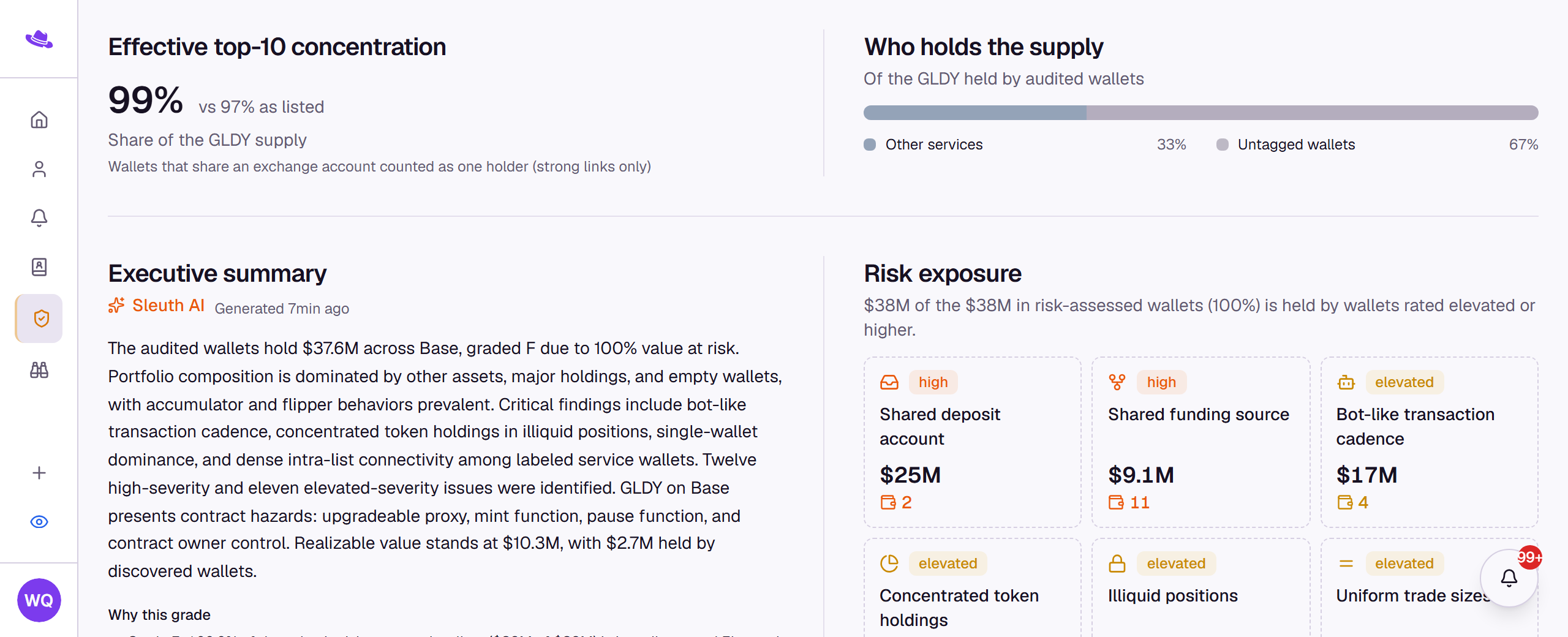
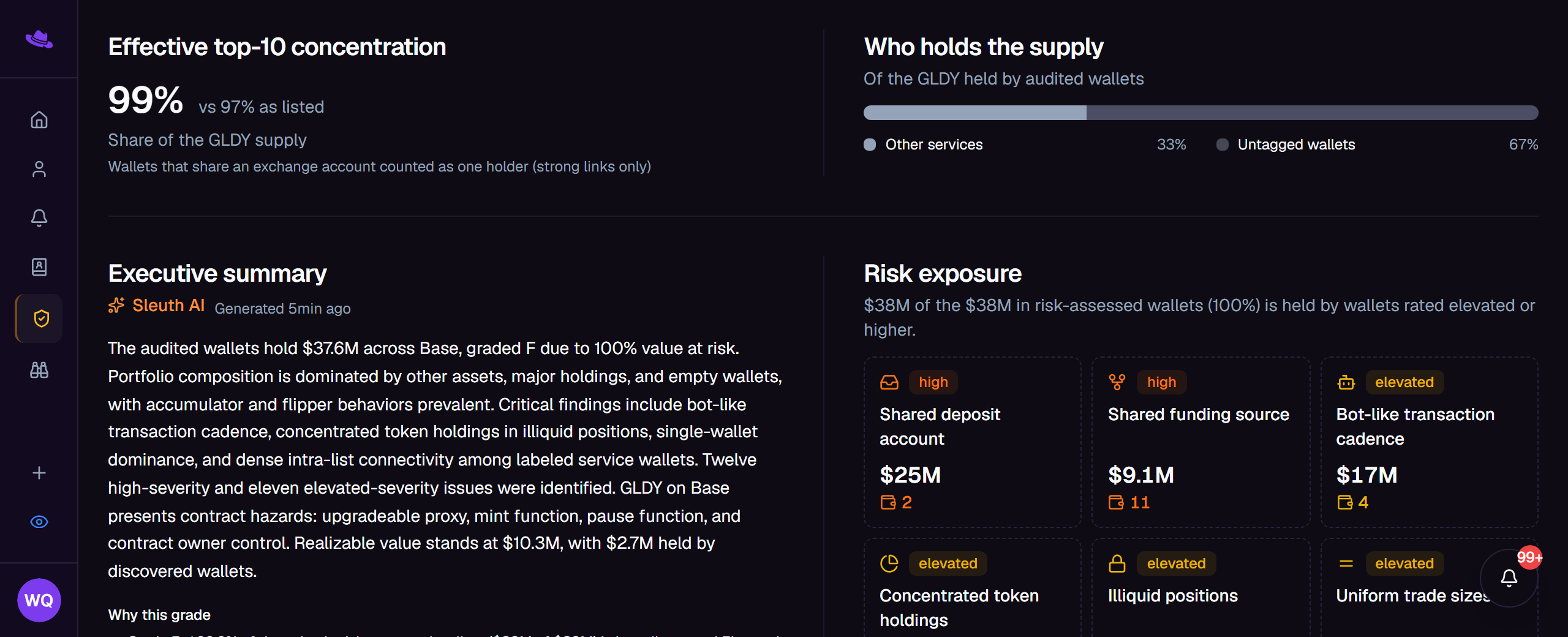
When the audit read Allium's tags and locations, a row under the stats strip shows the Effective top-10 concentration of the target asset beside the same figure as listed, and Who holds the supply, a bar that splits the target asset held by audited wallets by kind of holder, such as exchanges, custody, DeFi, payment services and untagged wallets. Both sit beside the grade and never change it; see Tags and inferred location for how effective concentration is counted. A run that did not read tags and locations says so instead.
Below that, an executive summary written by Sleuth AI sits beside the risk exposure tiles, one small tile per risk area with the value and wallet count behind it. Further down: token checks on the watched asset (when the audit has one), a wealth distribution chart, a top-tokens table, portfolio-style and behavior mixes, a coverage table showing how much history was read per chain, and the notable findings. See risk score and grade for how the grade itself is computed.
Wallets
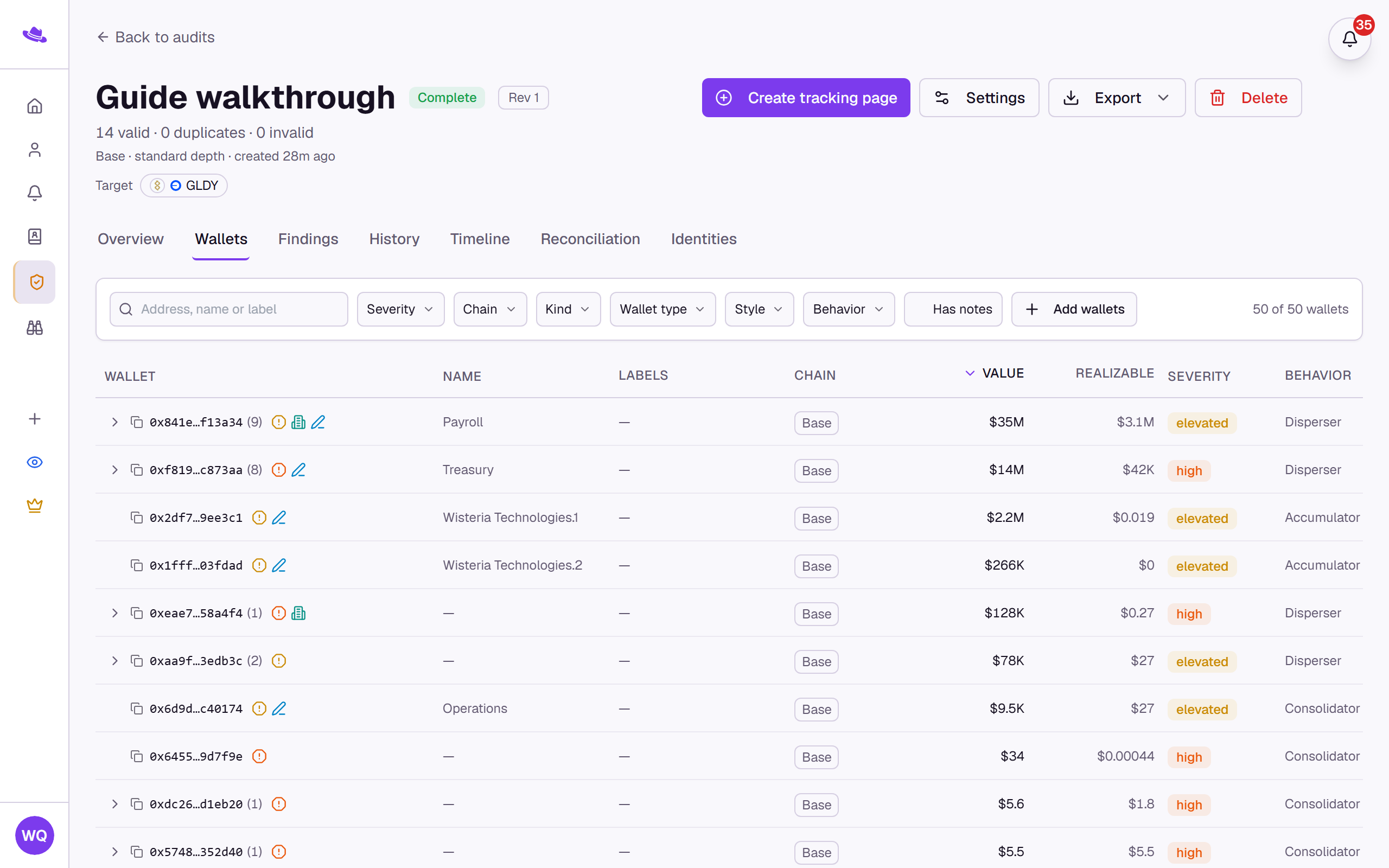
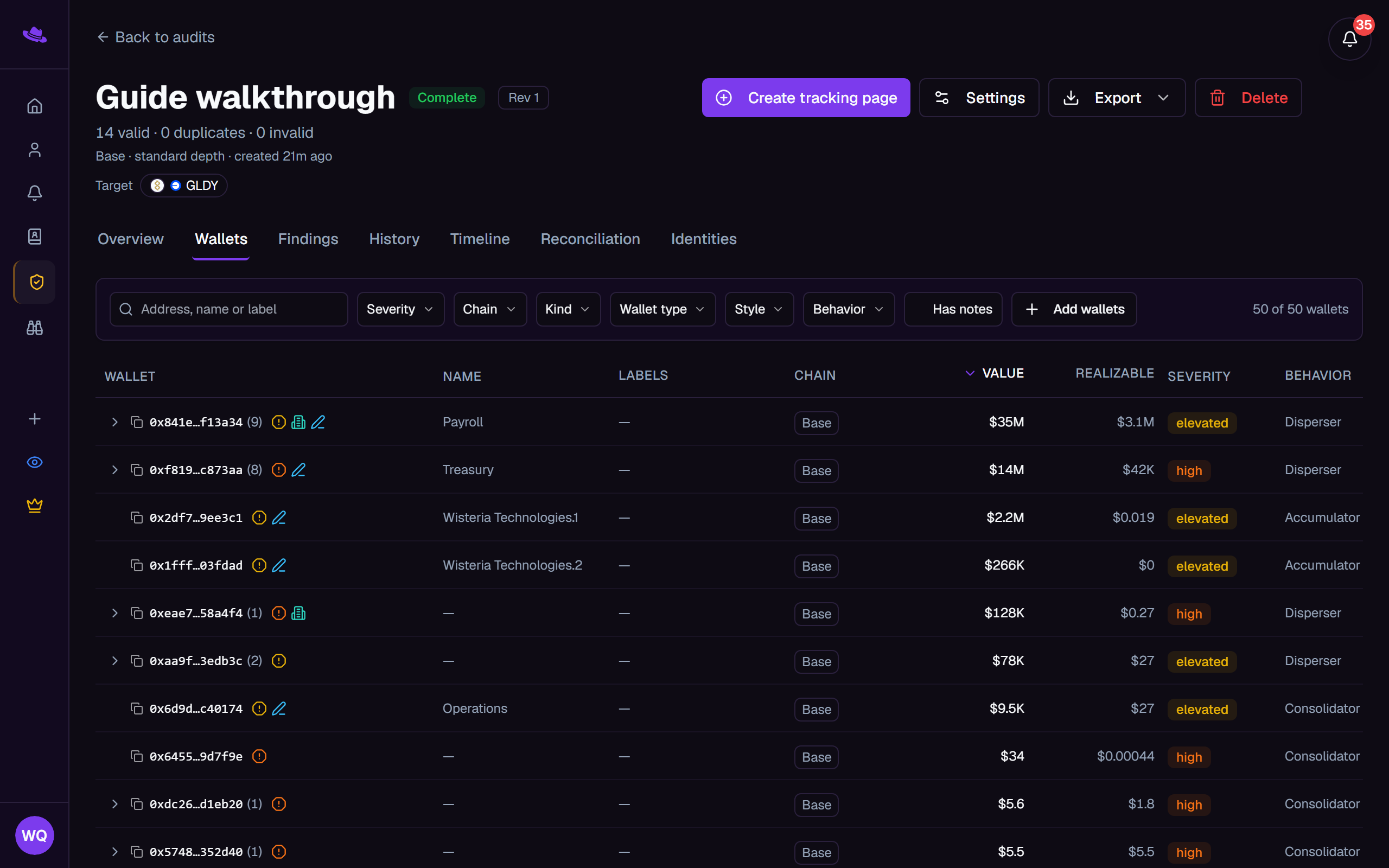
A searchable, filterable, sortable table of every audited wallet, with facet filters for Severity, Chain, Kind, Wallet type, Style, and Behavior, plus a Has notes toggle. Columns include Wallet, Name, Labels, Chain, Value, Realizable, Severity, Behavior, Style, History, and, when the audit has a target asset, Target. Selecting a wallet opens its detail panel, where you can edit its name, labels, and notes, or select Investigate in Scout to trace a Solana wallet further.
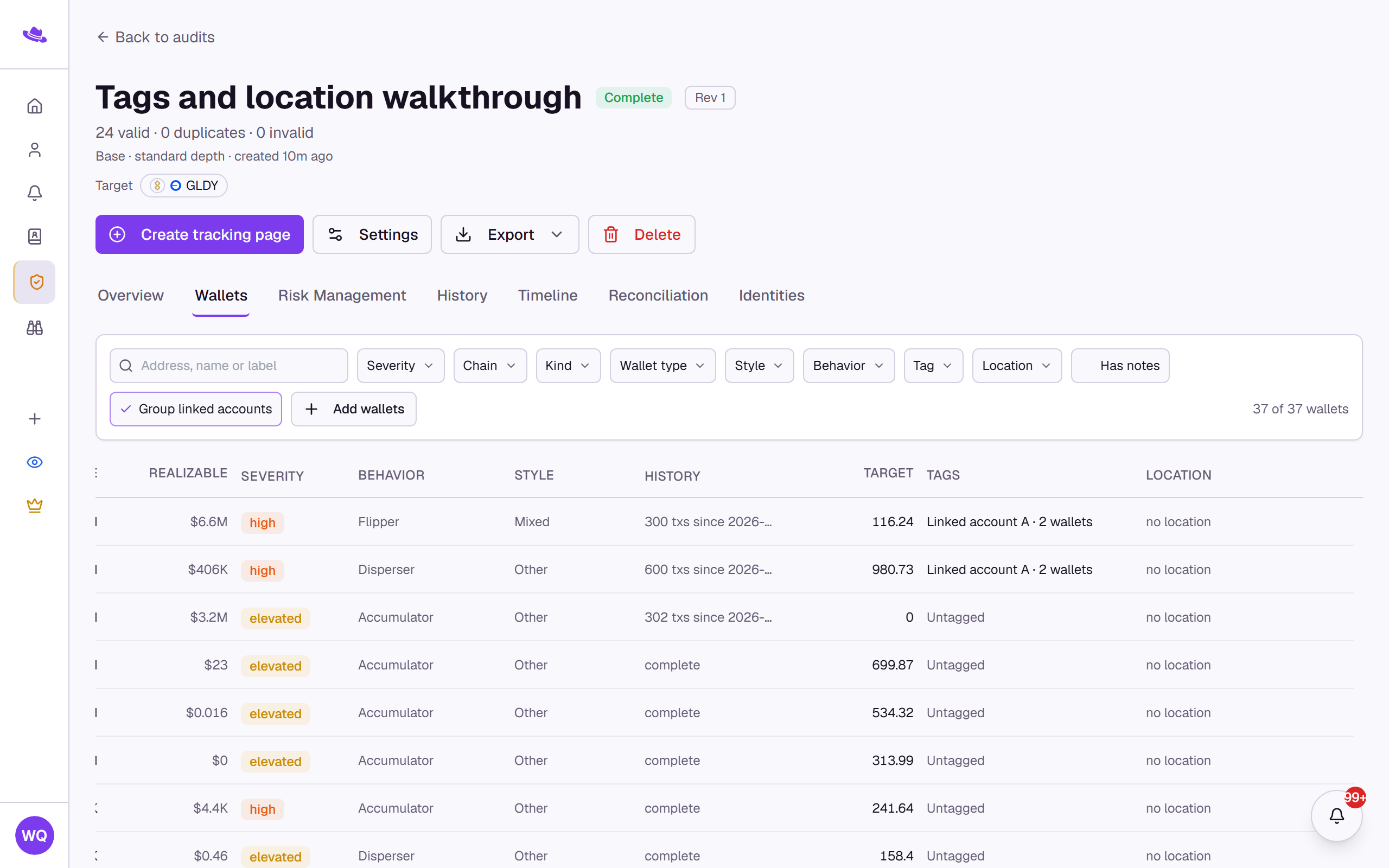
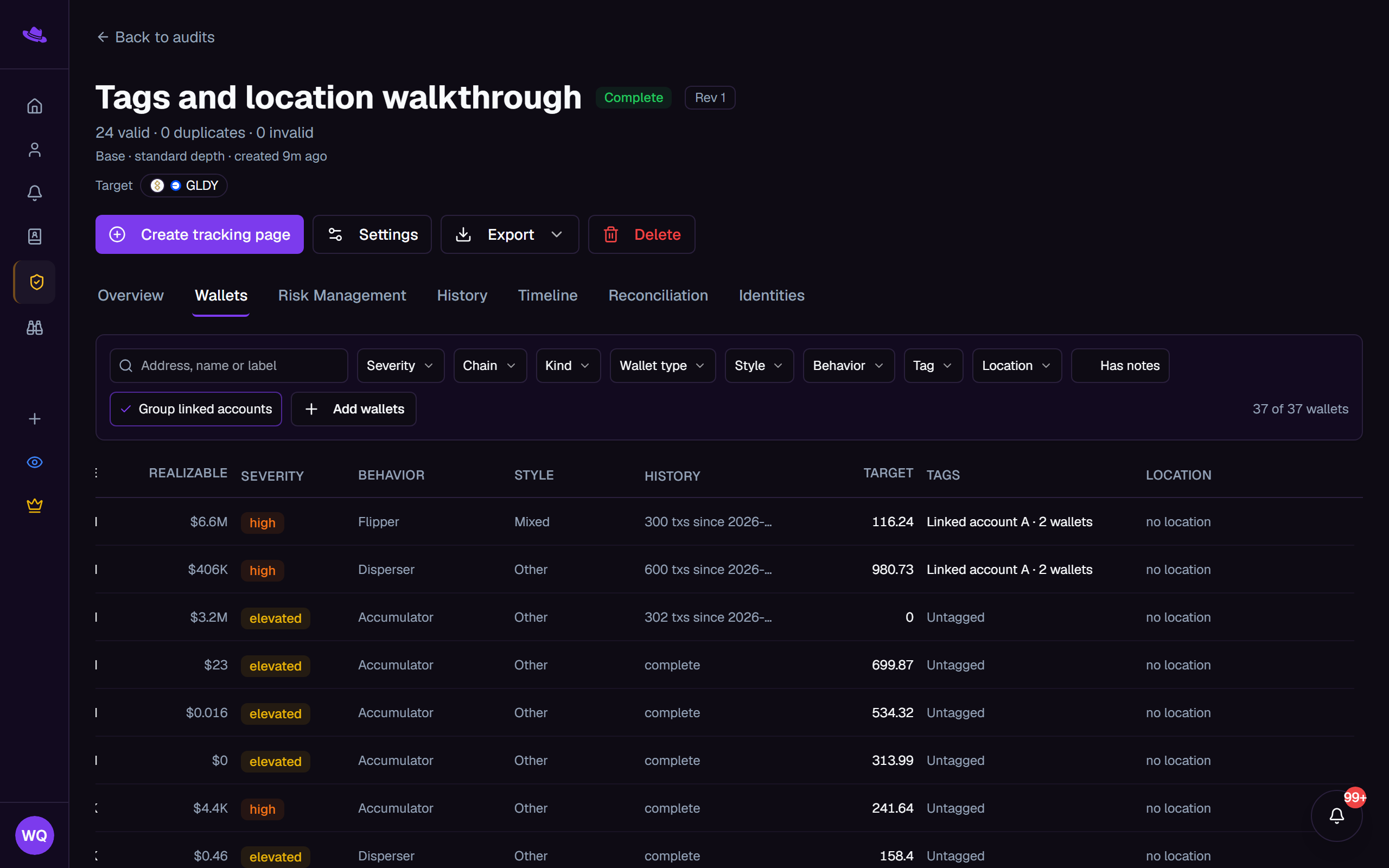
When the audit read Allium's tags and locations, the table also has Tags and Location columns with Tag and Location filters. A dash means the wallet was not checked; Untagged and no location mean Allium has nothing on it. A wallet that shares a deposit account with other submitted wallets reads Linked account A (B, C and so on, one letter per group), and Group linked accounts, shown when the audit found such a group, lists each group's wallets together. The detail panel then adds:
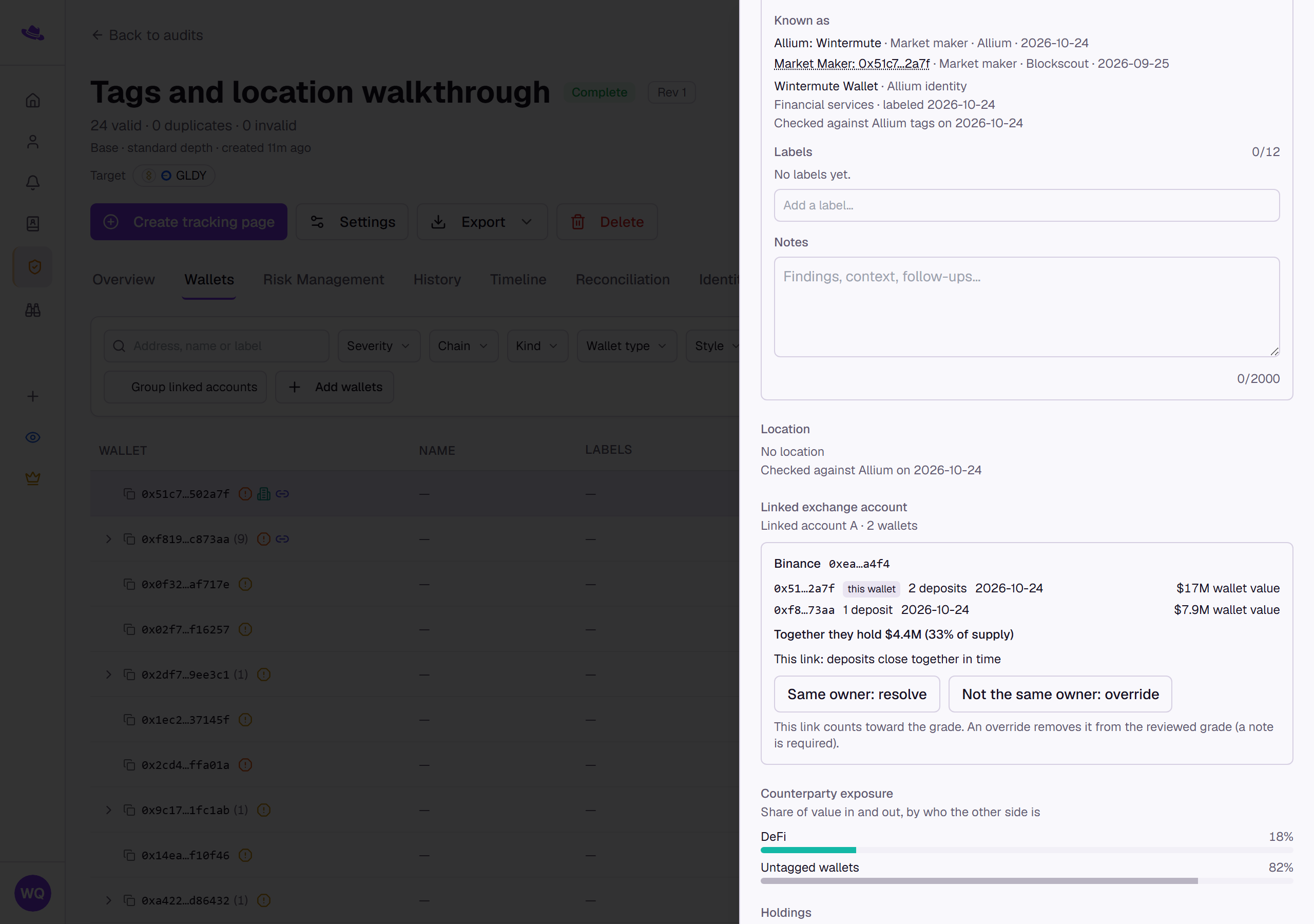
- the Allium tag under Known as, with the date it was checked;
- Location: the country, conviction and Allium's reasoning, with a note that it describes the wallet's activity, not where a person is;
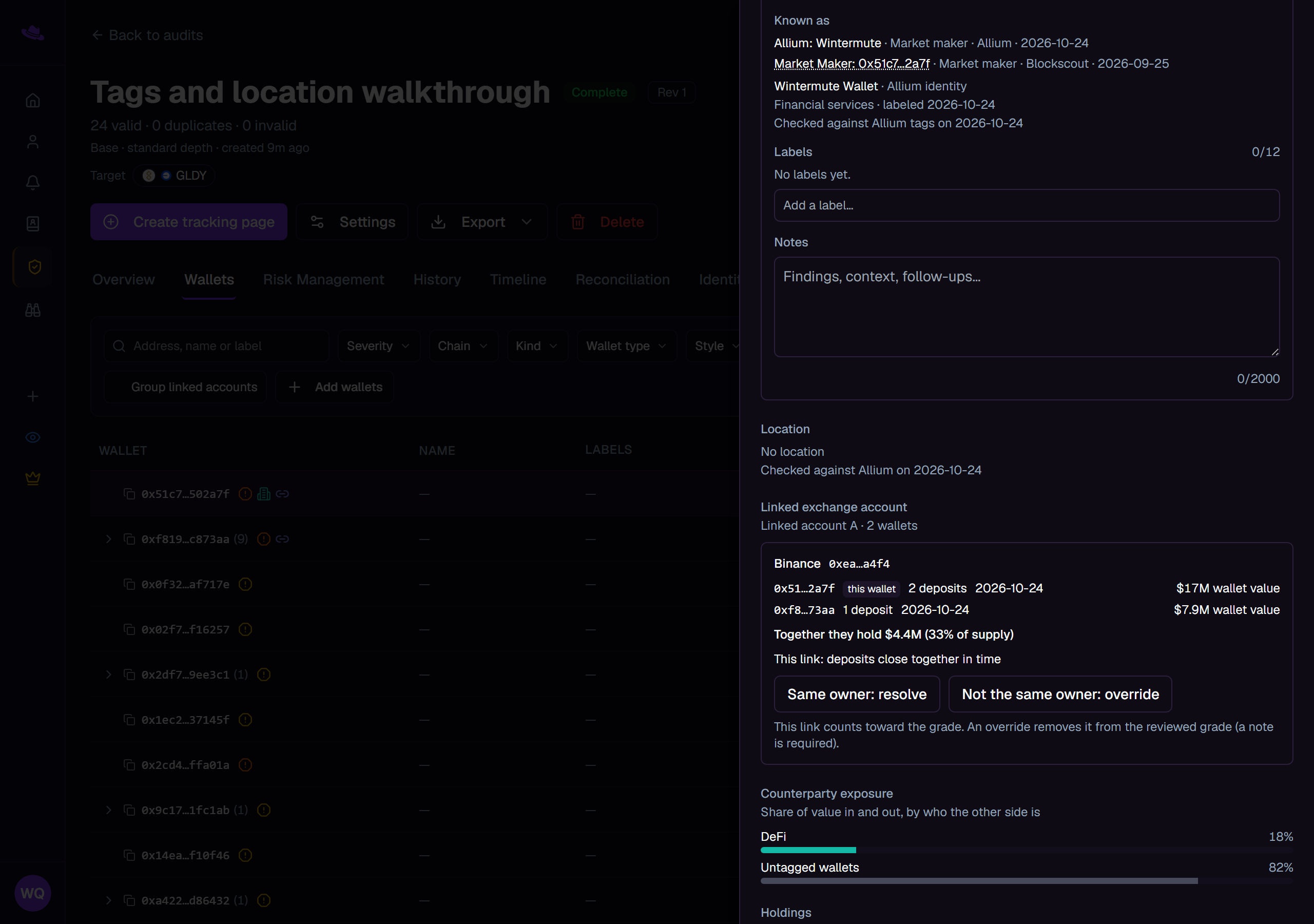
- Linked exchange account (Linked custody account, Linked casino account or Linked payment account for those services, Linked deposit account for a mix): the deposit address, the service, the wallets that share it with their deposits and dates, and why the link is strong. A strong link counts toward the grade, so the panel offers Same owner: resolve and Not the same owner: override. Possible links are listed muted and count for nothing;
- Counterparty exposure: the share of the wallet's value in and out by who the other side is, such as exchanges, DeFi or untagged wallets.
Findings
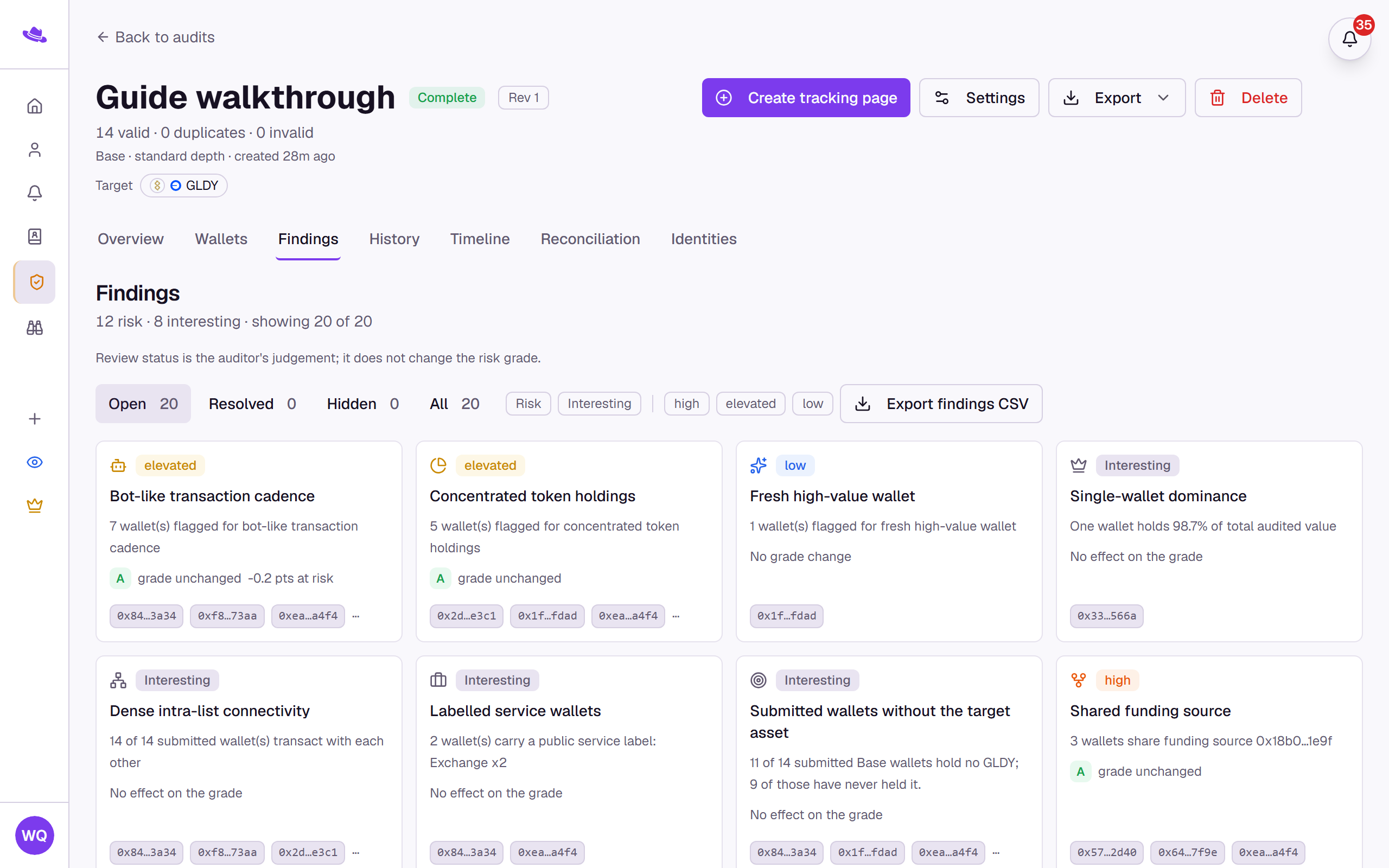
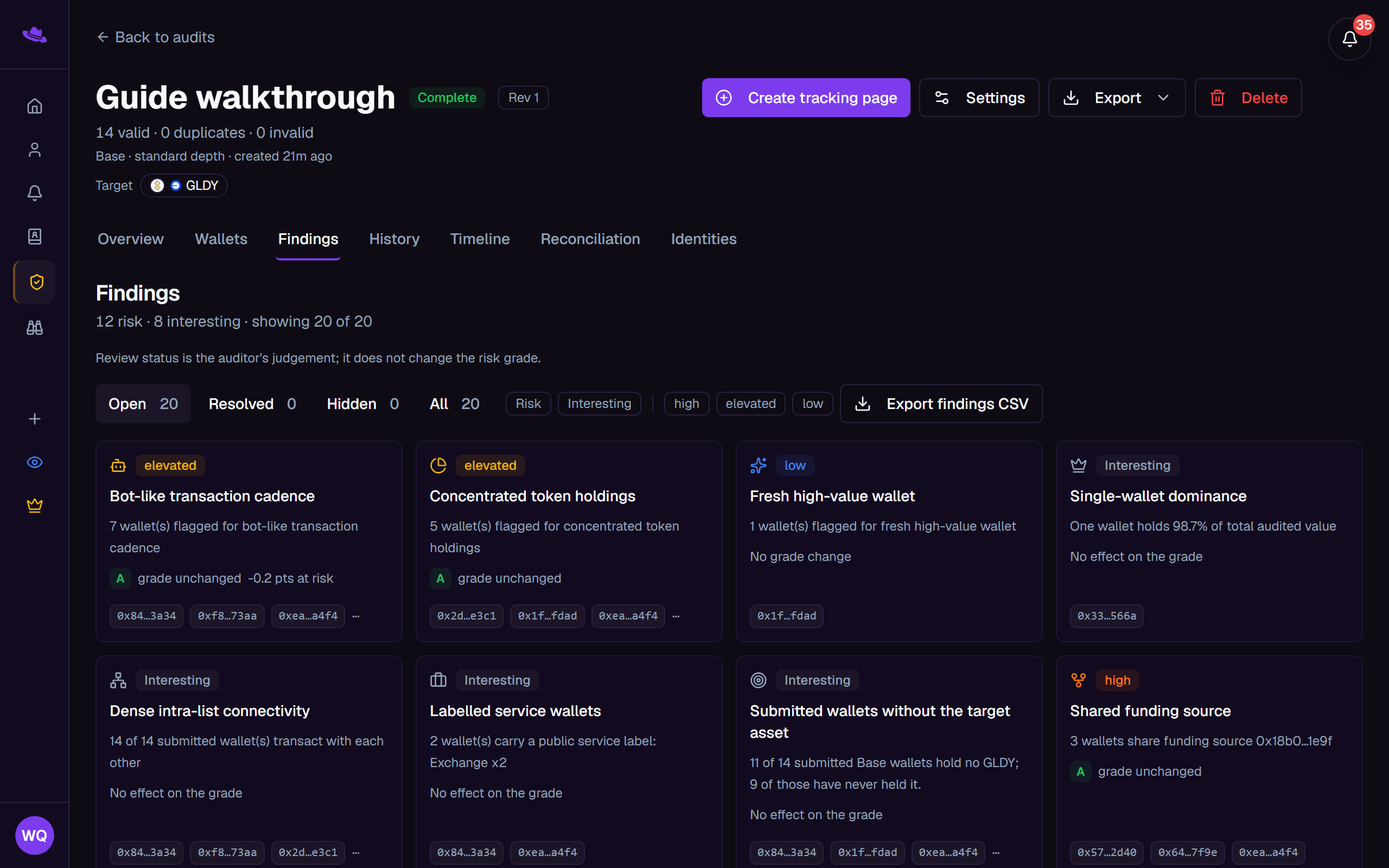
Every risk and interesting finding raised by the audit, as a grid of cards. Each card shows its severity or type, how many wallets it flagged, and its effect on the grade. See Reviewing findings for what a finding shows and how to work through it.
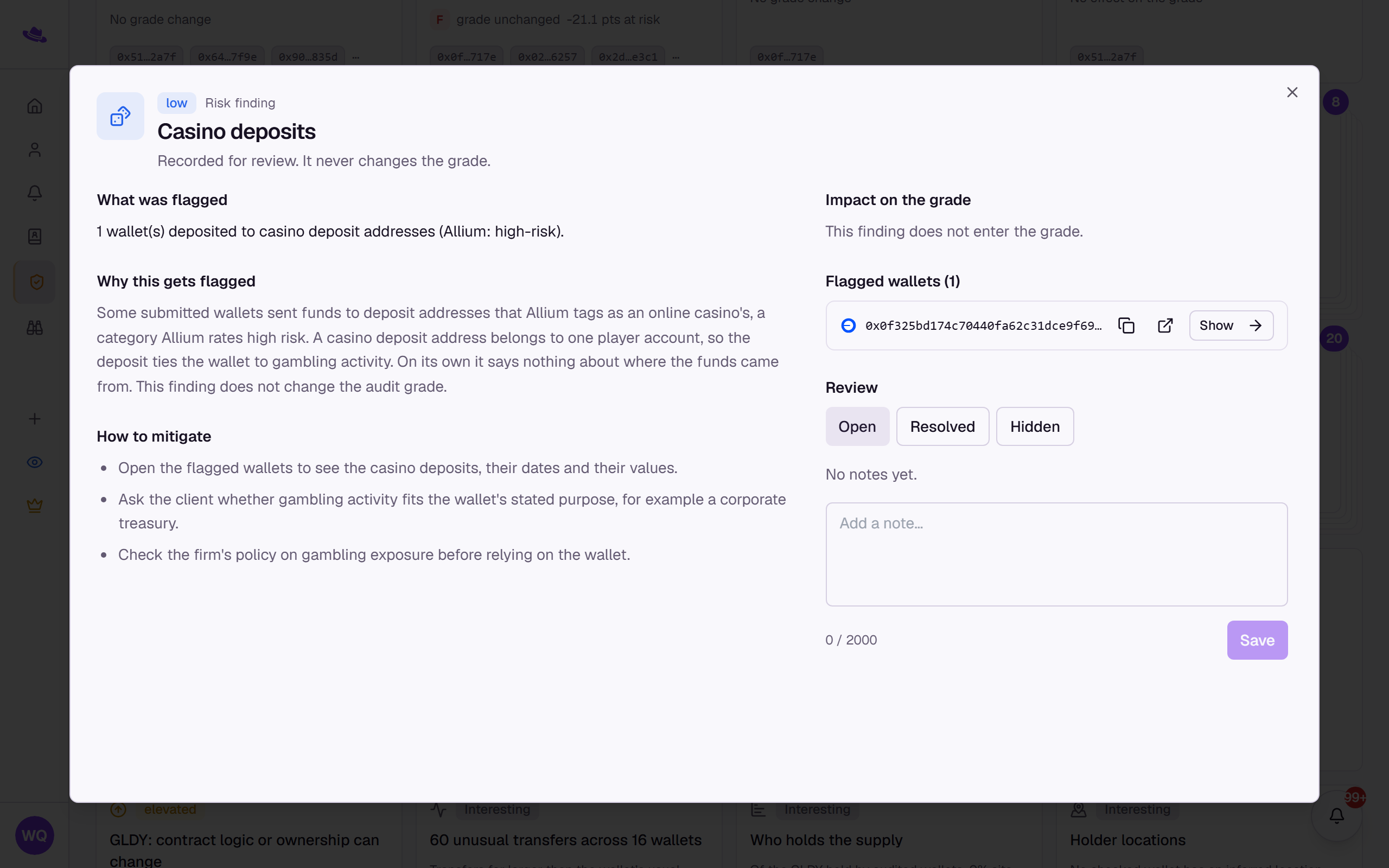
Findings from Allium's tags and locations, such as Coordinated exchange deposits and Casino deposits, carry a severity for attention but never change the grade, and the opt-in Sanctioned-jurisdiction screen carries a Review badge. Of the results that come from Allium's data, only a shared deposit account and an illicit flag change the grade. See Tags and inferred location for every one of them.
History
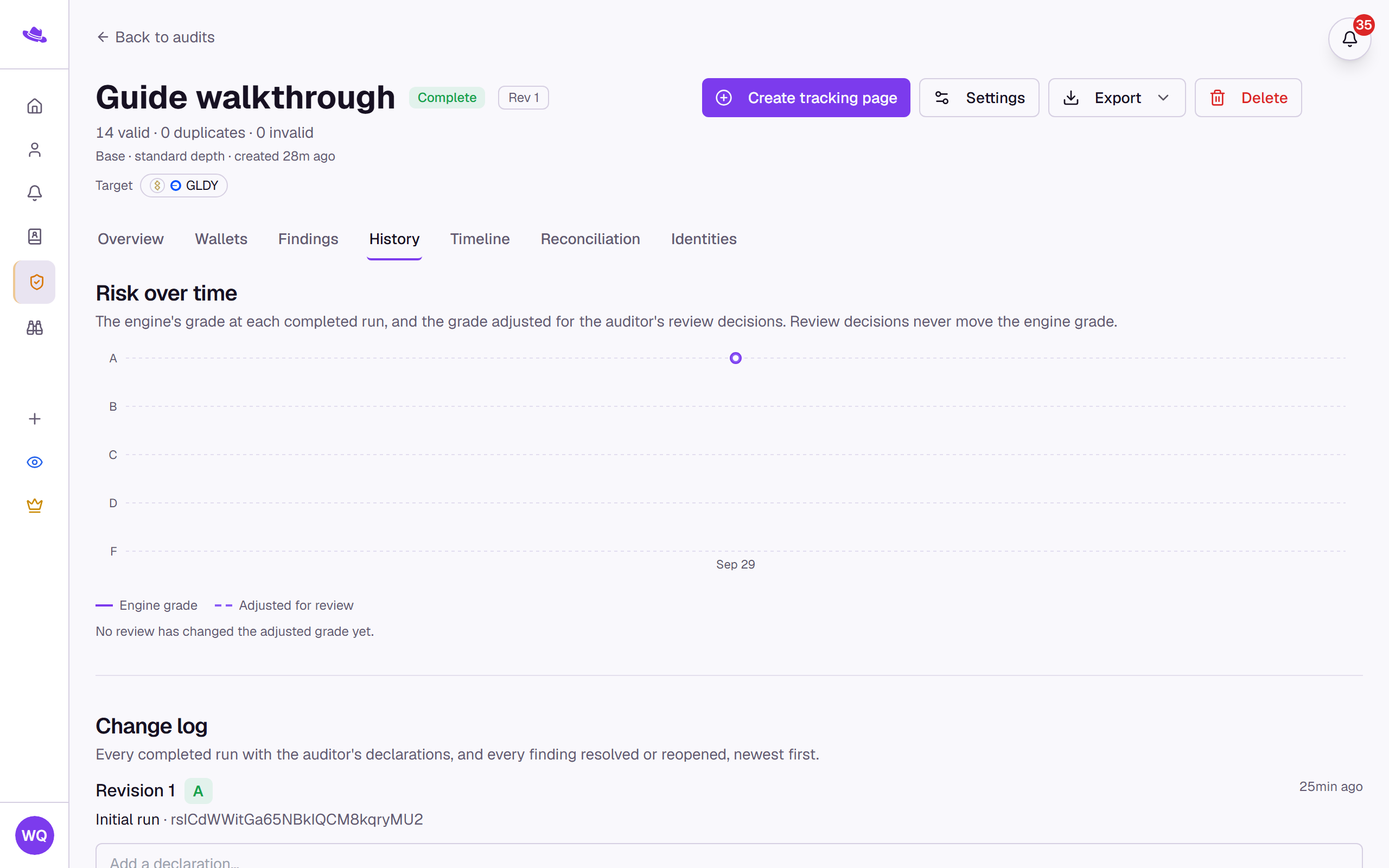
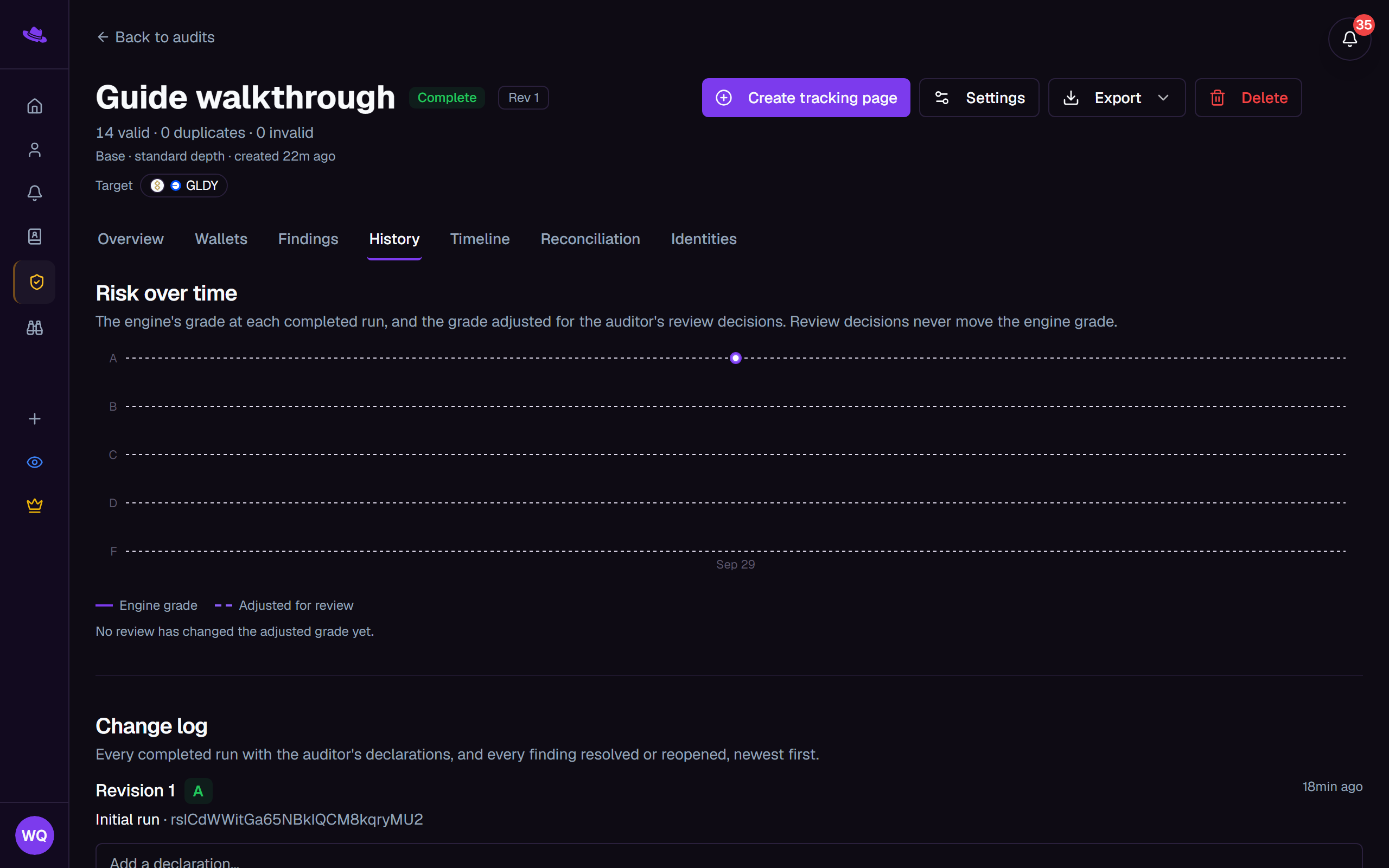
A "Risk over time" chart of the grade at each completed run, alongside the grade adjusted for whatever findings you've since resolved or hidden, and a change log listing every completed run plus each finding you've resolved or reopened. You can add a declaration to a run from the change log.
Timeline
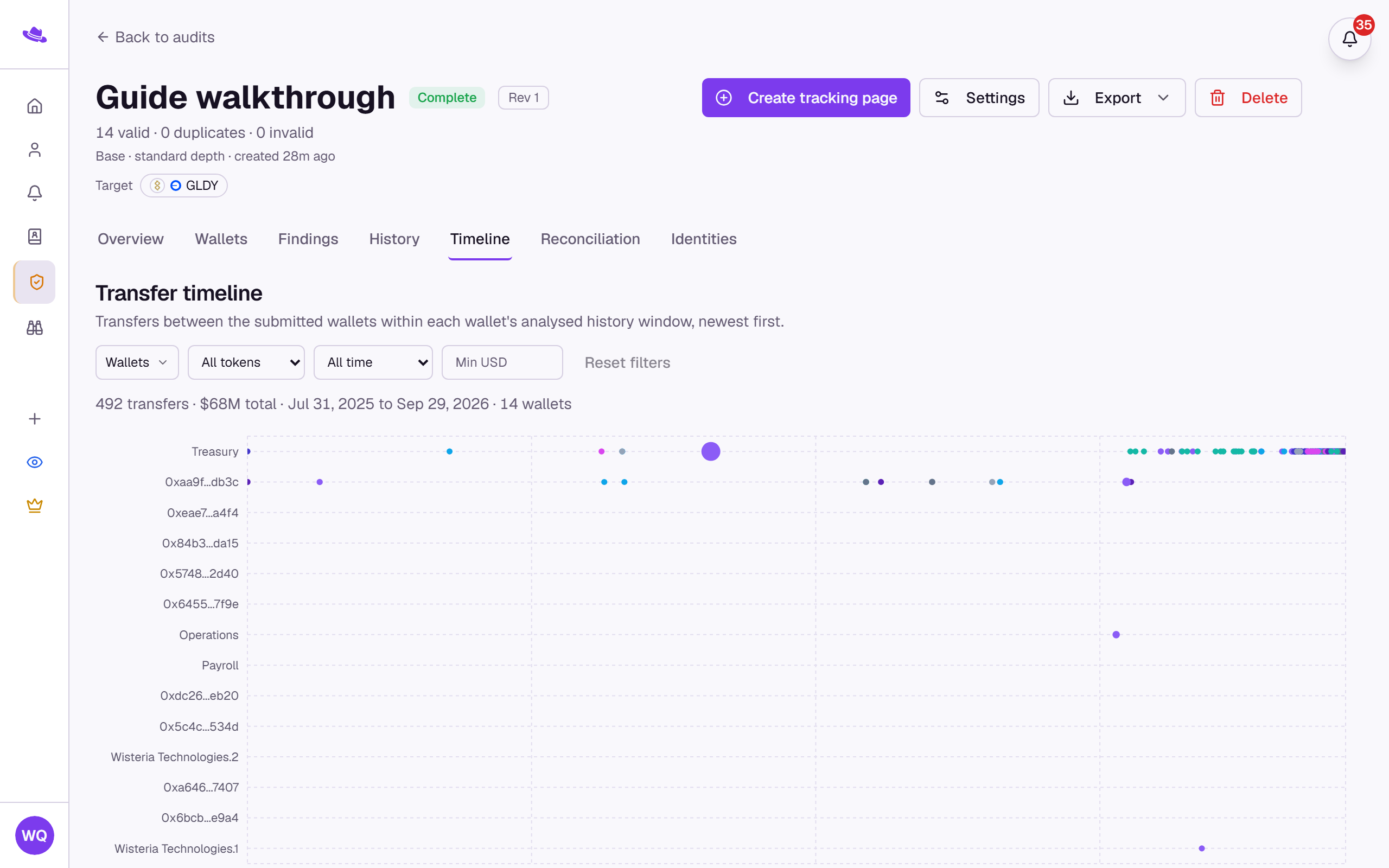
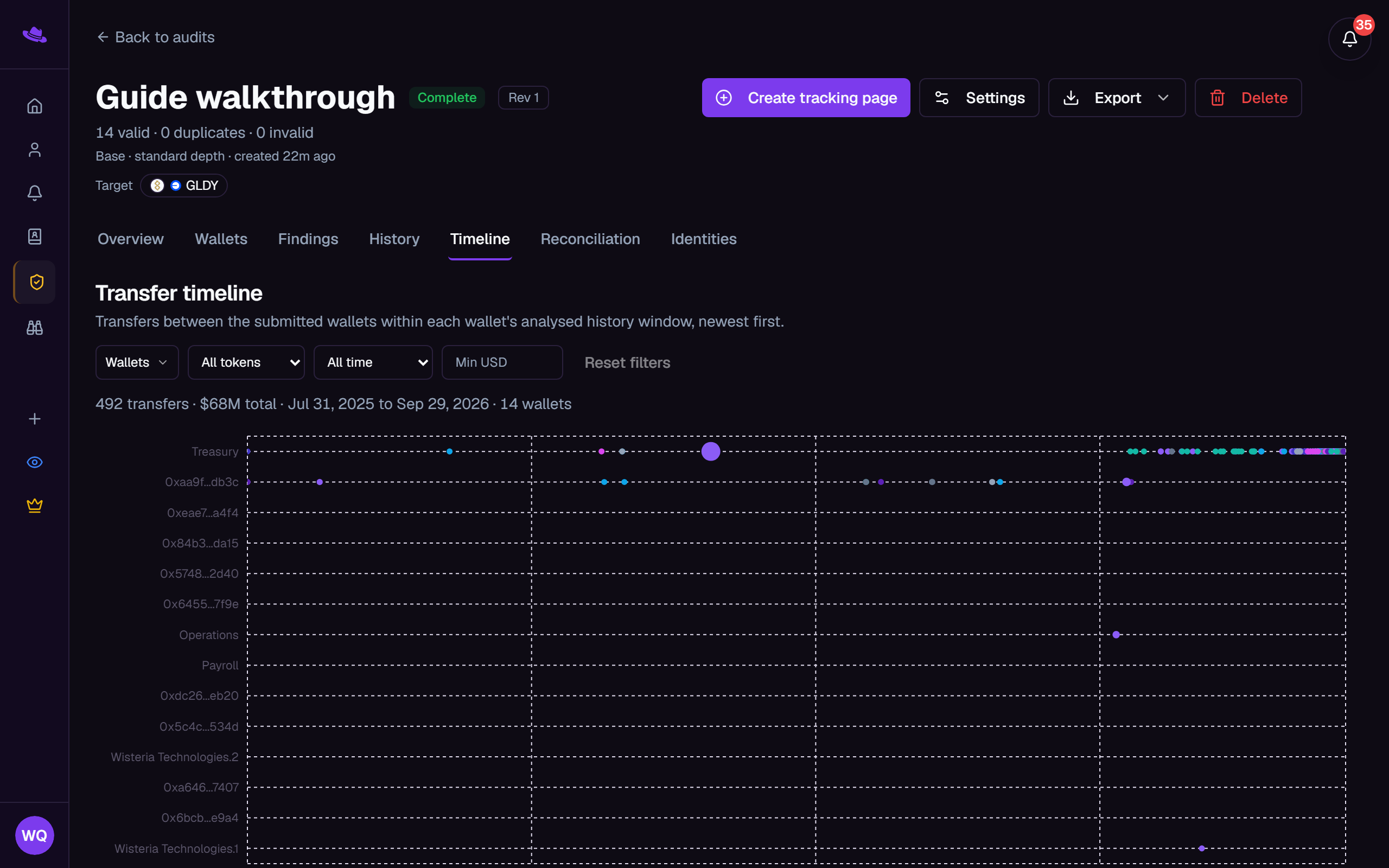
Transfers between the audit's own submitted wallets, shown as a chronological list and a swimlane chart, filterable by wallet, token, date range, and minimum amount.
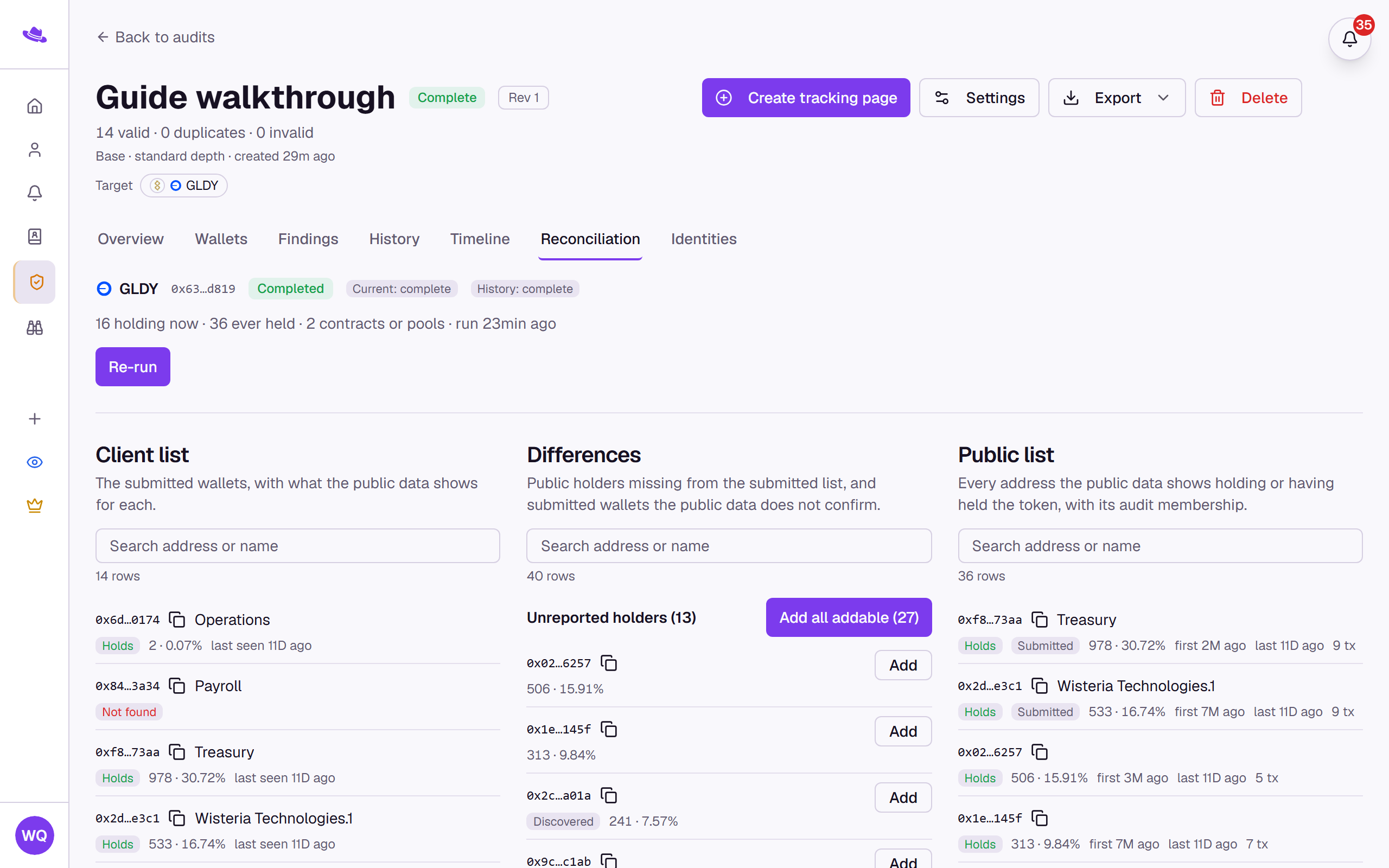
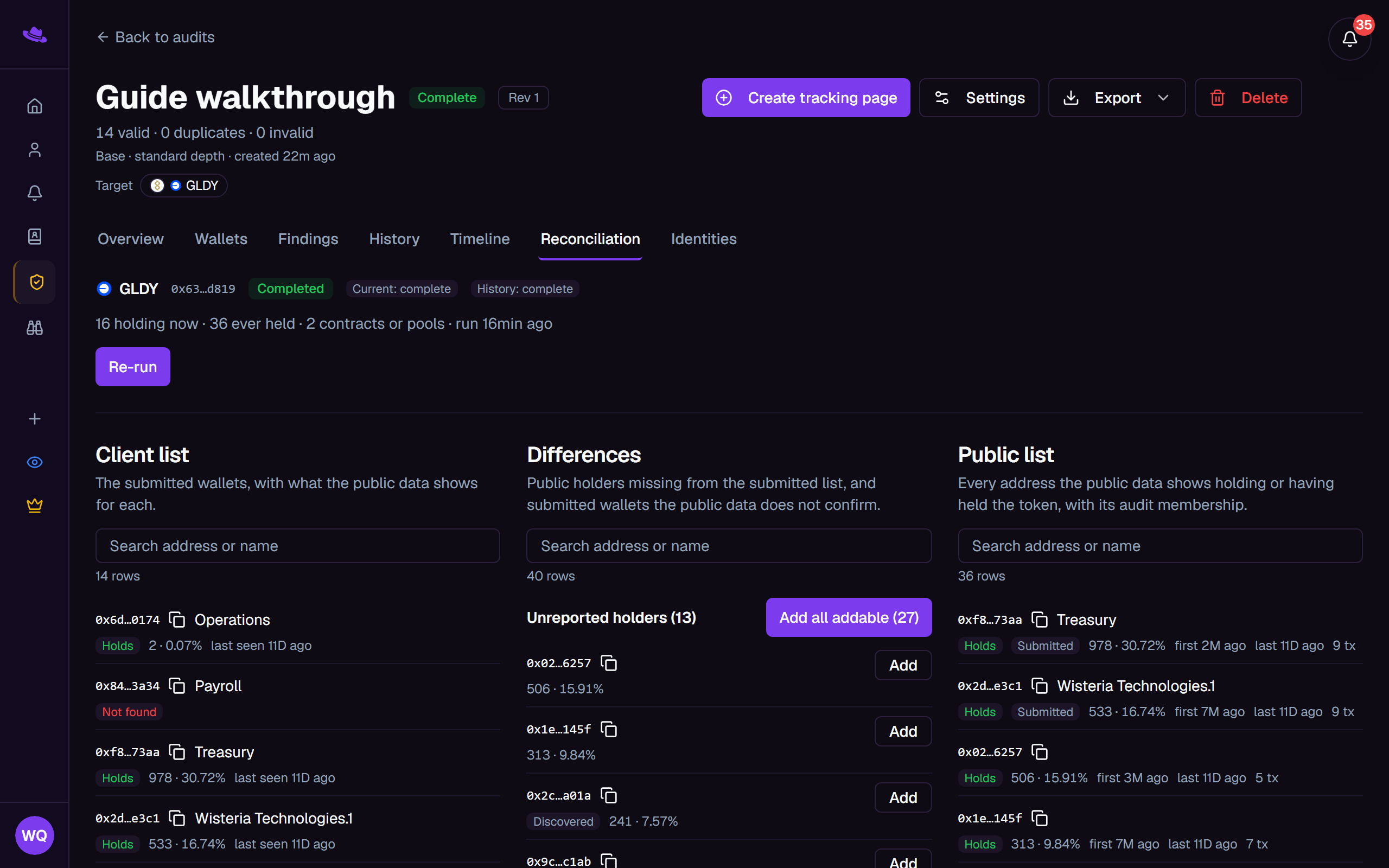
Reconciliation
Shown only when the audit has a target asset. Compares the token's own public holder list against your submitted wallets, in three columns: your client list, the differences, and the public list. You can see who else holds it, who never has, and add anyone interesting straight into the audit.
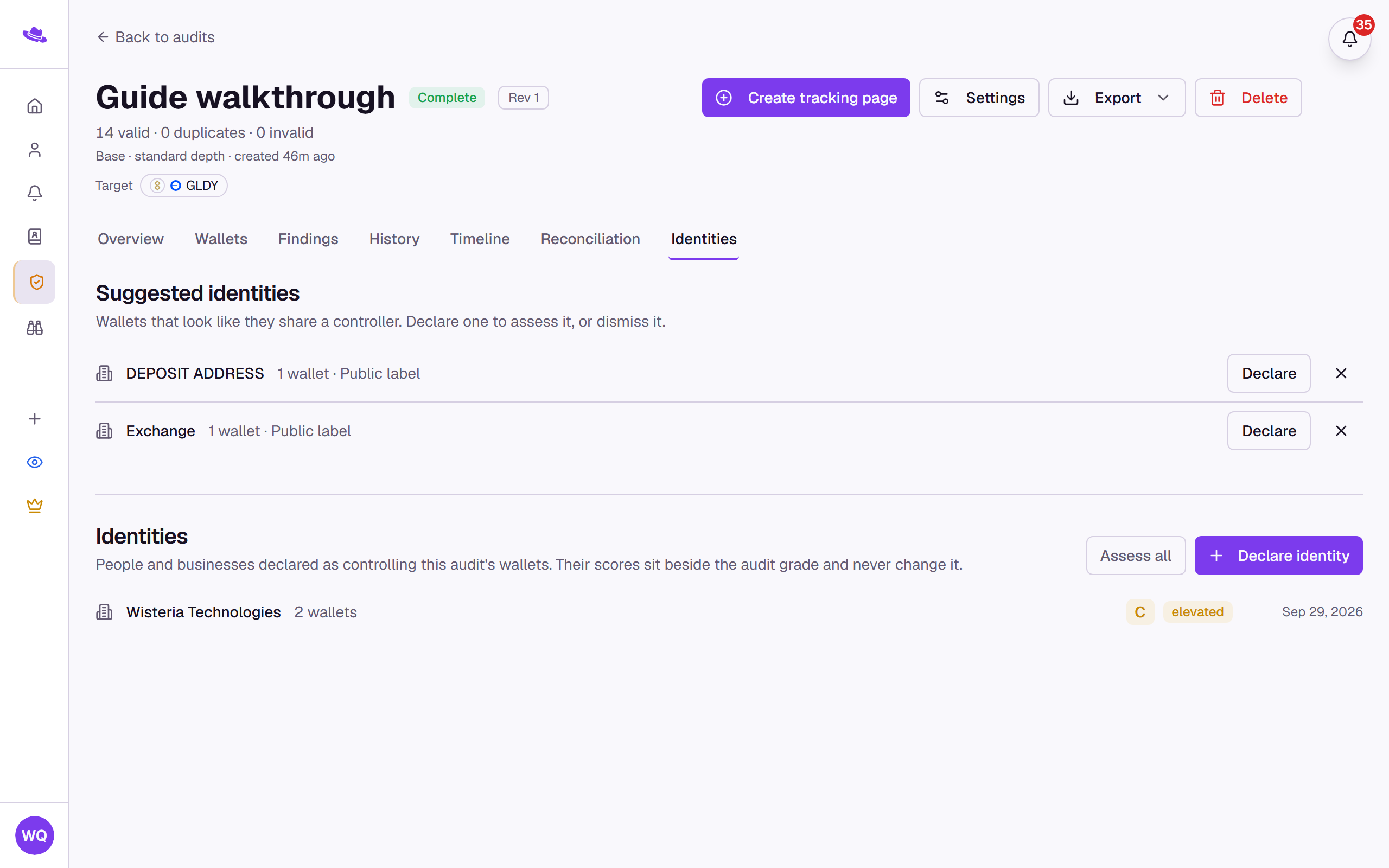
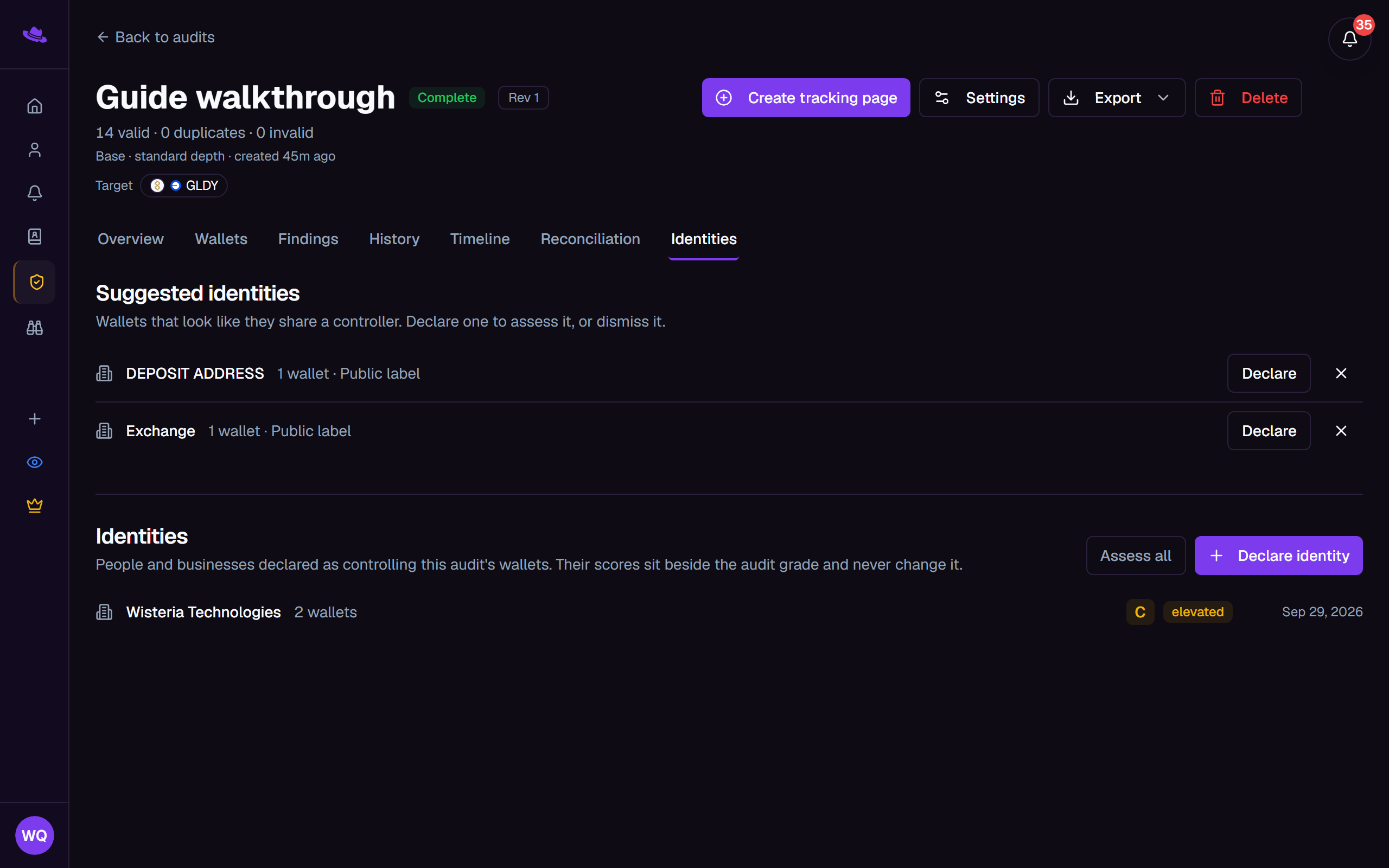
Identities
The people or businesses you've declared as controlling some of the audit's wallets, each with an identity-level risk view that sits beside the grade and never changes it, plus suggestions for identities you haven't declared yet. See Identities for how to declare and assess one.