Inspector, flags, and filters
Selecting a wallet, a connection, or a heat map cell opens the inspector panel on the right with everything Scout knows about it. Flag and Filters, both in the toolbar, control what's flagged and what's shown across the whole canvas.
What you'll see
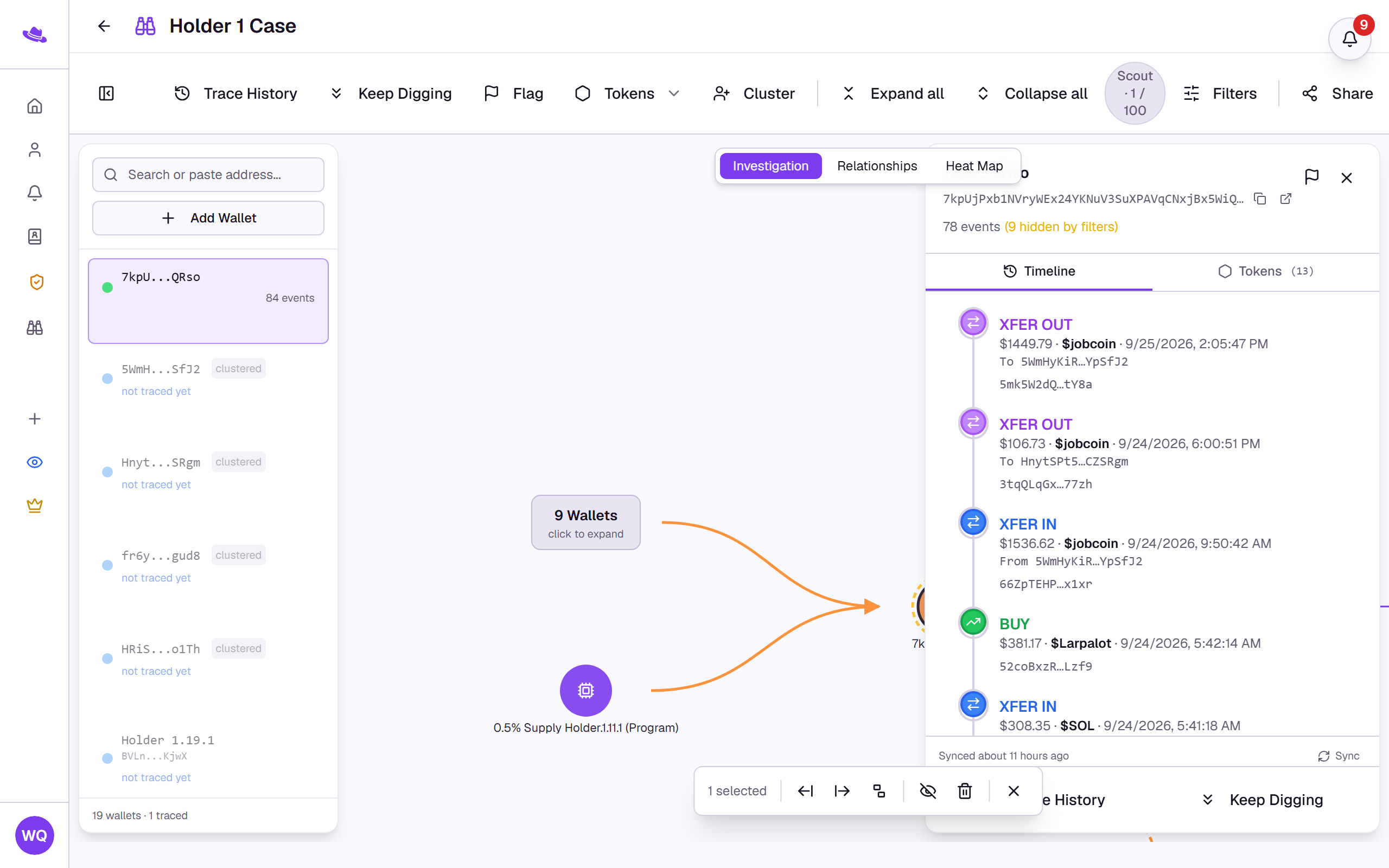
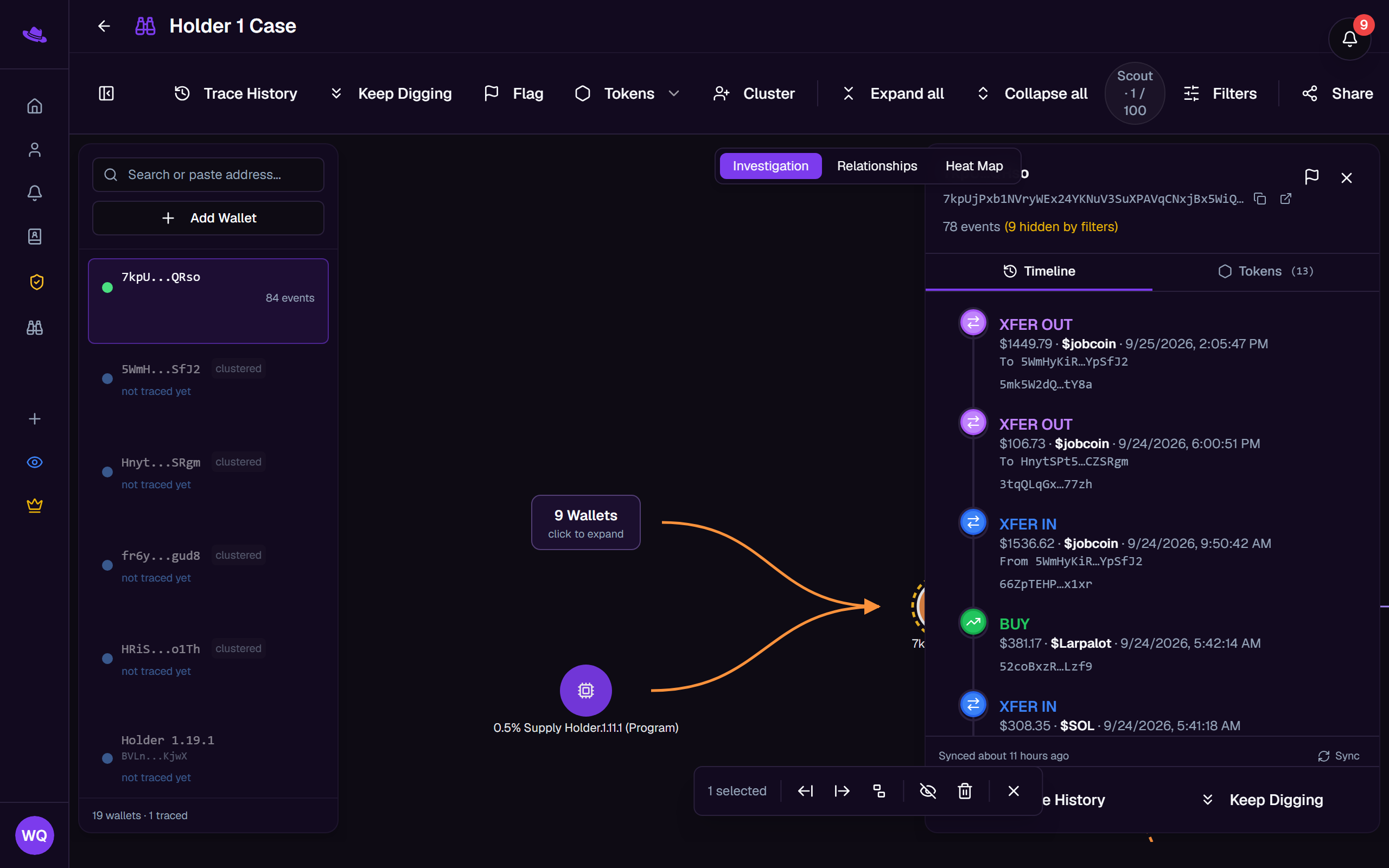
The inspector panel
- Selecting a wallet, on the canvas or in the wallet panel, opens its inspector: a nickname you can edit in place, the full address with copy and an explorer link, any flags as pills, and its event count.
- Timeline lists the wallet's transactions, filtered by whatever's set in Filters. Tokens shows a live snapshot of its holdings and what it's traded but no longer holds; selecting a token there filters the Timeline down to just that token.
- The footer repeats Sync, which pulls in only the newest activity, and Trace History / Keep Digging, the same actions as the toolbar, or a "History fully traced" note once there's nothing left to fetch.
- Selecting a connection between two wallets, a cell in the Heat Map, or a highlighted path between two selected wallets opens the inspector on that link instead, with its own detail in place of a wallet's.
Tags & location
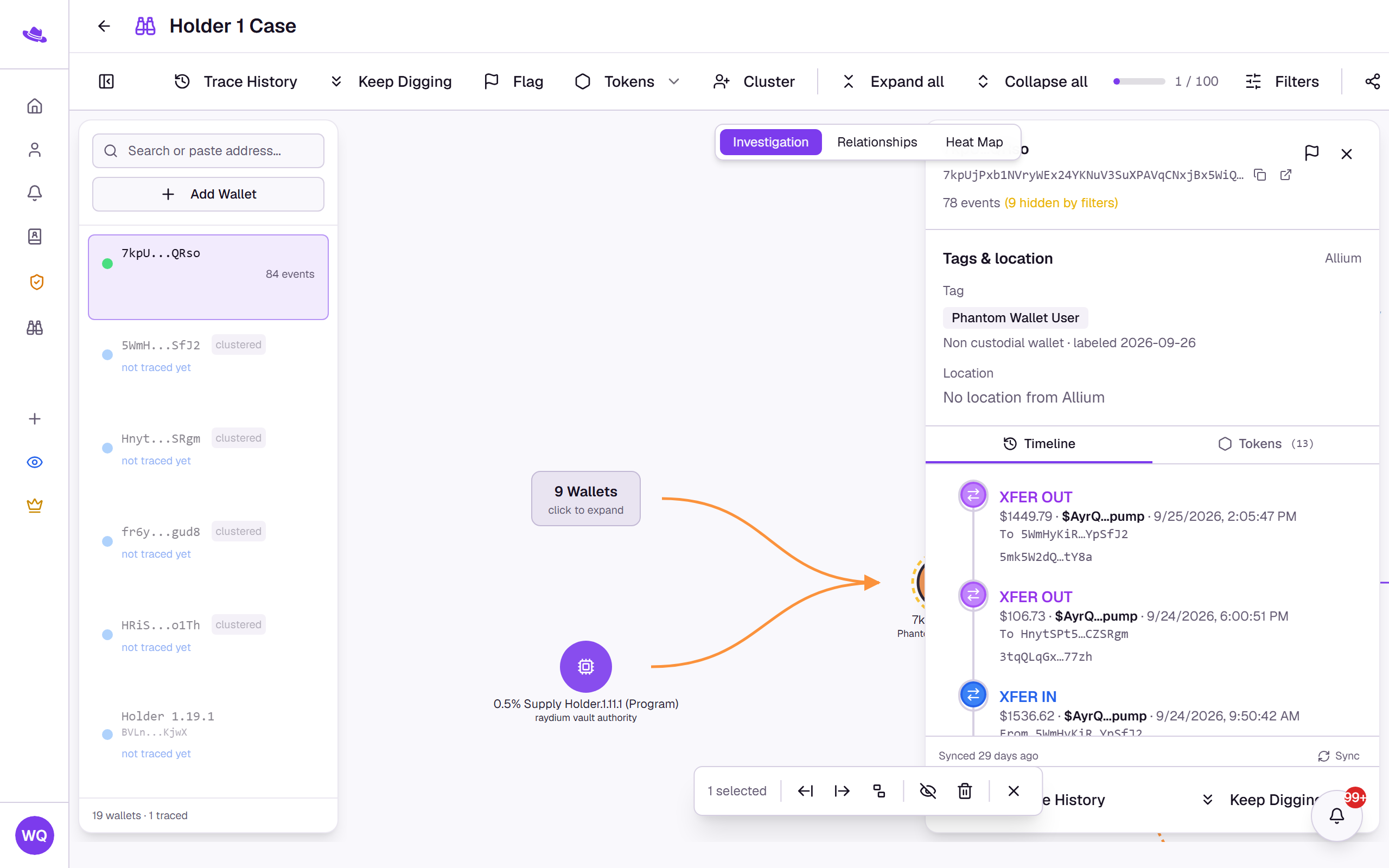
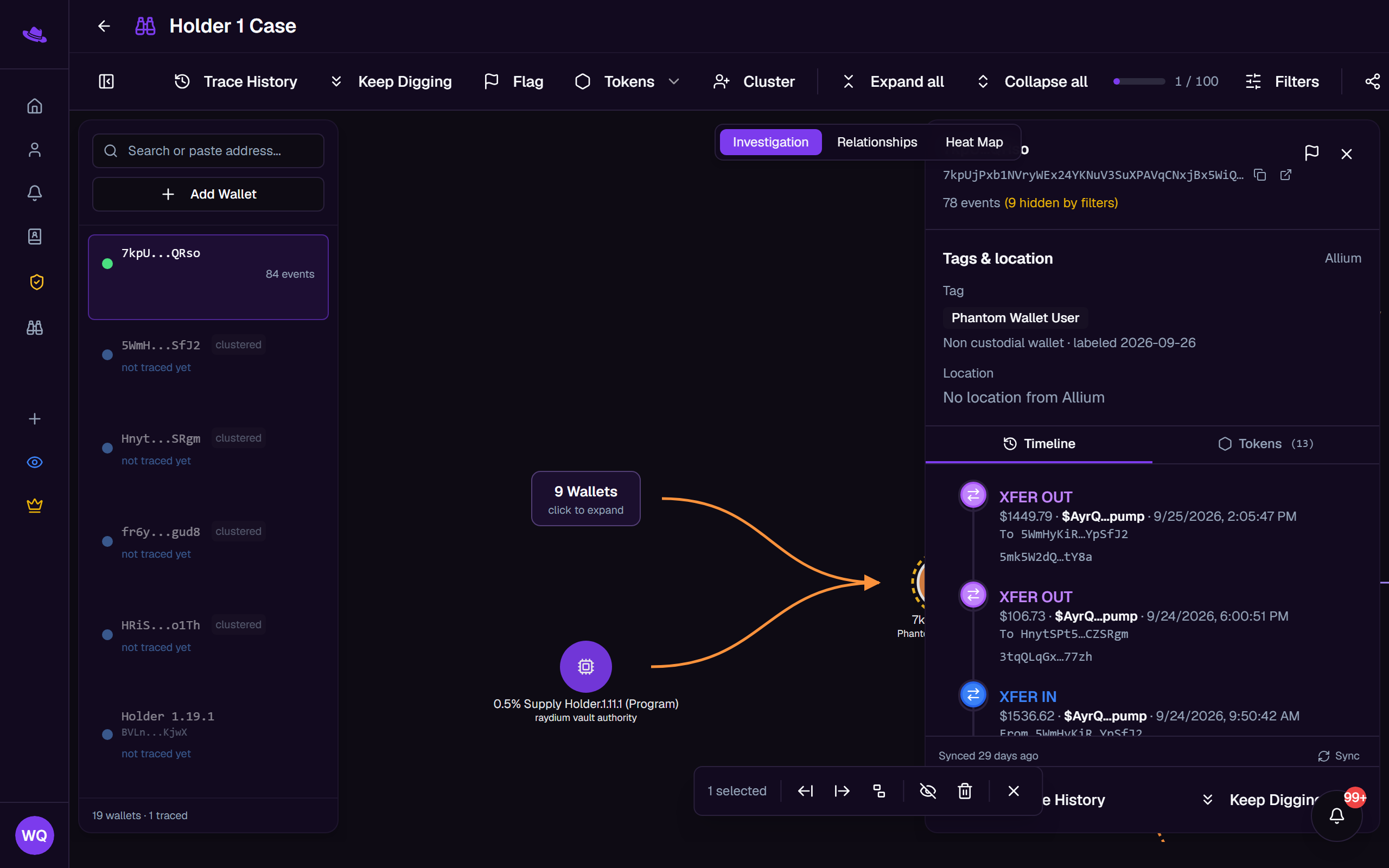
A wallet's inspector has a Tags & location section from Allium's identity data, and the canvas shows the same facts as small chips on each wallet: its tag, then its location (a muted no location chip on an untagged wallet Allium has no location for; services and deposit addresses never have one).
- Tag and Location rows: what kind of address the wallet is, and the country its activity most resembles, with the conviction tier and Allium's reasoning.
- Cash-out found: deposit addresses this wallet sent funds to on the canvas, with the amount, the number of deposits, the dates, the service and its registered country where Allium's registry lists one. Show on canvas opens the deposit address in the inspector when it is on the canvas, and Copy details copies the facts.
- Same exchange account (or custody or casino account): other wallets on the canvas that sent funds to the same deposit address, marked Strong link or Possible link. Select all selects this wallet and every wallet the box lists, so you can flag or inspect them together.
A wallet whose lookup could not run shows no chips and reads "Couldn't check" in the inspector, never untagged. See Tags and inferred location for what makes a link strong and what a location does not mean.
Flagging a wallet
Select Flag in the toolbar, with a wallet focused, or the flag icon in its inspector, to open a picker with six presets, each with its own color: Suspicious, Team Wallet, Bot, Whale, Exchange, and Dead Wallet, plus a field to add your own. Flags show as colored pills on the wallet everywhere it appears, and a flagged wallet gets a red left border in the wallet panel.
Filtering the canvas
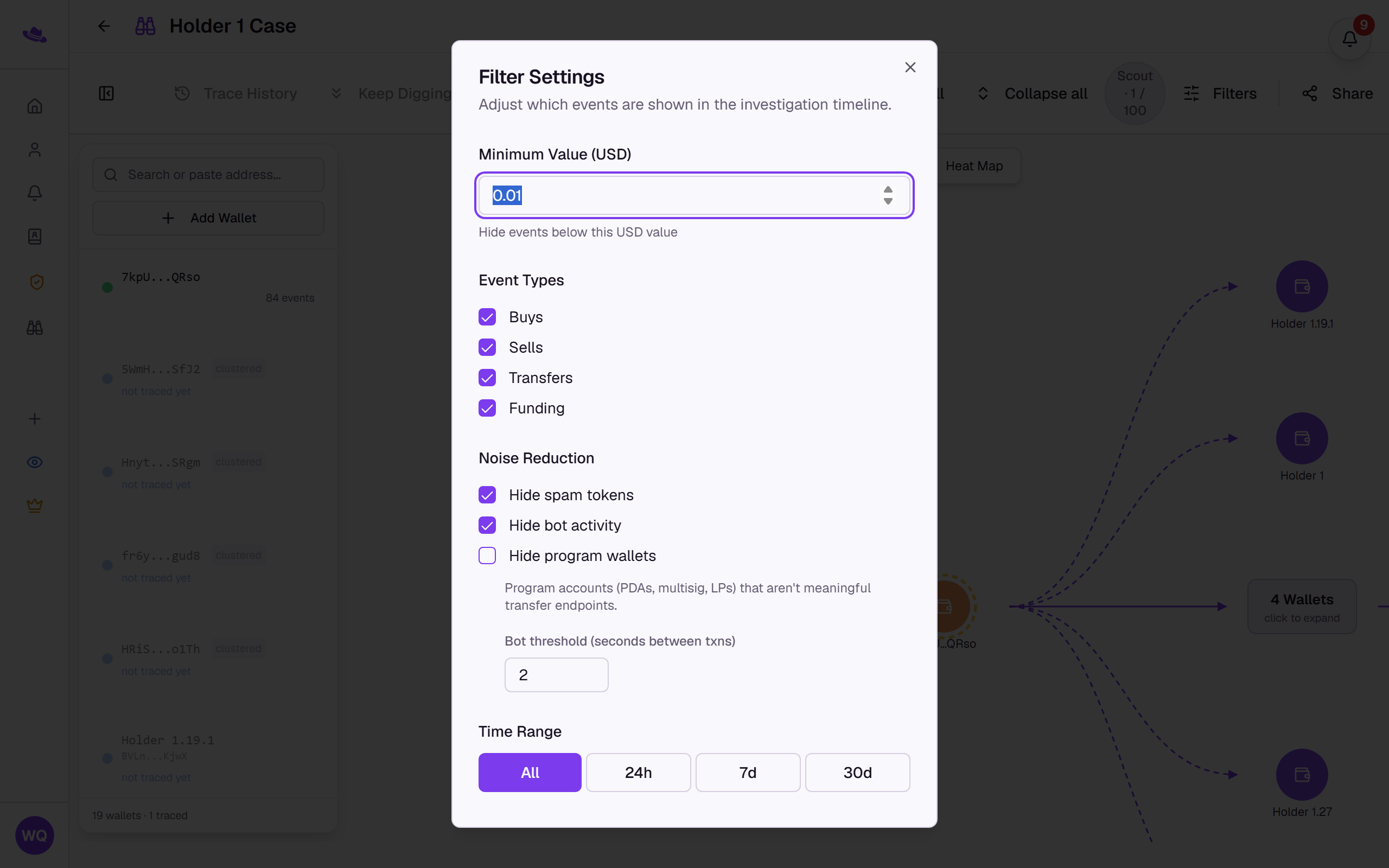
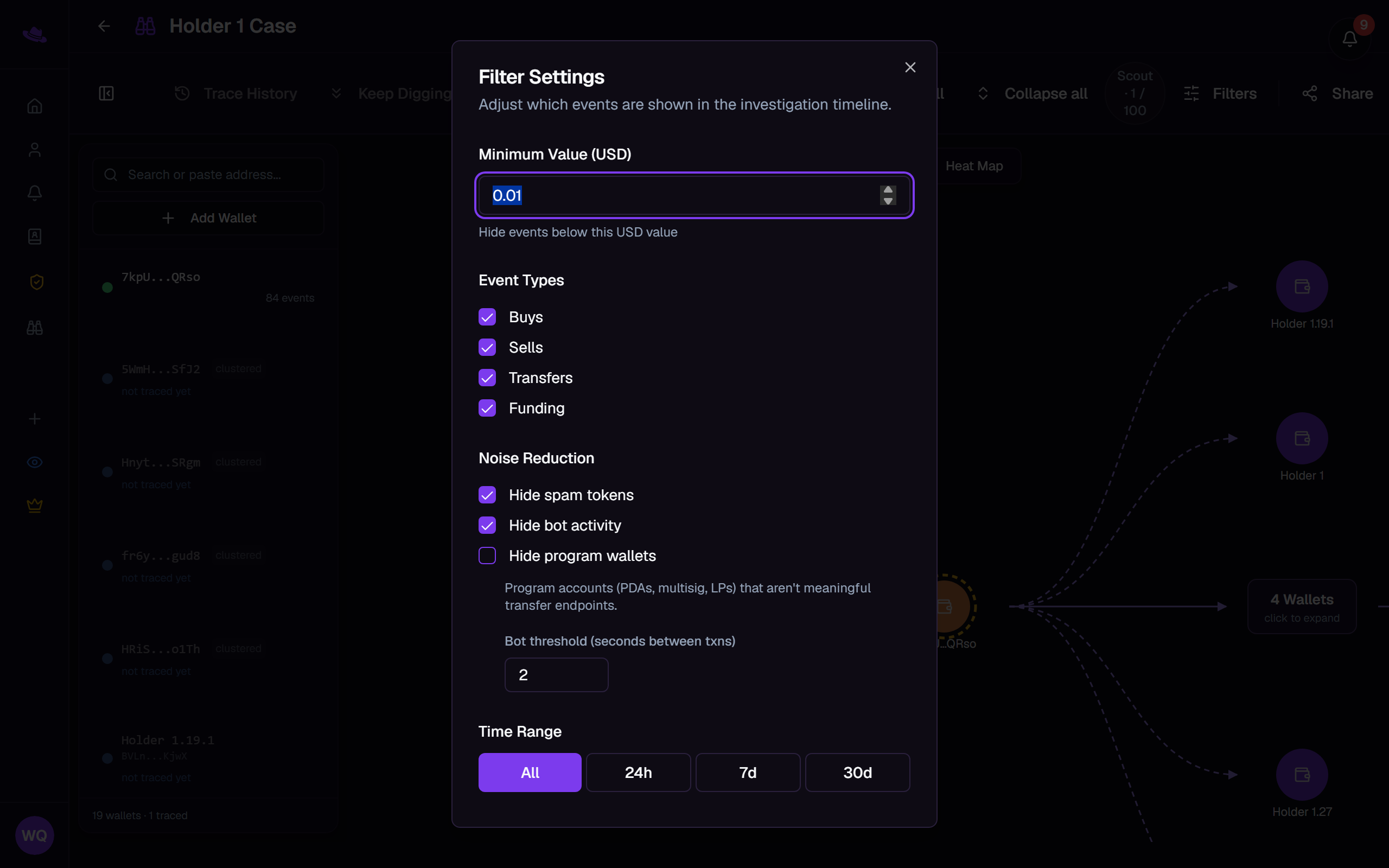
Select Filters in the toolbar to open Filter Settings:
- A minimum USD value, below which events are hidden.
- Event type toggles for Buys, Sells, Transfers, and Funding.
- Noise reduction: hide spam tokens, hide bot activity (with its own seconds-between-transactions threshold once enabled), and hide program wallets, accounts like PDAs, multisigs, and LPs that aren't meaningful transfer endpoints.
- A time range: All, 24h, 7d, or 30d.
Filters apply everywhere: the canvas, the Relationships and Heat Map views, and every wallet's Timeline. The separate Tokens dropdown in the toolbar doesn't hide anything; it outlines wallets that touched the tokens you pick in orange on the canvas, so you can spot them without filtering the rest away.
Common questions
A wallet I expect to see is missing entirely. Check whether Hide program wallets is on in Filters, or whether the wallet's been hidden individually from the wallet panel; see Working the canvas.
My Timeline looks emptier than the wallet's event count. The count in the inspector header is every event Scout has for the wallet; the Timeline below only shows what survives your current filters, and a note above the list says how many are hidden.
Two wallets share an exchange account. Do they have the same owner? Not necessarily. A strong link is a lead worth confirming, and a possible link can be one person paying into another's account.